All-in-one touchscreen displays with Android.

Android and Pixio App

Android built in.
Remote content management as an addition.

A PixioDisplay is all-in-one: the Android computer is built into the screen. This means you can use the display independently. If you want to change the screen content from your computer, you add the Pixio App.

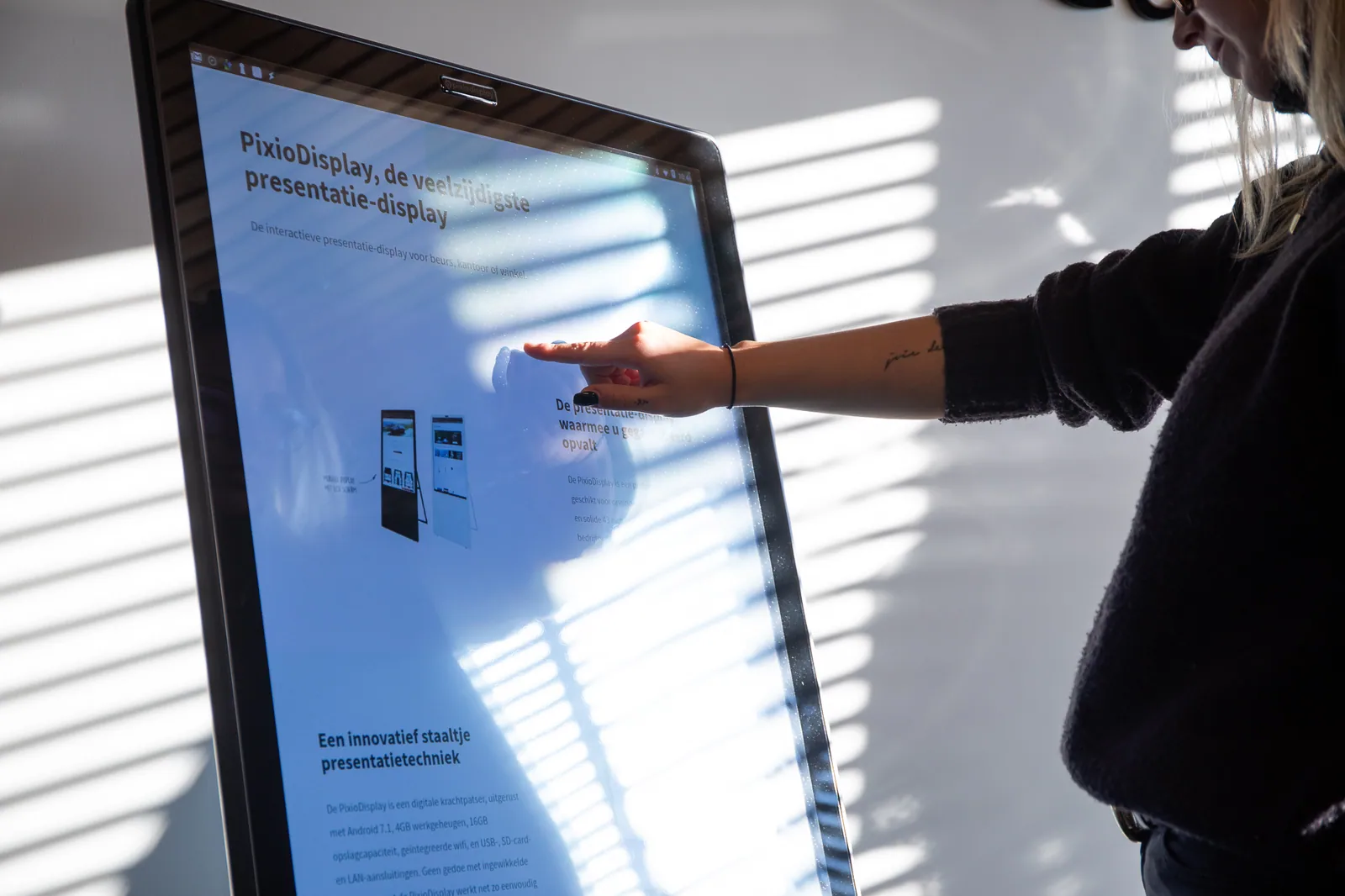
A visitor operates an interactive PixioDisplay

Built-in

Standalone operation with Android

The computer and Android are built into the display. You do not need a laptop or separate media player. Open a website in the browser, play local videos and images, or use a suitable Android app.

  • Open your website or web form
  • Play local videos and images
  • Operating suitable Android apps on the touchscreen
  • No Pixio App needed for this standalone use
More about Android

Additional service

Manage content remotely with the Pixio App

With the Pixio App, you can update the content of one or more displays from your computer. The displays need internet access for this. This is an additional management service; Android also works without the Pixio App.

  • Change content from your computer
  • Choosing photos, videos, a website or Canva content
  • Managing one or multiple displays
  • Internet required on the displays; app service quoted separately
View the Pixio App

Pixio App: remote management

Choose content.
Update your displays.

The Pixio App is an additional management service for displays with internet. Here's how it works in three steps.

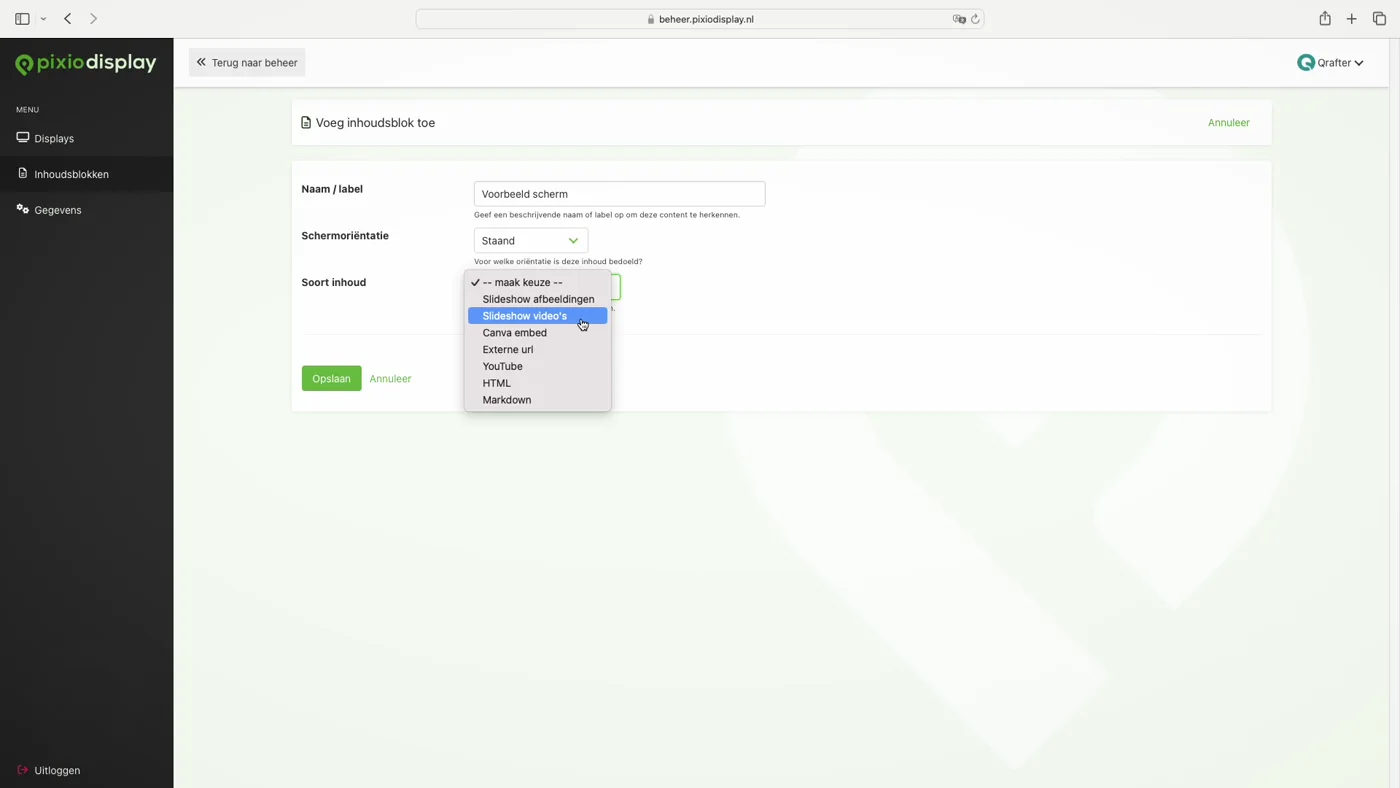
  1. The Pixio App with options for images, video, Canva and a website

    01 · Choose your content

    Photos, video or your existing website.

    Choose the content you want to show: a slideshow, video, Canva design or an existing website. That way you can build on the content you already have.

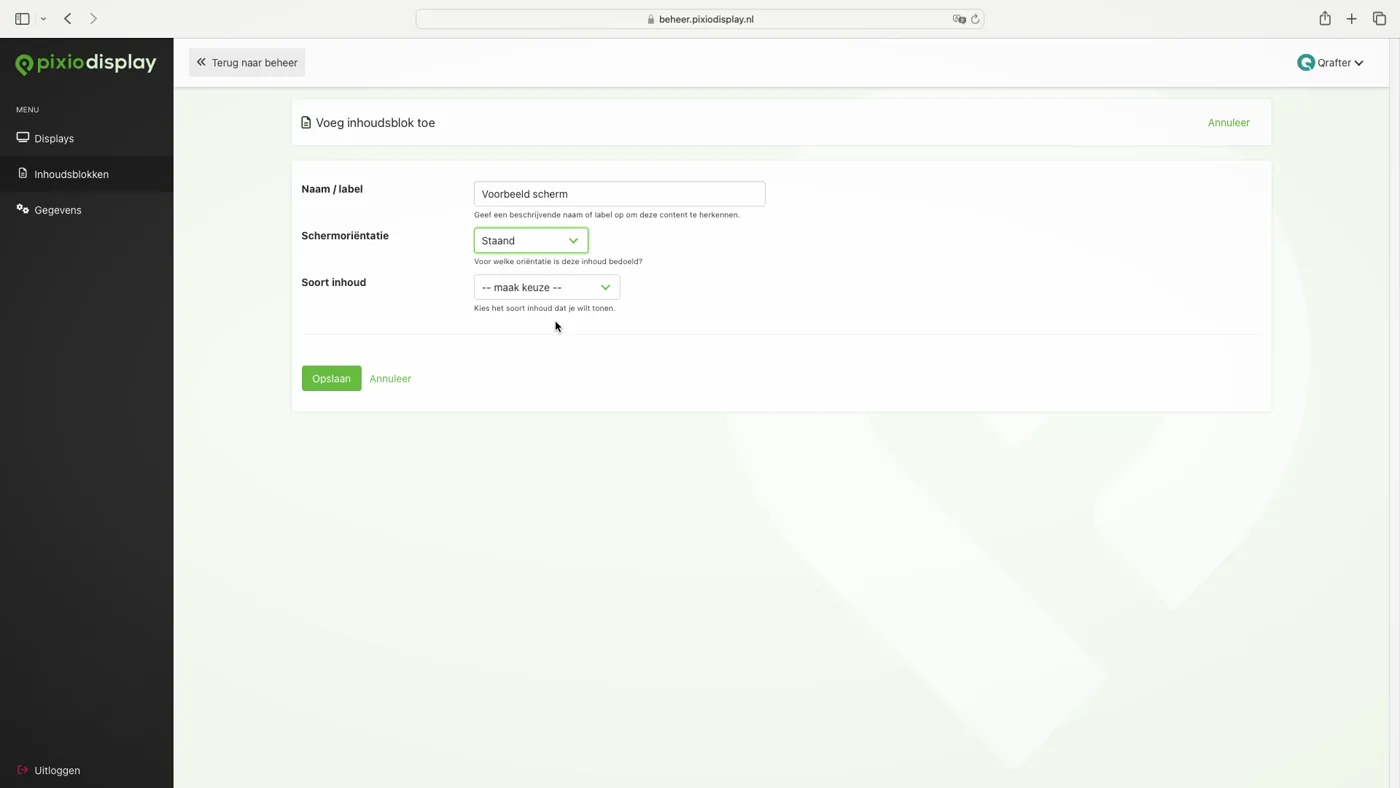
  2. Give a content block a name and screen orientation in the Pixio App

    02 · Set up the display

    Give your content a recognisable place.

    Give your content block a recognisable name and choose the display for your screen. We help tailor the setup to your display and visitors.

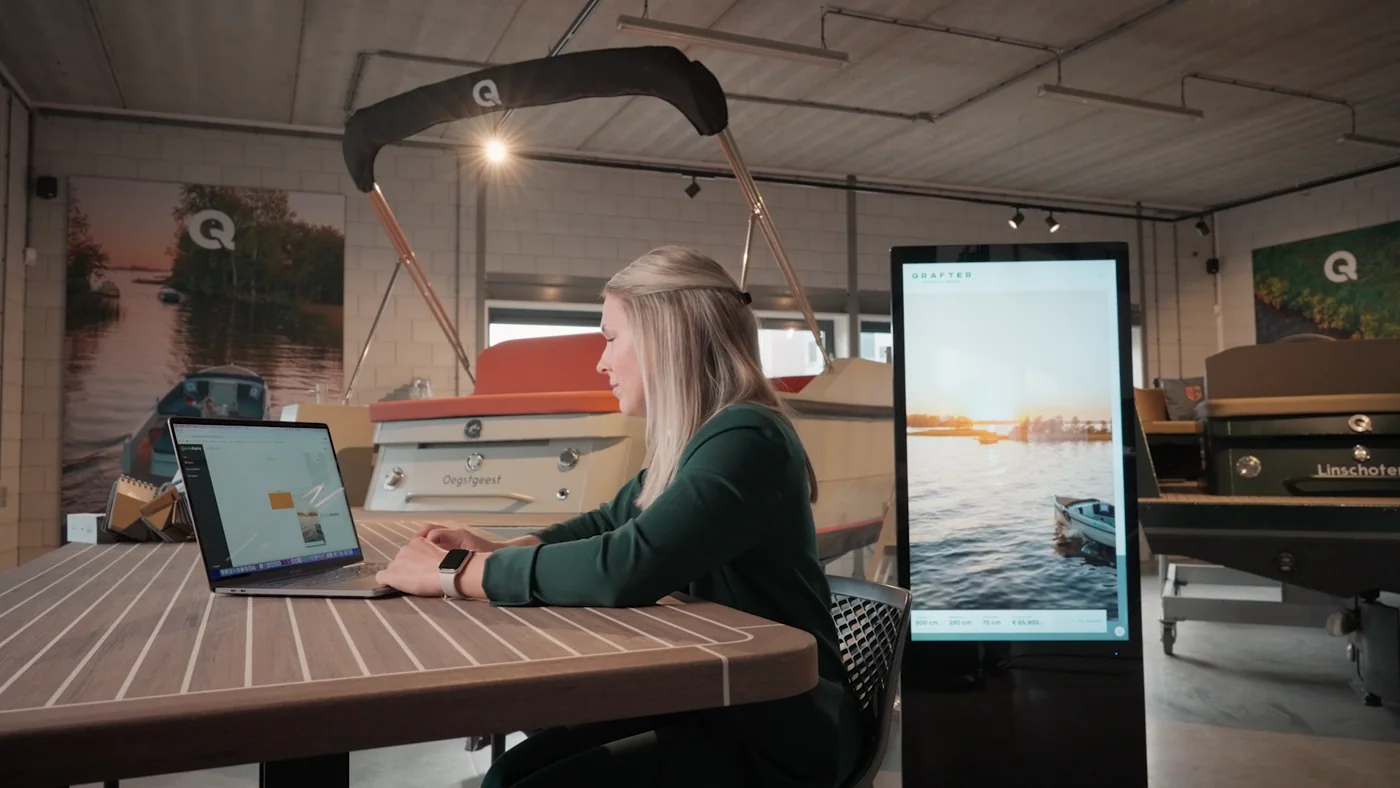
  3. An administrator works on a laptop while the linked PixioDisplay shows the presentation

    03 · Update your display

    Sending content to your display.

    Send the chosen content to the connected display. Update it later from your computer without operating the screen on site.

Images from the Pixio App demo (2024). Android already works independently on the display. The Pixio App subscription for remote management, setup and any support are listed separately in your quotation.

From display to control

Six ways to make your
to use the display.

What is already available?

Start with your existing content.

A website, presentation, video or form can often be the starting point. We look at whether the content is readable, the operation is clear and the chosen setup has the correct connections and connectivity.

  • What content do you want to display?
  • Should visitors only view or also operate it?
  • Who updates the information?
  • Is internet available at the location?

What does Pixio align?

Software suited to the screen and the location.

Your proposal makes clear which software, setup and support are included. That way you know in advance what you provide yourself and what Pixio takes care of for you.

  • Control and content display
  • Touchscreen control and navigation
  • Content management and users
  • Installation, explanation and support

Setting up software

From files to
screen display.

  1. Choose the content

    Provide your website, videos, images or presentation.

  2. Choose local or remote management

    Use Android on the display itself, or the Pixio App from your computer.

  3. Configure the display

    Test the display, touchscreen operation and internet connection. Pixio can take care of the installation and explanation.

Android or the
Use the Pixio App?

State which files or apps you want to use and whether you want to edit the content remotely.

Request software adviceResponse within one working day