
Knowledge and advice
Trade fair stand displays: installation and commissioning checklist
Step-by-step checklist for the installation and commissioning of displays on a trade fair stand — from power checks to on-site content testing.
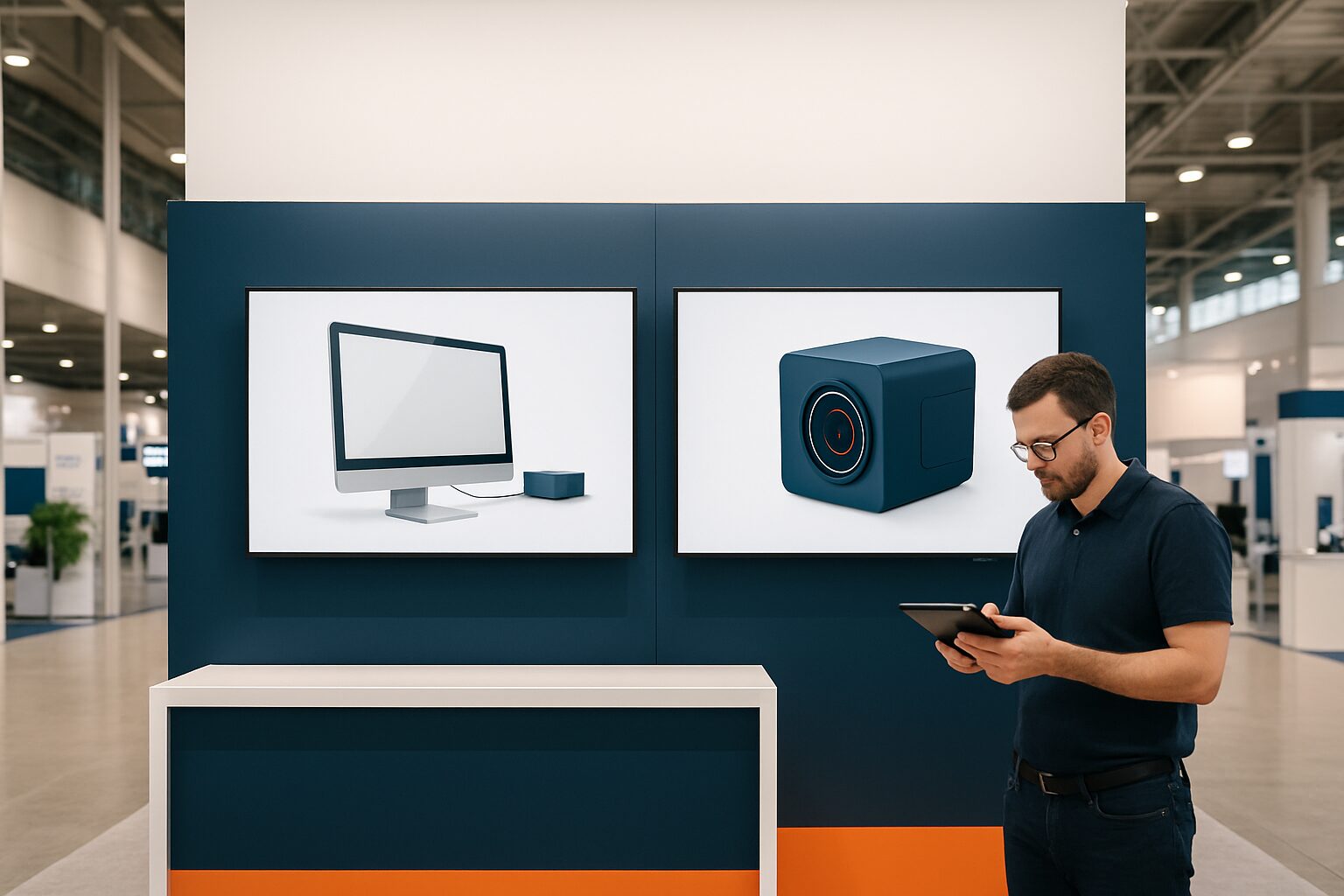
Trade fair stand displays: installation and commissioning checklist
A display at a trade fair stand is only effective if the installation goes flawlessly. The checklist below covers five phases: preparation, reception on site, mechanical assembly, electrical connection and commissioning. If you work through these phases systematically, you prevent the most common problems — a screen that does not start, a cable that is too short or content missing on day one.
Phase 1 — Preparation before departure
Good preparation starts at least 48 hours before setup. First check the technical manual of the trade fair organiser. Jaarbeurs Utrecht uses standardised power connections per stand module; RAI Amsterdam has strict rules for suspended structures above 100 kg — there, a certified rigger is mandatory. Always request this document, as every venue has its own rules.
Then make a packing list for each display:
- Display (model, serial number noted)
- Power cable + any extension leads (minimum 3 m spare)
- Wall bracket or floor stand, including all fixing materials
- USB stick with approved content as an offline backup
- HDMI cable (minimum 1 spare)
- Tools: screwdriver, spirit level, tape measure, cable ties
- Printout of the stand floor plan with screen positions
Check whether the content on the USB stick has been tested on the exact screen model. A file that works in the office may be displayed incorrectly on another screen model.
Phase 2 — Receipt and transport on site
Receive the displays at the loading bay and check immediately for transport damage. Look at the packaging: dents or tears at the corners indicate possible damage to the panel. Take photos before you open the packaging — that is your evidence for a damage claim.
Please note when unpacking:
- Always move displays with two people; a 43" screen weighs on average 10–14 kg
- Never place the screen on the corner of the panel
- Keep the original packaging for return shipment after the trade fair
After unpacking, visually inspect for cracks in the panel, loose connectors and damaged cables. Do not use a damaged power cable — replace it immediately.
Phase 3 — Mechanical mounting
Start by securing the stand or wall mount. Use a spirit level: a screen hanging 2 degrees off level will immediately stand out to visitors. Check whether the floor or stand construction can support the weight — a 49″ display with stand quickly weighs 20–25 kg.
For the PixioDisplay Luxe (49″ touchscreen, 67×185 cm) it applies that the supplied floor stand is sized for the weight of the screen. Do not use third-party universal stands without a weight specification.
Cable management is not a side issue at a trade fair stand. Loose cables across the floor are a trip hazard and can create liability at busy fairs. Use cable ducts or cable ties and run cables along the stand build, never loose over the floor mat.
Practical point: plan the cable route before you mount it. A screen that is already up but whose cable is two metres too short has to be taken down and refitted.
Phase 4 — Electrical connection and safety
Electrical safety at trade fairs falls under the Dutch Working Conditions Act. The standard NEN 3140 sets out the requirements for safe work on and inspection of electrical installations and work equipment. Although NEN 3140 is not legally mandatory, the standard gives practical substance to the duty of care in the Working Conditions Act. If you use extension leads or distribution units that you bring yourself, make sure they have been visually inspected and are not damaged.
Checklist for electrical connection:
- Check the available power at the stand connection (ask the trade fair organiser)
- Calculate the total power consumption of all displays (average 80–150 W per commercial screen)
- Use an earthed extension lead with overload protection
- Connect displays to a separate circuit if there is other equipment on the stand as well
- Test the residual-current device before commissioning
- Do not run cables under carpet or stand panels — fire risk
A commercial display is designed for continuous use. A consumer TV is not — it has a brightness of around 300 nits and a thermal design for a maximum of 6–8 hours per day. Always use commercial hardware at a trade fair.
Phase 5 — Commissioning and content check
After the mechanical and electrical installation comes commissioning. This is the moment when you test all systems at once — always do this before the fair opens, preferably the evening before.
Commissioning plan:
- Switch on — check whether the screen starts up without an error message
- Image check — check resolution, colour profile and brightness (indoor only needs ±400 cd/m²)
- Content check — verify that the correct playlist or URL is loaded
- Touchcheck (for touchscreens) — test all interactive zones
- Network check — check WiFi or 4G connection; preferably use your own 4G/5G router instead of the trade fair organiser's WiFi, which is often overloaded on busy exhibition days
- Viewing angle check — stand in the position of a visitor and assess visibility and reflection
- Sound check (if applicable) — set volume in accordance with the venue rules
- Night mode — set the timer so the screen switches off outside opening hours
Displays with an integrated Android computer — such as all PixioDisplays (Android 13/14) — are ready to use within minutes after start-up. You do not need a separate media player or laptop. You load content via USB, website URL or the PixioApp. That saves considerable setup time at a trade fair stand compared with separate TV + laptop setups.
Quick reference table: common problems and solutions
| Problem | Cause | Solution |
|---|---|---|
| Screen does not start up | No power or damaged cable | Check the connection, swap the cable |
| Image too dark | Brightness set too low | Increase to 80–100% for trade fair environment |
| Content is not loading | Incorrect USB format or Wi-Fi disruption | Use FAT32-formatted USB as backup |
| Touchscreen does not respond | Calibration overdue or dirty screen | Restart the screen, clean with a microfibre cloth |
| Screen reflects strongly | Wrong viewing angle or spot lighting | Adjust standard or move spotlight |
| Screen is getting too hot | Poor ventilation behind the screen | Keep at least 10 cm of free space around |
Wrap-up: handover and documentation
After successful commissioning, hold a short handover with the stand staff. Explain how to restart the screen in the event of a fault and where the USB backup is located. Record serial numbers and the configuration — this speeds up remote support if something still goes wrong.
With multiple displays at one event, such as using more than 50 PixioDisplays at one event for Summit, a numbered list per screen is essential. That way, when an alert comes in, you can immediately see which screen it concerns and in what position it is.
Would you like to know more about the complete technical setup of video on a trade fair stand? Then read the related article Controlling video on a trade fair stand: technical setup step by step. For the full strategic approach to digital signage at trade fairs, including screen selection and content planning, there is Digital signage at trade fairs: the complete guide to a standout stand the starting point.
Unsure which model best suits your trade fair setup? View the trade fair and event displays or request the current price list on.
Frequently asked questions
How early before the fair should I start installing displays?
Plan the build-up at least the day before opening. That gives you time for commissioning, content checks and any troubleshooting without time pressure. Large trade fairs such as RAI Amsterdam and Jaarbeurs Utrecht normally provide a build-up day — make full use of it.
Do I need a separate media player next to the display?
Not on all commercial displays. PixioDisplays have an integrated Android computer (Android 13/14), so you do not need a separate media player or laptop. You load content via USB, website URL or the PixioApp. That saves set-up time and one extra risk of malfunction.
Which electrical standards apply to displays on an exhibition stand?
In the Netherlands, the Working Conditions Act provides the legal framework for working safely with electrical installations. NEN 3140 gives practical guidance for existing installations and work equipment. Always use earthed extension leads with overload protection and check the available power with the trade fair organiser.
What do I do if a display does not start on the trade fair day?
First check the power connection and the cable. Restart the screen using the on/off button. If the content does not load, connect the USB backup with the approved playlist. If you have hired a display, contact the supplier immediately for remote support.
Do I need to pack the displays specially after the trade fair?
Keep the original packaging for return shipment or transport to the next trade fair. Pack the screen with the original foam corner protectors. When renting, take photos of the condition of the screen immediately after dismantling — this prevents disputes about possible transport damage.