
Knowledge and advice
Update trade fair stand content live: remote management step-by-step plan
Update content on your exhibition stand live without USB or a technician on site? This step-by-step guide explains how remote management works on Android displays.
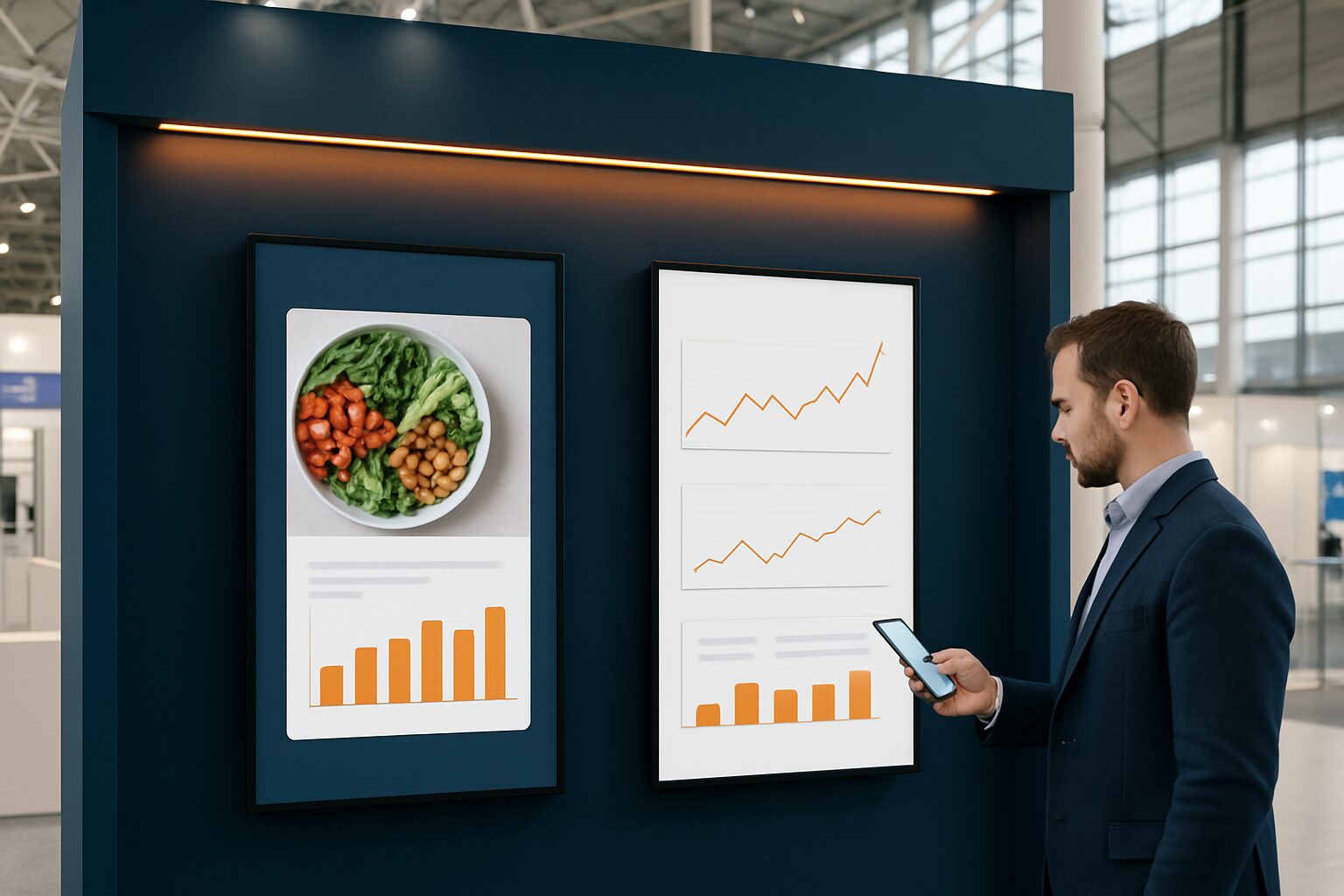
Update trade fair stand content live: remote management step-by-step plan
Remote management for digital signage means adjusting your content on your displays via a cloud dashboard, without being physically present at the screen. You upload files, set up a playlist and publish — the display picks up the update via wifi or mobile data. On a trade fair stand, this is the difference between staring at outdated slides and responding immediately to what is happening on the show floor.
Why live updating at a trade fair is so different from at home
A trade fair day rarely goes as planned. A speaker drops out, a product launch is brought forward, or a competitor has just announced something you want to respond to. With a static USB loop, you are stuck. With remote management, you can send a new slide or video to the screen within two minutes.
The second difference is practical: you are not standing behind your own display all day. Sales staff are in conversation, the stand holder is walking around. Nobody has time to open a laptop and drag a file. A cloud CMS lets you do that from your phone, from the aisle.
The third reason is scalability. If you have multiple screens on one stand — or displays at two trade fairs at the same time — you manage them all from one dashboard. That saves people and prevents inconsistent messages.
Step 1 — Check whether your hardware supports remote management
Not every screen can be controlled remotely. A consumer TV with a USB stick has no network connection to a CMS. Commercial displays with an integrated Android computer do.
The PixioDisplays run on Android 13 or 14 as standard, with an integrated computer. You do not need a separate media player — elsewhere, such a player costs the current price on request per screen extra. You can manage content via USB, a website URL or the PixioApp. The PixioDisplay Luxe (49″ touchscreen) is available from current price on request (price list Q2 2026) and is ready for remote management within minutes.
Check before the fair:
- Does the display have an active Wi-Fi or Ethernet connection?
- Is the CMS app installed and linked to your account?
- Is the screen reachable via the dashboard (green status light)?
If the answer to all three is 'yes', you are ready for step 2.
Step 2 — Set up your CMS account before the trade fair day
A cloud-based CMS lets you create, schedule and publish content to every connected screen, wherever you are. Do not do this on the trade fair day itself — do it the week before.
Practical setup:
- Create a separate folder for trade fair content. Give screens recognisable names: not 'Screen 1' but 'Main stand left' or 'Product demo right'.
- Build multiple playlists for different moments: opening block, pitch slot, quiet afternoon hours, final day. That way you switch between contexts with one click.
- Upload your fallback content as an offline playlist. If the Wi-Fi drops out, the screen keeps showing images instead of going black.
- Set user permissions if you work with a team. Give a colleague access to change content without being able to adjust system settings.
A well-organised CMS structure saves you searching and improvising on the trade fair day.
Step 3 — Prepare update-ready content
Remote management only works quickly if your content is already ready. Before the trade fair, create an 'update library': a set of files you can publish straight away if the situation calls for it.
Think about:
- A slide with the current visitor offer (only change the text, not the whole design)
- A video of 15-30 seconds for product demos that you can swap per time slot
- A 'live now' screen for when a presentation or demo is in progress
- A 'thank you for visiting' slide for the end of the day
Formats supported by most CMS platforms: JPG, PNG, MP4, PDF and web page URLs. Keep video files under 500 MB for fast uploads via trade fair WiFi. Want to know how to calculate the bandwidth at your stand? Then read the article Trade fair stand WiFi network: calculating bandwidth for multiple displays.
Step 4 — Update live during the trade fair
Here is the step-by-step plan for an update on the trade fair day itself:
- Open the CMS app on your phone or laptop.
- Go to the playlist of the relevant screen.
- Add the new file or replace an existing item.
- Publish — the update goes live within a few seconds to a maximum of one minute, depending on file size and connection speed.
- Check via the status monitor whether the screen is playing the new content.
Always test an update on one screen first before pushing it to all displays. That way you avoid a faulty file appearing on three screens at once while you are talking to a prospect.
Sommit deployed more than 50 PixioDisplays at one event. At that scale, remote management is not a luxury but a necessity: walking physically to each screen to change content costs hours you do not have.
Step 5 — Monitor and restore remotely
Remote management does not stop at publishing. A good CMS shows you the status of each screen: online, which content is playing, and whether there are any errors. That way you spot a problem before a visitor does.
What you can solve remotely:
- Screen does not respond: restart the CMS app or the device via the dashboard.
- Content does not load: check the file size and format; replace it with a lighter version.
- Wi-Fi down: the fallback playlist (see step 2) plays automatically. Restore the connection via the display's network setting.
For a deeper dive into troubleshooting streaming issues, see the article Video streaming to trade fair displays: software solutions and troubleshooting.
Hiring or buying: what suits your situation?
If you do one or two trade fairs a year, hiring is often smarter than buying. The arithmetic break-even point is around 8 to 10 usage days per year. The PixioDisplay Mobile (43″ touchscreen) you rent from current price on request per day for three consecutive days (price list Q2 2026). With rental, remote management via the PixioApp is available immediately — no extra software subscription required.
If you organise several trade fairs a year or want to use the displays in the office as well, buying pays for itself. You can buy the PixioDisplay Mobile for current price on request (price list Q2 2026).
View all trade fair and event displays for an overview of available models and daily rates.
Conclusion
Remote management at a trade fair stand is not a technical exercise — it is a way of working. Set up your CMS, build an update library, and make sure your fallback content is ready. Then during the fair you can adjust your message in two minutes, without sending someone to the screen.
For the full strategy around digital signage at trade fairs — from content planning to KPI measurement — read the pillar Digital signage at trade fairs: the complete guide to a standout stand.
Frequently asked questions
Do I need a separate media player for remote management?
No, if your display has a built-in Android computer. PixioDisplays run on Android 13 or 14 and do not need a separate media player. You connect the screen directly to the PixioApp or a cloud CMS and manage content remotely via your phone or laptop.
How quickly does a content update go live after publishing?
With a stable Wi-Fi connection, an update typically appears on the screen within a few seconds to a maximum of one minute. The speed depends on the file size and the available bandwidth at the trade fair location. Keep video files under 500 MB for fast uploads.
What happens if the Wi-Fi fails at the trade fair?
A well-configured CMS stores a fallback playlist locally on the display. The screen plays this automatically if the internet connection drops out, so your stand never shows a black screen. Set up this offline playlist during preparation, not on the trade fair day itself.
Can I update multiple screens at once from one dashboard?
Yes. You group screens in the CMS and publish an update to the entire group with one click. That works whether you have two screens on one stand or dozens of displays across multiple locations at once.
Is hiring or buying smarter if I do two trade fairs a year?
The break-even point is around 8 to 10 use days per year. With two trade fairs of two to three days each, you are just below that — renting is then financially more favourable. You can rent the PixioDisplay Mobiel from €105 per day (three consecutive days, price list Q2 2026), including remote management via the PixioApp.