
Knowledge and advice
Trade fair stand WiFi and connectivity: how do you connect displays?
Connecting displays to a trade fair stand? Read how to combine WiFi, ethernet and 4G/5G failover for a fault-free digital signage setup in NL and BE.
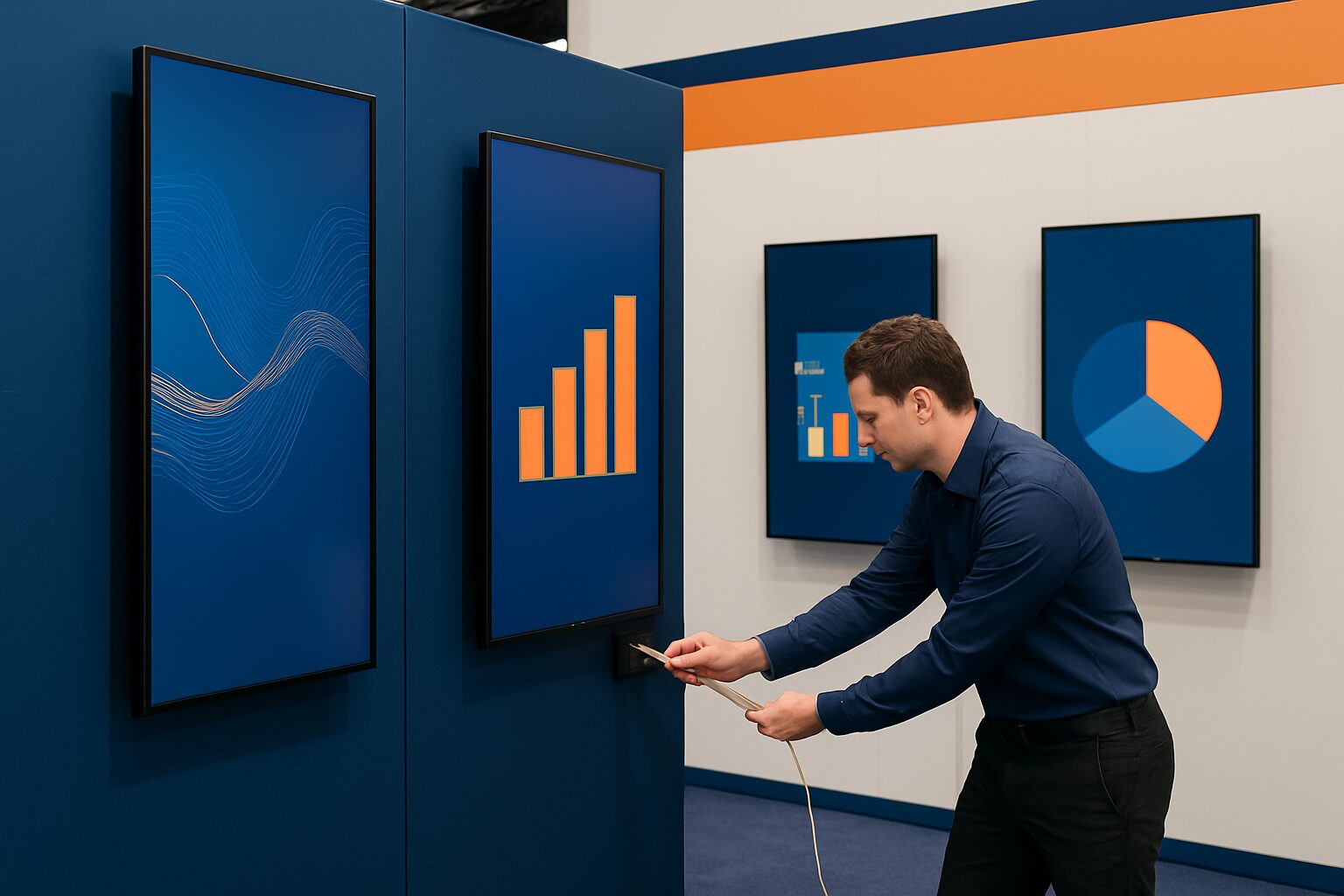
Trade fair stand WiFi and connectivity: how do you connect displays?
Connecting displays on a trade fair stand requires a different approach than at a fixed location. Trade fair Wi-Fi is shared with hundreds of other exhibitors and visitors, causing the connection to become overloaded at peak times. The most reliable setup combines a wired primary connection with your own 4G/5G router as fallback — or works entirely offline via USB content. Which approach you choose depends on your content type, the number of screens and the requirements of the trade fair location.
Why trade fair hall Wi-Fi is insufficient for digital signage
Large trade fair venues invest heavily in network infrastructure. The WiFi network at Jaarbeurs Utrecht offers capacity for more than 30.000 simultaneous users, and the Beurs van Berlage uses 105 WiFi 6 access points and fibre networks. However, that shared network is not intended for your trade fair stand alone.
The problem: dozens of exhibitors compete for bandwidth at the same time. During busy moments — opening hours, keynotes, lunch breaks — the available speed per user drops sharply. For a display playing video or a touchscreen kiosk processing lead data, that is unacceptable.
In addition, at many trade fair venues, as an exhibitor you may not place your own access point on the trade fair network without permission. Always check this in the exhibitor manual of the trade fair organiser.
The three connection options at a glance
1. Wired Ethernet via the exhibition venue
The most stable option is a fixed Ethernet connection that you request from the trade fair organiser. You pay an extra charge for this — rates vary by venue and hall. Advantages: dedicated bandwidth, no interference from other WiFi networks, low latency.
Disadvantage: the cable runs via the floor or stand structure, which requires planning. Request the connection when setting up your stand, not on the day of the trade fair itself.
2. Own 4G/5G router as primary or backup connection
A private 4G/5G router gives you complete independence from the trade fair infrastructure. You place a SIM card from a Dutch provider in a business router, and you immediately have a secure, private network for your stand.
This approach works both as the primary connection and as failover. Failover means your router automatically switches to the mobile network as soon as the fixed line fails — without manual intervention. For digital signage, that is relevant: a display freezing halfway through the trade fair draws attention for the wrong reason.
An extra measure: use two SIM cards from different providers. This is how you achieve greater stability and availability, because an outage at provider A does not automatically affect provider B.
Practical: make sure the router runs on mains power, not battery. CPE routers are more suitable for this than compact MiFi devices, because they have better antennas and perform more stably in environments with many WiFi networks.
3. Fully offline via USB or local content
Not every display needs a live internet connection. For a looping video presentation or a product catalogue, content on a USB stick or preloaded on the screen's internal storage is sufficient. This is the least risky approach: no network, no disruption.
All PixioDisplays run on an integrated Android computer (Android 13/14). You load content via USB or a website URL — a separate media player or laptop is not needed. At a trade fair, that is the biggest practical difference from a separate TV-plus-laptop setup: fewer cables, fewer points of failure, quicker to operate.
The PixioDisplay Mobile (43″ touchscreen) is a concrete example of a display that you can have ready to use within minutes: buy from current price on request or hire from current price on request per day (price list Q2 2026). Load the content in advance via USB, and you are independent of any network.
Which approach do you choose when?
| Situation | Recommended approach |
|---|---|
| Static video or slideshow | USB/offline — no network needed |
| Live data feed or real-time content | Own 4G/5G router as primary connection |
| Touchscreen with lead registration | Ethernet + 4G failover |
| Multiple screens, one location | Ethernet primary, own router as backup |
| Outdoor or temporary location without fixed power supply | Own 4G/5G router or battery-powered display |
Start with USB/offline if your content does not need to be real-time. That saves installation time and eliminates the biggest risk at a trade fair: network failure.
Network security on a trade fair stand
Open exhibition hall Wi-Fi is a security risk. Personal data is vulnerable on open Wi-Fi hotspotsand that also applies to business data processed by your displays — think of lead forms on a touchscreen kiosk.
Always use a secure, password-protected network for your stand. Separate the network for displays from the network you may offer to visitors. This prevents visitor traffic from consuming the bandwidth for your screens.
For touchscreen kiosks that process personal data, the GDPR applies. Make sure data is sent encrypted (HTTPS) and that you know where lead data are stored. Read more in the article about trade fair stand digital signage: regulations and safety in NL/BE.
Practical example: more than 50 displays at one event
At the Summit event, Pixio Display deployed more than 50 PixioDisplays at one location. A setup of that size requires a well thought-out network architecture: not all screens can be on one router, and content updates must be synchronised without one screen lagging behind.
The approach: displays with static content run offline via USB, displays with dynamic content (live feeds, interaction) get their own network segment via a dedicated router. That keeps the total network load manageable, regardless of what the trade fair venue offers.
For a comparable setup at your next trade fair: see the application page for trade fair and event displays or request the current price list at.
Checklist: arranging connectivity before the trade fair
- Request the exhibitor manual and check the site WiFi policy
- Order a fixed ethernet connection from the trade fair organiser (at least 2 weeks in advance)
- Arrange your own 4G/5G router with SIM card from a Dutch provider as backup
- Consider two SIM cards from different providers for maximum redundancy
- Load static content in advance via USB — test this at home, not on site
- Separate the stand network from any visitor WiFi provided
- Test the full setup on the stand one day before the trade fair
For a broader look at how to use digital signage at a trade fair — from content planning to positioning — read the complete guide to digital signage at trade fairs.
Frequently asked questions
Can I use the trade fair hall’s WiFi for my displays?
Technically it is possible, but it is not recommended as the primary connection. Venue Wi-Fi is shared with all other exhibitors and visitors, which means speeds drop sharply at peak times. Use the trade fair network only as an emergency solution, and always make sure you have your own 4G/5G router as a backup.
Do I need internet if I only want to play a video on my display?
No. For a looping video or slideshow, a USB stick or content preloaded on the screen is sufficient. PixioDisplays have an integrated Android computer, so you do not need a separate media player or laptop. This is the most trouble-free approach at a trade fair.
What is a failover connection and why is it useful at a trade fair?
Failover means your router automatically switches to a mobile 4G/5G connection as soon as the primary connection (ethernet or fair WiFi) fails. This happens without manual intervention. At a trade fair, where you have no control over the network infrastructure, this prevents your displays from failing in the middle of the day.
May I place my own Wi-Fi router on a trade fair stand?
That depends on the exhibition venue. Some organisers prohibit own access points on their network, or set requirements for the WiFi channel to prevent interference. Always check this in the exhibitor manual. A separate 4G/5G router that works entirely independently of the exhibition network is almost always permitted.
How much bandwidth does a digital signage display need?
Playing locally stored content requires no bandwidth. For streaming HD video via a content management system, allow for 5–10 Mbps per screen. For a touchscreen kiosk sending lead data, 1–2 Mbps per kiosk is usually sufficient. Plan your bandwidth for maximum simultaneous use, not the average.