
Knowledge and advice
HDMI, DisplayPort or USB-C: which connection for digital signage?
HDMI, DisplayPort or USB-C for digital signage? Compare bandwidth, 4K support and practical usability to make the right choice for your screen.
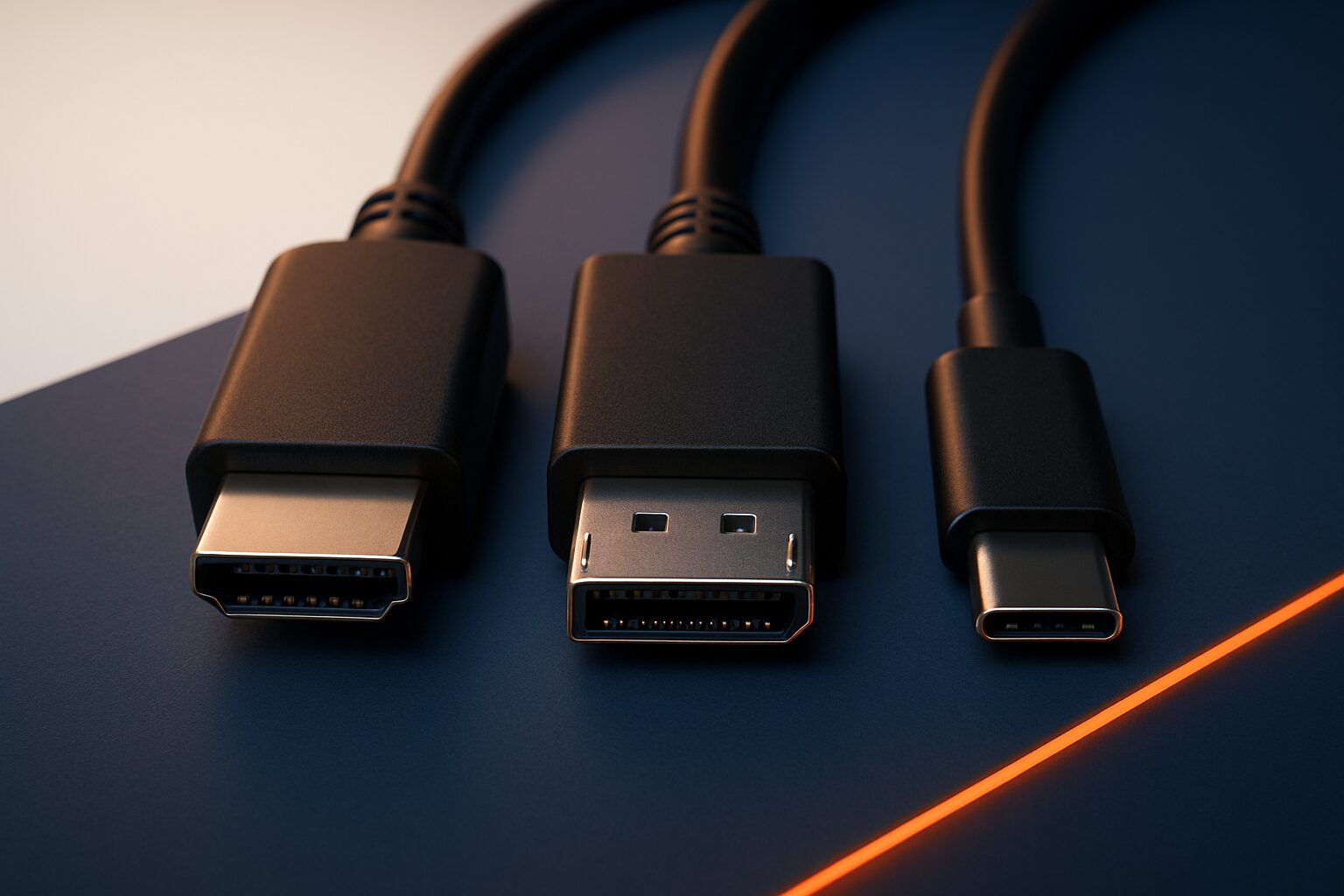
HDMI, DisplayPort or USB-C: which connection for digital signage?
HDMI, DisplayPort and USB-C are the three dominant video connections for digital signage. HDMI 2.0 delivers 4K at 60 Hz and is found on almost every commercial screen; DisplayPort 1.4 reaches 32,4 Gbps bandwidth and supports multiple screens over one cable (MST); USB-C is not a video standard in its own right but carries DisplayPort or HDMI signals via Alt Mode. For most fixed signage installations, HDMI 2.0 is sufficient. Choose DisplayPort as soon as you build video walls or loop through multiple screens.
What determines the choice: bandwidth and version
The version of the connection determines how much image data per second the cable can handle. That directly affects resolution, colour depth and frame rate — three parameters that are visible in a signage context on large screens at short viewing distances.
| Connection | Version | Bandwidth | 4K @ 60 Hz | 4K @ 120 Hz | Multi-screen (MST) |
|---|---|---|---|---|---|
| HDMI | 2.0 | 18 Gbps | ✓ | ✗ | ✗ |
| HDMI | 2.1 | 48 Gbps | ✓ | ✓ | ✗ |
| DisplayPort | 1.4 | 32,4 Gbps | ✓ | ✓ (with DSC) | ✓ |
| DisplayPort | 2.1 | 80 Gbps | ✓ | ✓ | ✓ |
| USB-C (DP Alt) | 1.4 | 32,4 Gbps | ✓ | ✓ (with DSC) | Limited |
Sources: itdaily.nl, ktcplay.com
For standard 4K signage at 60 Hz, HDMI 2.0 with 18 Gbps is already sufficient. Higher refresh rates are rarely needed in narrowcasting — content typically runs at 30 or 60 fps.
HDMI: the most compatible choice for signage
HDMI is on almost every commercial display, media player and laptop. That makes it the most practical connection for installations where you connect an external source to a screen — think of a laptop on a trade fair display or a media player in a shop window.
HDMI 2.0 supports 4K at 60 Hz and simultaneously transmits audio over the same cable. That is handy when the screen has built-in speakers. HDMI 2.1 adds 48 Gbps bandwidth and enables 4K at 120 Hz, but that higher frame rate is irrelevant for signage content.
One limitation: HDMI does not support Multi-Stream Transport (MST). So you cannot daisy-chain multiple screens via one HDMI output. For a video wall or a row of three screens on one media player, HDMI is therefore unsuitable.
DisplayPort: the preferred choice for video walls and daisy-chain installations
DisplayPort was developed by VESA specifically for PC and professional monitor connections. The MST function (Multi-Stream Transport) makes it possible to daisy-chain multiple screens via a single DisplayPort output — without extra hardware or extra outputs on the media player.
DisplayPort 1.4 achieves 32,4 Gbps and supports 4K at 60 Hz uncompressed, and higher frame rates with Display Stream Compression (DSC). DisplayPort 2.1 doubles the bandwidth to 80 Gbps — enough for several 4K panels at once without compression.
Disadvantage: DisplayPort is less common on consumer screens and AV equipment than HDMI. Always check whether both the media player and the display support the same version. A DisplayPort 1.2 input on the screen limits you, even if the media player sends 1.4.
USB-C: handy for temporary connections, not for permanent installations
USB-C is a connector, not a video standard. It carries video via DisplayPort Alt Mode or HDMI Alt Mode. Video performance is identical to a direct DisplayPort or HDMI connection, provided the port supports Alt Mode.
The practical advantage: one USB-C cable carries video, data and power at the same time (via USB Power Delivery, up to 100 W). That makes USB-C attractive for presentation laptops and temporary signage setups at trade shows or events.
For fixed signage installations, USB-C is less suitable. Lane sharing between video, data and power can limit effective bandwidth. In addition, not all USB-C ports are equal: some support data only, others also Alt Mode. Always check the specifications of both the source and the screen.
When do you choose what: a practical decision diagram
Choose HDMI 2.0 if:
- You connect one screen to a media player or laptop
- The display has no DisplayPort input
- You want to send your audio through the same cable
- The installation is permanent and maximum compatibility matters
Choose DisplayPort 1.4 or higher if:
- Daisy-chain your two or more screens via MST
- You build a video wall with multiple panels
- You use a media player with multiple DisplayPort outputs
- Future-proofing for higher resolutions plays a role
Choose USB-C if:
- You temporarily connect a laptop to a display (trade fair, event)
- One cable for video and power is preferred
- You are sure that both the laptop and the screen support DisplayPort Alt Mode
Most PixioDisplays have an integrated Android 13/14 computer. This removes the cable choice for the primary content source: content runs internally via the PixioApp, a website URL or a USB stick. Use an external connection (HDMI, DisplayPort or USB-C) only if you want to show a second source — such as a laptop or camera feed — on the screen. The PixioDisplay Luxe (49″, current price on request — price list Q2 2026) for example, has an HDMI input for exactly that scenario: a presentation or live feed alongside the regular signage content.
Adapter cables and converters: what works and what doesn’t
HDMI and DisplayPort are not directly interchangeable. A passive DisplayPort-to-HDMI adapter only works if the graphics card or media player supports DP++ (Dual-Mode DisplayPort). Without DP++, you need an active adapter with a built-in conversion chip.
USB-C to HDMI or DisplayPort works without quality loss, provided the USB-C port supports Alt Mode and the adapter is certified. Cheap uncertified adapters cause image problems in practice at higher resolutions.
One rule of thumb: always use certified cables and check the version numbers of both source and display. An HDMI 1.4 cable on an HDMI 2.0 port limits you to 4K at 30 Hz — visibly less smooth on large signage screens.
For a complete overview of display technical choices — from resolution and brightness to panel type — read the article Display specifications explained: what you need to know to make the right choice. Want to know when a built-in media player (SoC) is sufficient and when you need an external player? This is explained in Media players for digital signage: built-in SoC or external player?.
Frequently asked questions
Which connection do I need for 4K digital signage?
HDMI 2.0 is sufficient for 4K at 60 Hz, the standard frame rate for signage content. If you have multiple screens via one cable, you need DisplayPort 1.4 with MST. USB-C can also deliver 4K, but only if the port supports DisplayPort Alt Mode.
Can I connect a DisplayPort screen to an HDMI media player?
Yes, but you need an active adapter if the media player does not support DP++. A passive adapter only works with DP++-compatible sources. Always check the media player's specifications before buying an adapter.
What is the difference between USB-C and DisplayPort for digital signage?
USB-C is a connector that can transport DisplayPort signals via Alt Mode. The video performance is identical to a direct DisplayPort connection. The advantage of USB-C is that one cable also carries power and data — useful for temporary connections. For fixed installations, a direct HDMI or DisplayPort connection offers more certainty.
Do I need an external connection if the screen has a built-in media player?
No. Screens with a built-in Android computer — such as the PixioDisplays — play content via the internal player. You only use an HDMI or DisplayPort connection if you want to show a second external source, such as a laptop or camera feed, on the screen.
Does cable length matter with HDMI or DisplayPort?
With fully digital signal transmission, cable length in principle has no effect on image quality, provided you use certified cables. With very long cables (more than 10–15 metres), active cables or signal boosters may be needed to ensure reliable 4K transmission.