
Knowledge and advice
Meeting room screens and room booking displays: what do you need?
Which screen suits your meeting room, and how does a room booking display work? Read the complete guide on size, specs and smart integrations for the office.
Meeting room screens and room booking displays: what do you need?
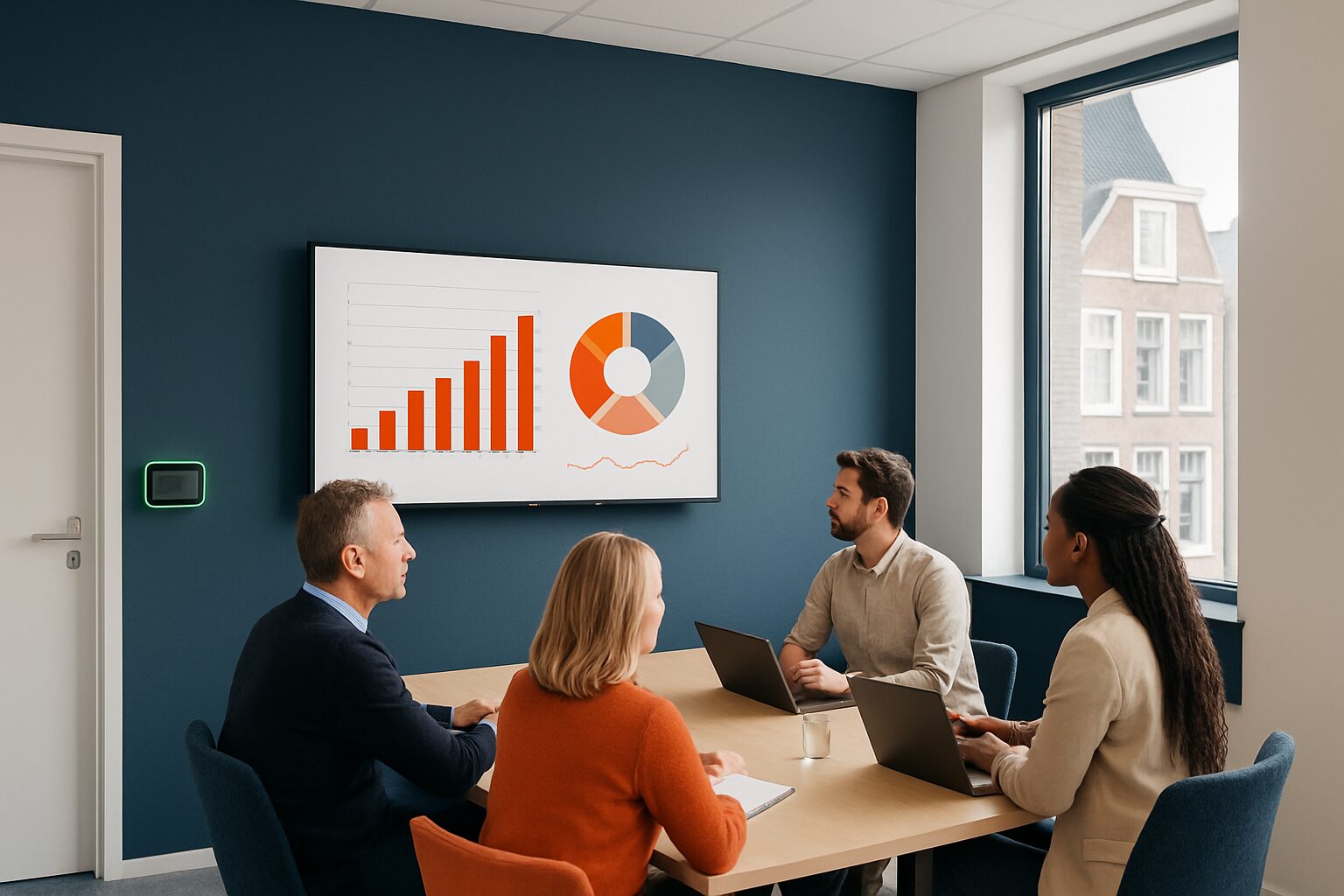
A meeting room screen is a display — fixed to the wall or on a wheeled stand — on which participants follow presentations, videos and video calls. A room booking display is a smaller screen next to the door that shows in real time whether a room is free or occupied, and synchronises with calendar systems such as Microsoft Outlook or Google Calendar. Both displays solve a different problem. Combine them and you have control over both meeting content and room planning.
Why two screens, and not one?
Many offices start with only a presentation screen in the meeting room. That works fine for the content — but outside the room nobody knows whether it is occupied. Colleagues walk in, knock, or book a room that is already in use.
Research by the research agency méét, published via The New Way of Working Blog, shows that meeting rooms are actually occupied for less than a quarter of the time on average, while available capacity is used for less than half on average. That is a structural loss of expensive floor space.
A room booking display by the door solves the visibility problem. The meeting room screen solves the presentation problem. Together they form a complete system.
The meeting room screen: size and specs
The correct screen size depends on the depth of the space. A widely used rule of thumb:
| Room depth | Recommended screen size |
|---|---|
| 1–3 metres | 55 inch |
| 3–5 metres | 65 inch |
| 5–8 metres | 75 inch |
| 8 metres or more | 86 inch or larger |
Source: beamers-en-touchscreens.nl
For resolution: Full HD (1920×1080) is the minimum baseline for sharp text. For screens above 50 inch, 4K (3840×2160) is recommended for future-proofing — especially if you share detailed spreadsheets or graphs. Brightness must be at least 300 cd/m² for good visibility under office lighting.
Choose a commercial display, not a consumer screen. Commercial displays are built for continuous use; a standard TV (±300 nits) is not.
Touchscreen or not? Start with a touchscreen if you want participants to actively make notes, whiteboard or annotate documents. For purely presenting, a non-interactive screen is sufficient.
The room booking display: how does it work?
A room booking display hangs next to the meeting room door. The screen shows the status at a glance: green means free, red means occupied. Staff can also see who has booked the room and when the next appointment starts.
The system links with calendar platforms such as Outlook, Teams or Google Calendar. If you book a meeting in your calendar, it appears automatically on the display. Conversely, you can book a room on site or extend an existing reservation — without opening an app or going to your laptop.
A good room booking system also has a no-show function: if nobody appears within a set time, the display automatically releases the room. That prevents valuable meeting time from being blocked by appointments that do not go ahead.
Which screen do you choose for which situation?
The choice depends on three questions:
- What is the primary use? Presentations and video calls → meeting room screen. Space management and availability → room booking display.
- How many spaces do you manage? With one meeting room, a room booking display is optional. From three rooms onwards, it becomes essential to avoid chaos.
- How big is your team? With hybrid working — where employees are in the office one to three days a week — busy periods and empty spaces alternate quickly. Real-time insight into occupancy is then especially valuable.
Start with the meeting room screen if your primary problem is presentation quality. Add a room booking display once you notice that double bookings or no-shows are structurally costing time.
Touchscreen totems as an alternative to the corridor
Not every organisation wants a dedicated room-booking tablet by every door. An alternative is a touchscreen kiosk in the lobby or reception that shows an overview of all available meeting rooms. Visitors and staff can see at a glance which room is free and can book on the spot.
The PixioKiosk is suitable for this: the 21,5″ version costs current price on request (price list Q2 2026) and can be leased from current price on request per month. The 32″ version, suitable for a busy reception with multiple rooms on the overview, costs current price on request Both models run on Android 13/14 with integrated computer — no separate media player or laptop required.
For organisations that want flexibility without a fixed installation, the PixioDisplay Mobile (43″ touchscreen, 400 cd/m²) as an option: available for current price on request or to rent from current price on request per day (3 days, price list Q2 2026). That way you first test the concept in practice before investing in fixed hardware per door.
For more background on how to set up a digital reception around visitor flows, read the article Digital reception and welcome screen: from first impression to visitor registration.
Integration: what should you watch out for?
A display that does not integrate with your existing calendar environment is a dead end. Check before purchase:
- Calendar integration: does the system work with Microsoft 365 / Exchange, Google Workspace or another platform used by your organisation?
- Remote management: can you change content and schedules centrally without being physically at each screen?
- Content flexibility: do you want to show internal messages or a daily programme alongside occupancy status? Then you need a display that supports digital signage content.
- Power supply: a room booking display by the door needs a socket or PoE (Power over Ethernet). Plan this into the installation phase.
Read also Internal communication via office screens: best practices for tips on how to combine meeting room screens with broader information streams in the workplace.
Conclusion: start with the screen in the hall, add booking as you grow
A meeting room screen is the basic requirement: without a good presentation screen, no meeting works properly. Choose the size based on room depth (55–75 inches for most office meeting rooms), choose Full HD as the minimum and 4K for screens above 50 inches.
Add a room booking display as soon as you manage three or more meeting rooms, or as soon as no-shows and double bookings are structurally costing time. Consider a touchscreen kiosk in reception as a central alternative — it is cheaper than a dedicated display per door and at the same time provides visitors with a professional first impression.
Want to know which setup suits your office? View the price list or schedule a showroom visit in Montfoort.
Frequently asked questions
What is the difference between a meeting room screen and a room booking display?
A meeting room screen hangs in the room and shows presentations, videos and video calls. A room booking display hangs outside the door and shows in real time whether a room is free or occupied. They solve different problems and complement each other.
Which screen size suits my meeting room?
A rule of thumb: 55 inch for spaces up to 3 metre deep, 65 inch for 3–5 metres, 75 inch for 5–8 metres and 86 inch or larger for deeper boardrooms. Viewing distance matters more than the number of attendees.
Does a room booking display need to connect with Outlook or Teams?
Yes, that is the core of the system. Without calendar integration, you have to enter reservations manually, which increases the risk of errors. Before buying, check whether the display works with Microsoft 365, Google Workspace or the platform your organisation uses.
Can I use a touchscreen column instead of a display per meeting room door?
Yes. A touchscreen column in reception or the foyer shows an overview of all available rooms. That is cheaper than a dedicated screen per door and works well for offices with three to five meeting rooms. The PixioKiosk (21,5″, €1.395) is a suitable option for this.
What is a no-show function in a room booking system?
If nobody checks in to the reserved room within a set time, the system automatically releases the room. This prevents meeting rooms from being unnecessarily blocked by appointments that do not go ahead, significantly improving the utilisation of your spaces.