
Knowledge and advice
Interactive displays in shops: touchscreen applications and best practices
Everything about interactive touchscreen displays in retail: applications, installation, UX rules, GDPR and hardware choice. Including prices and concrete examples.
Interactive displays in shops: touchscreen applications and best practices
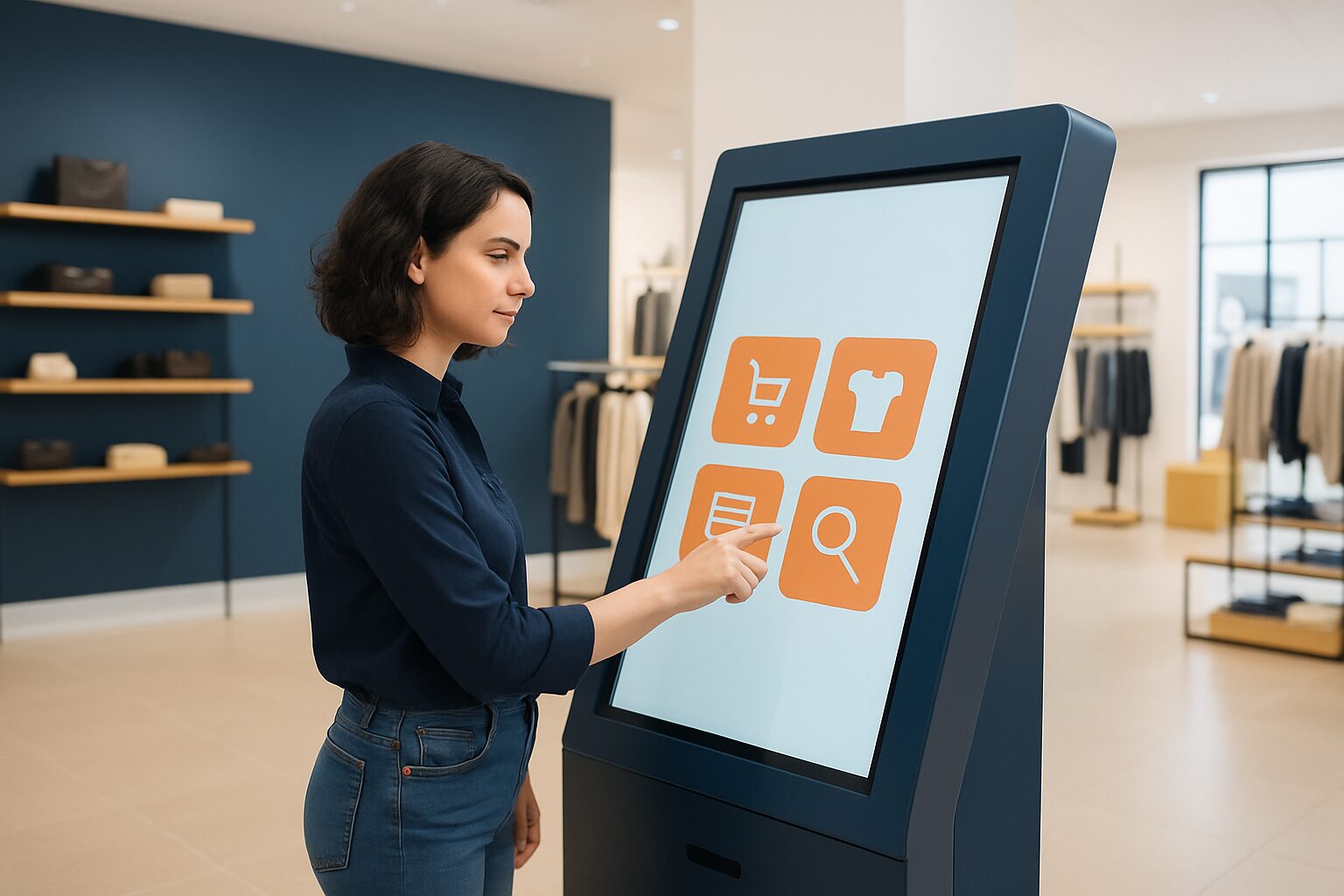
An interactive display in a shop is a touchscreen screen — free-standing, wall-mounted or as a totem — that allows customers to request product information independently, browse a range, place an order or be guided to the right department. It differs from a passive advertising screen because the visitor initiates the interaction themselves. It therefore serves two functions at once: it relieves staff and enriches the in-store experience without staff needing to be present.
In short
- Interactive displays are suitable for product catalogues, wayfinding, self-service and promotional activation — each with its own hardware requirements.
- Commercial touchscreen hardware is designed for continuous use; a consumer TV or tablet in a standard mount is not a durable replacement.
- UX determines whether a screen is actually used: large buttons, a maximum of three taps to the core action and an automatic reset after inactivity are minimum requirements.
- If you process personal data via the touchscreen (email addresses, purchasing behaviour), the GDPR applies — even in a retail environment.
- Start with one location and measure tap-through rate and dwell time before scaling up.
What makes a display interactive?
A standard advertising screen plays content in a loop. An interactive display responds to visitor input. This can be via capacitive multitouch glass, but also via QR codes, proximity sensors or voice control. In most retail applications, capacitive touch is the standard: fast response, no stylus required, familiar from smartphone use.
The hardware must withstand intensive public use. Commercial touchscreen displays are designed for 24/7 operation and have tempered glass, active cooling and a longer average lifespan than consumer devices. A consumer TV typically has a brightness of around 300 cd/m² and is not certified for continuous use — this leads to early panel failure in busy locations.
Five concrete applications in Dutch retail
1. Digital product catalogue
A fashion store in Amsterdam places a 43" touchscreen column next to the fitting room. Customers browse the full collection, including sizes and colours not on the shop floor. They reserve an item for collection or send it to the till. This increases dwell time and reduces 'out of stock' disappointments.
2. Wayfinding in shopping centres
Shopping centres in cities such as Utrecht and Eindhoven use touchscreen columns at the entrances as interactive maps. Visitors tap a shop or category and get a route on the screen. The column simultaneously shows current promotions from participating shops — a combination of service and promotion.
3. Self-service at the checkout (POS kiosk)
Supermarkets and quick-service restaurants use touchscreen kiosks for self-service ordering. Customers configure their order step by step, pay via the integrated card terminal and receive a receipt number. This reduces pressure on counter staff during peak hours. You can read more about integration with till systems in the article on POS displays and digital cash systems.
4. Interactive shop window outside opening hours
A retailer places a touchscreen display behind the shop window, visible from the street. Passers-by tap products, scan a QR code and land in the webshop. This works as an extended sales floor when the shop is closed. See also Shop advertising outside opening hours for the technical requirements of window placement.
5. Information kiosk for product advice
A DIY store or electronics shop places an information totem next to a product group. Customers compare specifications, read reviews and scan a barcode for up-to-date stock information. This replaces the role of a product specialist during quiet periods and reduces waiting times.
Choosing hardware: which screen suits which application?
Not every application requires the same hardware. The table below gives an overview based on location, usage intensity and budget (price list Q2 2026).
| Application | Recommended model | Size | Purchase price | Lease p.m. |
|---|---|---|---|---|
| Product catalogue / wayfinding | PixioKiosk | 32″ | current price on request | current price on request |
| Floor-standing self-service | PixioKiosk | 43″ | current price on request | current price on request |
| Mobile deployment (trade fair, pop-up) | PixioDisplay Mobile | 43″ | current price on request | current price on request |
| Flagship location / showroom | PixioDisplay Luxe | 49″ | current price on request | current price on request |
| Dual-screen (info + touch) | PixioDisplay Kiosk Duo | 15,6″ + 29″ | current price on request | current price on request |
The PixioDisplay Luxe (49″, 67×185 cm) is the choice for a shop that values presentation: the large format dominates the space and the capacitive touch responds instantly. The PixioKiosk at 21,5″ (current price on request) fits in a narrower aisle or next to a till.
All PixioDisplays run on an integrated Android computer (Android 13 or 14). You do not need a separate media player — elsewhere current price on request extra per screen. You control content via USB, a website URL or the PixioApp.
Installation: four technical points of attention
Power supply and cable management
A freestanding totem needs an earthed mains socket. Plan the cable route before placement: visible cables are a safety risk and look untidy. Some models have a feed-through via the base plate; always use that.
Height and accessibility
The interactive zone of the screen must be reachable for adults and for wheelchair users. A rule of thumb: the middle of the screen at 120–140 cm height, the lowest interactive button no lower than 90 cm. For a 49″ screen in portrait mode, this means the stand must be adjusted to the correct height.
Network and remote management
Connect the display via ethernet or stable Wi-Fi. Remote management — updating content, restarting the screen, reporting faults — only works reliably with a fixed connection. Set an automatic restart time (for example, 06:00) to avoid caching issues.
Hardware security
A freestanding column in a public space must be able to be anchored. Use a base plate with bolt holes or floor fixing. Always lock the service door of the enclosure with the supplied key. Set kiosk mode on the Android system so visitors cannot navigate outside the intended app.
UX rules for touchscreen interfaces in retail
Poor UX is the quickest way to leave an expensive screen unused. Three principles are decisive:
Maximum three taps to the core action. A customer looking for product information should be able to reach it within three taps. Every extra step increases the chance of drop-off. Make buttons large enough for a finger tap — at least 44×44 px on screen, preferably larger.
Attract loop as a silent salesperson. When no one is using the screen, an animated attract loop plays. This draws attention and communicates the screen’s function. As soon as someone touches the screen, the interface starts immediately. Set an inactivity reset to 60–90 seconds: this way the next visitor always starts at the home screen.
Avoid your website on the screen. A website includes navigation, footers, disclaimers and small links — elements that are frustrating on a touchscreen. Build a separate kiosk interface or use a focused landing page. The screen is more like a smartphone than a desktop browser.
Always test the interface with real users before going live. Observe where people hesitate or tap on non-clickable elements. Those spots are the first improvement points.
GDPR and privacy with interactive displays
As soon as a touchscreen processes personal data — email addresses via a registration form, purchase behaviour linked to a loyalty card, or camera images for visitor analysis — the General Data Protection Regulation (GDPR). This applies to both the Netherlands and Belgium.
The GDPR requires that you collect no more data than is strictly necessary ('privacy by default') and that you take data protection into account from the design stage ('privacy by design'). If you process your data through an external software party, you conclude a data processing agreement. If you do not, then as the installer or retailer you are responsible for any data breaches.
In practical terms: a touchscreen that only shows product information without input fields or a camera module falls outside GDPR obligations. If you add a form or analytics, inform visitors via a visible privacy notice on the screen itself.
Rent or buy: when do you choose which?
Buying is more cost-effective for a permanent installation of more than 18 months. Leasing lowers the entry barrier: the PixioDisplay Luxe is available from current price on request per month (60 months). That also makes it feasible for smaller retailers to get started with professional hardware.
Hire is the right choice for temporary applications: a pop-up store, a trade fair or a seasonal campaign. The PixioKiosk at 21,5″ can be hired from current price on request per day with a minimum hire period of two weeks, the 49″ version from current price on request per day (1 day). View the current rental prices and availability for shorter periods.
For trade fairs and events — think of the Jaarbeurs in Utrecht or the RAI in Amsterdam — rental with delivery service is more practical than transporting your own hardware. Pixio delivers within the Netherlands from current price on request courier costs.
Conclusion
An interactive touchscreen display only adds value when hardware, software and UX are aligned. Start with one totem at the point with the highest dwell time, measure tap-through rate and conversion, then scale up. Choose commercial hardware built for continuous use — not consumer devices. Keep the interface focused: three taps to the core action, a clear attract loop and an automatic reset.
For a concrete starting point: the PixioKiosk information column is available in four sizes (21,5″ to 49″) and runs directly on Android 13 without a separate media player — suitable for product catalogues, wayfinding and self-service in one.
Frequently asked questions
What is the difference between an interactive display and a regular advertising screen?
A regular advertising screen plays content in a fixed loop without the visitor being able to do anything. An interactive display responds to touch or input: visitors can request product information, place an order or ask for directions. That requires different hardware (capacitive touch glass, kiosk mode) and a separate UX interface.
Which size touchscreen column fits best in a shop?
That depends on the application and the available space. A 21,5″ or 32″ kiosk fits next to a till or in a narrow aisle. A 43″ or 49″ column is more legible from a distance and suitable for product catalogues or wayfinding. If appearance matters — for example in a showroom or flagship store — choose a 49″ model such as the PixioDisplay Luxe (67×185 cm, €2.395 buy or €54 p.m. lease, price list Q2 2026).
Can I use a regular TV or consumer display as an interactive display?
That is not recommended for permanent installations. A consumer TV has a brightness of around 300 cd/m² and is not certified for continuous use. Commercial touchscreen displays are designed for 24/7 use, have tempered glass and active cooling. Early panel failure in busy locations is the most common consequence of using consumer hardware.
How do I make sure visitors actually use the touchscreen?
Three factors are decisive: a moving attract loop that draws attention when the screen is not in use, large buttons that are easy to operate with a finger, and a maximum of three taps to the core action. Also set an inactivity reset of 60–90 seconds so that every visitor starts on the home screen. Test the interface with real users before going live.
Do I need to take the GDPR into account if I install a touchscreen kiosk?
Only if the screen processes personal data — such as email addresses via a form, purchase behaviour or camera images for analytics. A display that only shows product information without input falls outside GDPR obligations. If you do add data collection, you are obliged to inform visitors via a visible privacy notice and must conclude a data processing agreement with software parties. See the national government guidelines.
What does a touchscreen kiosk for a shop cost?
The PixioKiosk is available from €1.395 (21,5″) to €2.295 (49″) when bought, or from €31 per month by lease over 60 months (price list Q2 2026). For temporary use — pop-up, trade fair or seasonal campaign — you can hire a 21,5″ kiosk from €65 per day with a minimum hire period of two weeks. See the current daily rates on the hire page.
At what height should I mount a touchscreen kiosk so everyone can reach it?
A rule of thumb is the middle of the screen at a height of 120–140 cm, with the lowest interactive button no lower than 90 cm. This makes the display accessible for standing adults and for people in a wheelchair. For a 49″ screen in portrait orientation, adjust the base plate of the column to the correct height. Always check this before final placement.
How do I control the content on an interactive touchscreen?
All PixioDisplays run on an integrated Android computer (Android 13 or 14). You do not need a separate media player or laptop. Load content via USB, a website URL or the Pixio App. For remote management — updating content, restarting the screen, signalling faults — connect the display via ethernet or stable Wi-Fi.
Is hiring a touchscreen kiosk worthwhile for a short-term promotion?
Yes, especially for pop-ups, trade shows or seasonal campaigns. The PixioKiosk (21,5″) is available to hire from just €65 per day with a minimum rental period of two weeks; the 49″ version costs €225 per day at 1 day (price list Q2 2026). Pixio delivers within the Netherlands from €95 courier charges. At the end, you do not need to arrange transport yourself.
What is the difference between the PixioKiosk and the PixioDisplay Luxe?
The PixioKiosk is an information totem in four sizes (21,5″ to 49″) with a compact housing, suitable for product information, wayfinding and self-service. The PixioDisplay Luxe is a 49″ touchscreen in a slim stand (67×185 cm) that places more emphasis on visual appearance — ideal for showrooms and flagship stores. The Luxe costs €2.395 (buy) or €54 p.m. (lease), the PixioKiosk 49″ €2.295 (buy) or €52 p.m. (price list Q2 2026).