
Knowledge and advice
POS displays: types, placement and integration with cash register systems
Everything about POS displays: which types there are, where to place them and how to connect them to Lightspeed, Square or iiko. Practical installation guide for NL and BE.
POS displays: types, placement and integration with cash register systems
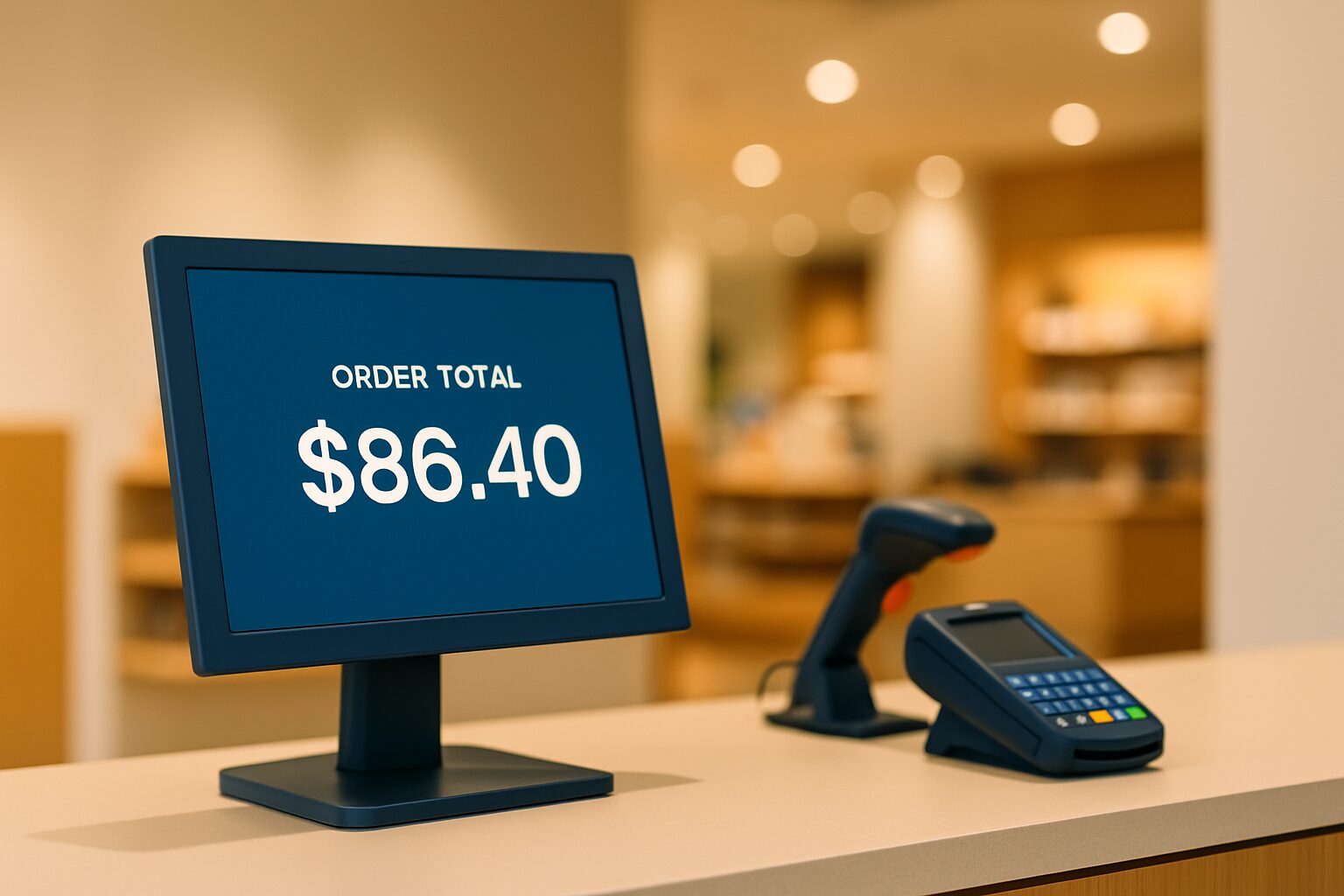
A POS display (Point of Sale display) is a digital screen used at or near the point of payment to inform customers, show upsell offers and support the checkout process. The screen stands on the counter, in the queue at the till, or as a free-standing column by the cash desk. Aim: to make use of the final communication moment before purchase. Digital POS displays replace static price signs and receipt holders — and can be linked to modern POS systems such as Lightspeed, Square and iiko.
What exactly is a POS display?
POS stands for Point of Sale: the place where the customer pays and the actual sale takes place. A POS system is more than a cash register — it combines transaction processing with stock management, customer data and sales statistics. A POS display is the visual layer at that point: the screen the customer sees while the employee processes the transaction.
This distinguishes a digital POS display from an ordinary monitor: it shows active content — bond details, offers, loyalty points — coming directly from the cash register system or controlled via a separate content channel. That makes it functional, not decorative.
The four most commonly used types
Not every type of POS display suits every situation. Below are the four most common variants in Dutch and Belgian retail:
| Type | Size | Typical application | Till integration |
|---|---|---|---|
| Customer Facing Display (CFD) | 7–15,6″ | Receipt confirmation, payment overview | Direct POS integration (USB/WiFi) |
| Countertop signage display | 15–22″ | Upsell, daily deals, loyalty | Standalone or URL feed |
| Kiosk / touchscreen totem | 21,5–49″ | Self-service, product information, ordering flow | API integration or webview |
| Floor-standing display | 43–55″ | Queue entertainment, promotions | Standalone or network CMS |
The CFD is the most direct integration: it mirrors the cash register software and shows the customer exactly what the employee enters. The kiosk goes a step further — it partly or fully replaces the employee for standard transactions.
Installation: three rules of thumb for installers
Good placement determines whether a POS display does its job. When installing, keep these three principles in mind:
1. Customer eye level, not staff eye level. Ideally, a CFD on the counter should be at 90–110 cm floor height on the customer side. Higher placement increases the viewing distance and reduces readability.
2. No backlight. Retailers with large windows or fluorescent lighting directly above the till cause reflections on standard displays (±300–400 cd/m²). In bright ambient light, choose a panel with at least 700 cd/m² or use an anti-reflective coating.
3. Arrange cable management before installation. An HDMI or USB cable that runs visibly across the counter is a common mistake. Plan the cable route through the counter or use a wireless connection via WiFi or Bluetooth before you permanently fix the display.
For free-standing displays in the checkout queue, there is an additional point to consider: make sure the screen does not block the route. Dutch health and safety law states that escape routes and walkways must remain clear — so a floor-standing display of 60×150 cm requires a deliberate choice of position.
Integration with Lightspeed, Square and iiko
The three most commonly used POS systems in Dutch and Belgian retail and hospitality each take a different approach to display integration.
Lightspeed Retail (R-Series and X-Series)
Lightspeed supports a Customer Facing Display via Lightspeed Hub: install the Hub software on the till PC, connect a secondary screen and the CFD mode starts automatically. The display shows line items, subtotal and total in real time. Lightspeed also offers its own iPad-based CFD app via AirPlay for wireless connection. If you also want to control a larger promotional display alongside the CFD, you use a separate URL feed or CMS — that runs separately from the POS software.
Square Register
Square Register has a built-in dual screen: one for the employee, one for the customer. The customer side automatically shows order details, discounts and loyalty information. For larger signage next to the checkout, Square works via an open API that allows external displays to fetch a product feed or price list.
iiko (hospitality)
iiko uses its own customer display protocol. Connect external displays to the iiko terminal via a serial or USB connection, or via the iiko API for network integrations. For larger screens in the checkout queue or above the counter, a separate media player or a display with built-in Android computer works most easily — it retrieves the content via a URL or CMS without intervention from the checkout software.
Practical tip: For promotional content, always use a separate display with its own content management alongside the CFD. Do not mix checkout data and marketing content on one screen — that makes management and updates unnecessarily complex.
Which display should you choose for the checkout?
Start with the question: do you want a direct till mirror (CFD) or a standalone promotional display?
A CFD choose this when transparency at the till is the main goal. Customers see exactly what is being entered — this reduces discussions about the price and speeds up the checkout process.
A standalone touchscreen kiosk choose this if you want self-service, product information or upselling without burdening staff. The PixioDisplay Kiosk Duo combines a 15,6″ touchscreen for the customer with a 29″ overhead screen for promotions — purchase price current price on request (price list Q2 2026), lease possible from current price on request per month. This makes it suitable for shops that want both a CFD function and a promotion display in one setup.
For larger formats — a 49″ touch column in a fashion store or electronics shop — the PixioDisplay Luxe an option: 49″ touchscreen, 67×185 cm, current price on request (price list Q2 2026). All PixioDisplays run on an integrated Android computer (Android 13/14), so you do not need a separate media player or laptop.
Technical checklist for the installation
Use this checklist for every POS display installation:
- Power: provide an earthed socket on the customer side of the counter; avoid extension leads across the walking route
- Connection: before installation, determine whether you use USB, HDMI, WiFi or Ethernet — and test the connection with the till software
- Brightness: measure the ambient light; with fluorescent lighting directly above the till, 700 cd/m² is the minimum for a CFD
- Security: use an anti-theft bracket or Kensington lock for displays on the counter
- Content: set a fallback screen in case the till software goes offline — a static logo or opening hours is better than a black screen
- Warranty: commercial displays are designed for continuous use; a consumer TV (±300 nits) is not suitable for a checkout environment with 8–12 hours of daily use
Conclusion: start with the goal, then the hardware
Choose a CFD if you want to make the till transaction more transparent. Choose a standalone display if you want to use the waiting time at the till for upsell or information. And choose a kiosk if self-service is the next step.
For the broader context of digital screens in retail — from shop window to checkout queue — read the complete retail guide to digital shop displays.
Frequently asked questions
What is the difference between a CFD and a standard POS display?
A Customer Facing Display (CFD) is directly linked to the till software and shows the customer in real time what the employee enters: receipt lines, discounts and the total amount. A standalone POS display shows marketing content or product information that you manage separately via a CMS or URL feed, separate from the till transaction. In practice, you combine both: a small CFD for the transaction, a larger screen next to it for promotions.
Does a POS display work without an internet connection?
That depends on the type. A CFD connected directly via USB or HDMI to the checkout PC works without internet. Displays that fetch content via a URL, CMS or cloud platform do need a connection. Always set up an offline fallback — a static logo or a fixed image — so the screen does not stay black if the connection fails.
How do I connect an external display to Lightspeed Retail?
For the CFD function, install Lightspeed Hub on the till PC and connect a secondary screen via HDMI or DisplayPort. Lightspeed Hub automatically activates the customer display on that screen. For a wireless iPad CFD, use the Lightspeed Customer Facing Display app via AirPlay. Larger promotional displays are controlled via a separate URL feed or CMS — this runs entirely separately from the till software.
Which screen size is suitable for a narrow counter?
For a counter with limited space, a 15,6″ CFD or a compact 21,5″ kiosk is the most practical. The PixioDisplay Kiosk Duo (15,6″ touch + 29″ screen) is specifically designed for checkout setups where you want both a customer screen and a promotional display, without having to place two separate devices.
Do I need to buy a separate media player for a POS display?
Not if you choose a display with a built-in Android computer. PixioDisplays run on Android 13/14 and do not need a separate media player — that saves €80 to €300 per screen compared with a standard commercial screen without a built-in computer. You load content via USB, a website URL or the Pixio App.