
Knowledge and advice
POS displays: digital support at the till
POS displays at the checkout increase impulse purchases and enable upsell at the decision moment. Read which screen suits your store format.
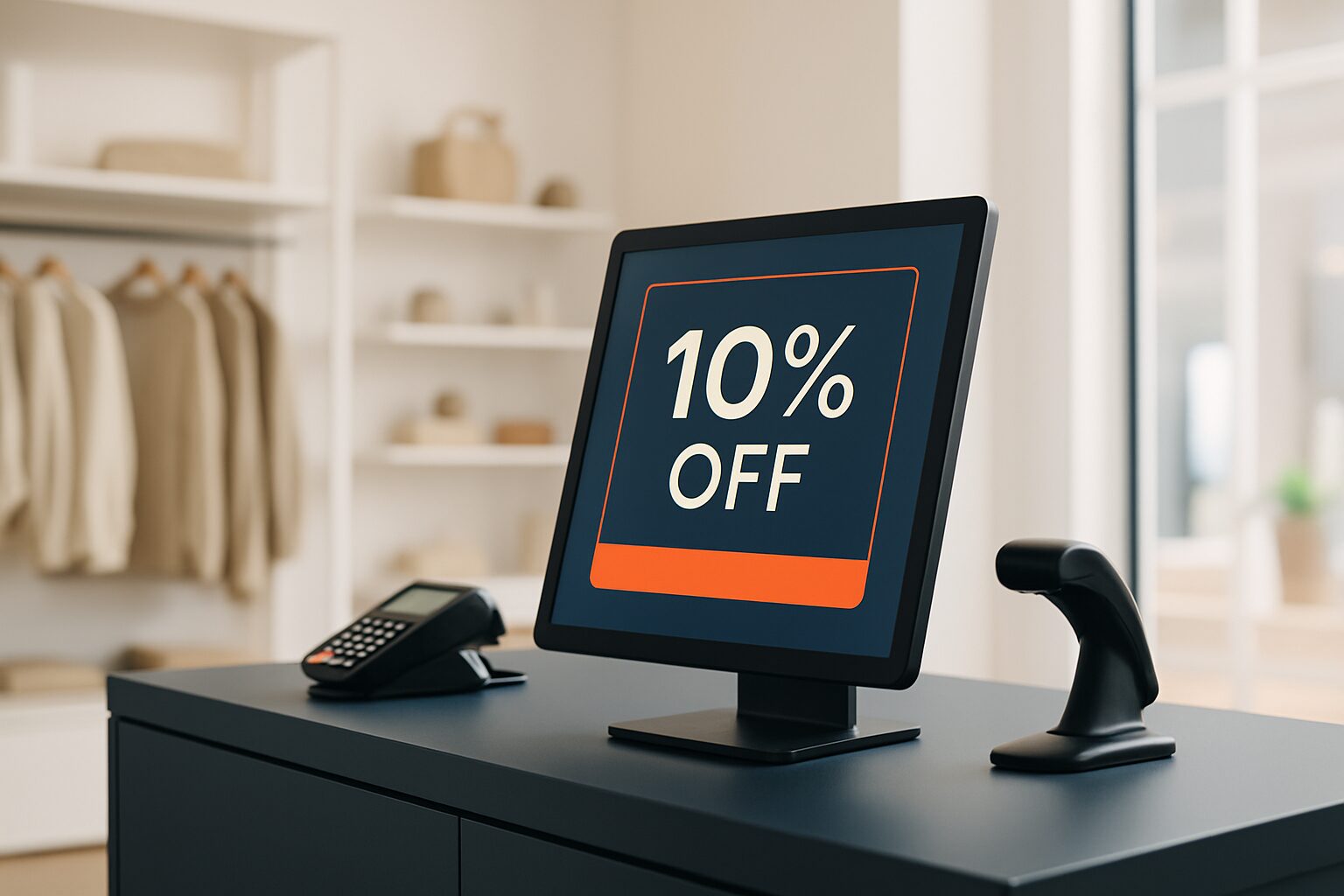
POS displays: digital support at the till
A POS display (Point of Sale display) is a digital screen placed at or on the checkout to inform and influence customers at the point of payment. The screen shows upsell offers, loyalty programmes, payment options or promotions — precisely at the point where the purchasing decision is still open. Retailers use POS displays to increase average basket value without extra sales conversations.
Why the checkout area is the most powerful sales moment
The checkout is the last touchpoint in the customer journey. Shoppers stop, have their attention free and are already in a buying mindset. That makes this moment strategically valuable for an extra offer.
This effect is measurable. Research shows that in-store shoppers make impulse purchases three times as often as online shoppers. Digital screens enhance that effect further: more than 40% of shoppers say digital displays influence their purchase choice.
A paper sign at the till does something too, but a moving screen catches the eye faster and holds it longer. You can also update the content immediately — without printing costs or physical replacement.
What you show on a POS display
The content determines the return. Four proven applications:
- Upsell and cross-sell — show a matching product or a larger size at the moment the customer pays.
- Loyalty programme — remind the customer of loyalty points or show how many points this purchase earns.
- Time-limited offers — a countdown timer or 'Valid today' message creates urgency without staff having to say anything.
- Payment information — show accepted payment methods, instalment payment or gift voucher options.
The combination of moving images and a short message works best. Keep text to five words or fewer; the customer does not have time for a paragraph.
Which screen type suits the till?
The choice depends on the space and the purpose. Three common configurations:
| Situation | Recommended size | Example |
|---|---|---|
| Narrow counter, limited space | Compact touchscreen (15–22") | Customer display next to payment terminal |
| Spacious till area or queue | Standing screen 43–49" | Promotional loop for waiting customers |
| Interaction desired (self-service, loyalty) | Touchscreen column | Customer scans loyalty card themselves or selects product |
For a till area with limited space, the PixioDisplay Kiosk Duo a direct option: a 15,6" touchscreen combined with a 29" information display, buy from current price on request or lease from current price on request per month (price list Q2 2026). The smaller screen sits on the customer side for interaction; the larger screen shows promotions. No separate media player needed — both screens run on an integrated Android computer.
If you want to place a freestanding screen in the queue, the PixioDisplay Luxe (49" touchscreen) more display area: buy current price on request, lease current price on request per month (price list Q2 2026).
Connection to your till system: how far do you go?
A POS display works without integration too. You load a content loop via USB or the PixioApp and schedule time slots — morning offers, lunch deals, evening promotions. For many mid-sized retailers, that is the quickest start.
A step further is an API integration with your till software. The screen then responds to what happens in the system: a product is sold and the display immediately shows a matching accessory. Not every EPOS system offers standard integrations, so check this in advance with your POS supplier. The hardware of Pixio Display supports website URLs and external data feeds, making integration technically feasible as soon as your till software offers an API.
Start with a simple content loop if you want to get going quickly. Add automation once you know which messages work.
Managing content for multiple branches
A chain with five or ten branches does not want to change content manually by location. Digital signage enables a marketing department to update all screens at the same time with one action — whether it is a price change, a new seasonal product or a temporary promotion.
All PixioDisplays contain an integrated Android computer (Android 13/14). You manage content via USB, a website URL or the PixioApp. That saves the cost of a separate media player per location (current price elsewhere on request per screen).
For chains that want to test without a large investment: rental is available from current price on request per day for the Kiosk Duo. See the rental page for current daily rates.
What a POS display delivers
A direct ROI calculation depends on your margin and the effect on basket value. As a rule of thumb: with an average sales increase of 10% and a gross margin of 40%, an investment of current price on request pays for itself at an annual turnover of current price on request per branch — achievable for many mid-sized retailers within 12 to 24 months.
A POS display at the checkout focuses on a narrower goal than a full in-store rollout: higher basket value per transaction. That shortens the payback period and makes measurement easier — compare the average basket before and after installation.
For the broader context of digital shop displays, see the complete retail guide to digital window displays and shop displays — the pillar of this cluster with information on screen selection, locations and content strategies for the whole store.
Frequently asked questions
What is the difference between a POS display and a regular digital poster in the shop?
A POS display is specifically located at or on the checkout and focuses on the customer's final decision moment. A digital poster elsewhere in the shop has a broader role: atmosphere, brand experience or navigation. The content and purpose are different, although the same hardware can be used for both.
Do I need a connection to my cash register system to get started?
No. A simple content loop via USB or the PixioApp works without integration. You schedule time slots and change content centrally. An API connection with your till software is a next step that offers more automation, but it is not a requirement to achieve results straight away.
Which screen size suits a narrow checkout counter?
The PixioDisplay Kiosk Duo combines a 15,6" touchscreen with a 29" information display and is designed for a compact checkout setup. Buy from €1.795, lease from €41 per month (price list Q2 2026). For wider checkout areas or a queue, a freestanding 43" or 49" screen is more effective.
Can I hire a POS display for a temporary campaign period?
Yes. The PixioDisplay Kiosk Duo is available from €99 per day. Renting is useful for seasonal promotions, holidays or a test period before you decide to buy or lease. See the rental page for current daily rates and availability.
How do I manage content on multiple checkout screens in different branches?
Via the PixioApp or a website URL, you manage all screens centrally. A change — new offer, adjusted price, seasonal campaign — applies immediately to all linked screens at once. You do not need a separate media player or IT support per location.