
Knowledge and advice
Real-time stock management on digital displays: integration with retail systems
Learn how to connect a cash register system or ERP to digital displays for live stock data in the shop. Technical steps, integration methods and hardware choice.
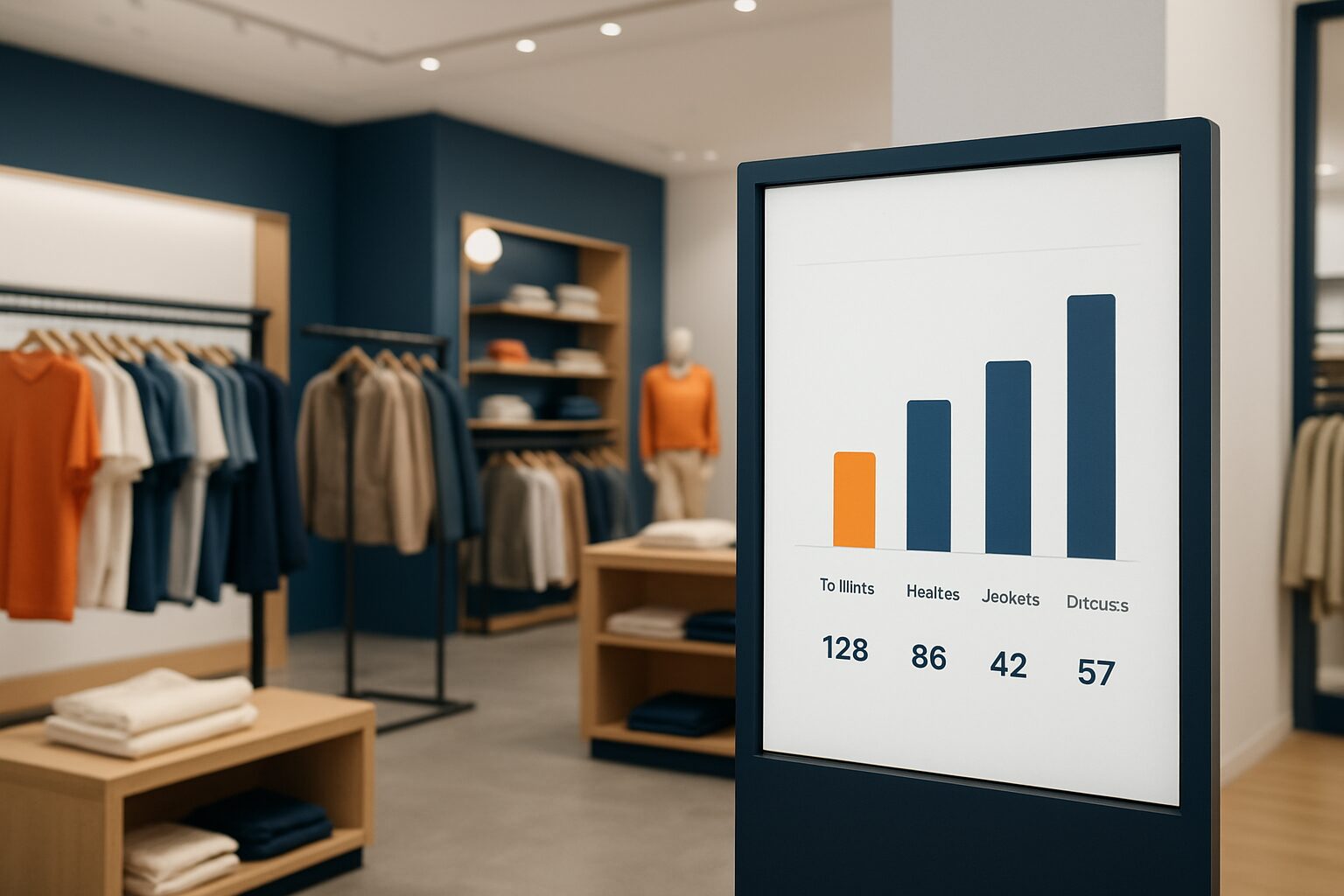
Real-time stock management on a digital display means the screens in your store automatically show current stock levels, fed directly by your POS system or ERP — without manual updates. The connection runs via an API, a native connector or middleware. As soon as a product is sold or returned, the screen adjusts the display. This increases the credibility of your screens and prevents customers asking for items that are already sold out.
Why live stock data on the screen works
Customers make their decisions largely in the store itself. According to the POPAI 2024 Annual Study 76% of purchase decisions are made on the spot; digital signage at the point of decision influences 30–40% of those decisions. That effect is greatest when the information is correct. A screen showing "still 3 in stock" while the shelf is empty does more harm than good.
Dynamic, stock-linked content performs consistently better than static promotional content. Research published by Coffman Media (2025) shows that inventory-integrated content outperforms static content by 30–50% in conversion. That makes the integration not only technically interesting, but also commercially justifiable.
Three integration methods: API, native connector and middleware
There are three common technical routes for sending stock data to a display:
- API integration: the signage software periodically or continuously retrieves data from the cash register system or ERP via a REST API. This is the most flexible method and works with virtually any modern retail system.
- Native connector: some signage platforms have built-in integrations with commonly used ERP systems such as SAP or Microsoft Dynamics 365 Business Central. Less configuration, but less customisation.
- Middleware: an intermediary layer (such as StoreLinkr) translates data between systems that do not communicate directly with each other. Useful with older cash register systems without an open API.
According to digitalpixelmarketing.nl (2026) ERP systems with an open API are the most suitable for integration with digital signage. When purchasing signage software, therefore, always choose a platform that supports an open API — that keeps the integration future-proof.
Which retail systems can be connected?
Almost every modern till system or ERP now offers a REST API. In the Dutch retail market, these are the most common systems used to create signage integrations:
| System | Integration method | Suitable for |
|---|---|---|
| Lightspeed Retail | REST API | Fashion, sports, speciality |
| Microsoft Dynamics 365 | Native connector + API | Chains, multi-branch |
| Exact | REST API via middleware | SME retail |
| Shopify POS | REST API | Omnichannel |
| Custom POS system | Middleware | Older installations |
With a link to Exact, for example, product information, price and stock are made directly up to date and visible on the screen — which also streamlines replenishment between branches. The technical step is: create API keys in the source system, set up authentication in the signage software, and configure the stock mapping per location and SKU.
Concrete example: a fashion chain with multiple branches
Suppose a fashion chain with four shops uses Lightspeed as its POS system. Each branch has a 43″ touchscreen at the entrance. Via the Lightspeed REST API, the signage software retrieves current stock levels every 60 seconds per SKU and location. The screen automatically shows "limited availability" as soon as stock falls below a threshold, and switches to an alternative product if an item is sold out.
This scenario requires three things: a display with an integrated computer (no separate media player), signage software with API support, and a one-off mapping of the product catalogue. The PixioKiosk 43″ (current price on request, price list Q2 2026) runs on Android 13 and supports content via website URL — enabling direct display of an API-driven web page without extra hardware. No separate media player or laptop required, which elsewhere costs current price on request per screen.
Practical steps for the installer
If, as an installer, you are guiding a retail customer through this integration, go through this sequence:
- Map out the retail system: which POS system or ERP, which version, does it have an open API?
- Choose the integration method: API direct, native middleware connector — depending on the system.
- Define the display logic: which threshold values trigger a status change on the screen? What does the display show when stock reaches zero?
- Set up the stock mapping: per location, per SKU, including variants (size, colour).
- Test with live data: have a sale registered in the till system and check whether the screen updates within the agreed refresh time.
- Set up monitoring: who is responsible for data quality if the screen shows incorrect information?
Step 6 is often skipped, but is crucial. Incorrect data mapping — ERP fields that do not match the screen display — is one of the most common causes of incorrect information on displays.
Hardware choice: which display suits which situation?
Not every display is equally suitable for an inventory information role. The choice depends on the location and the desired interactivity:
- Shop window or storefront: choose a display with at least 1.000 nits for shady positions or 3.000 nits for full sun. The PixioDisplay Window Full Sun (43–55″, 3.000 nits, current price on request, price list Q2 2026) is designed for this.
- Sales floor, interactive: a touchscreen lets customers search availability themselves. The PixioDisplay Luxe (49" touchscreen, current price on request, price list Q2 2026) is suitable for this.
- Temporary setup or pop-up: consider hiring. The PixioDisplay Mobile (43" touchscreen) is available from current price on request per day (3 days).
All PixioDisplays have an integrated Android computer. That matters for integration: loading content via a website URL is the simplest way to show API-driven data without a separate CMS subscription.
For more background on till system integrations in a broader context, also read POS displays: types, placement and integration with cash register systems.
Conclusion: start with the API, then choose the hardware
Always start integration at the data source: check whether your client's till system or ERP has an open REST API. Only then do you choose the signage software and the display. A display without API-compatible software is an expensive static screen. A display with the right connection becomes an active sales tool that pays for itself — especially if you know that stock-linked content outperforms static promotional content by 30–50%.
For an overview of all retail and shop window applications, see the digital shop displays for retail and shop window communication.
Frequently asked questions
Which cash register system works most easily with digital displays?
Cash register systems with an open REST API — such as Lightspeed Retail or Shopify POS — are the easiest to connect to signage software. For older systems without an API, use middleware such as StoreLinkr as an intermediary layer. Always check first whether the source system has API documentation before choosing hardware.
How quickly does the screen react after a sale?
That depends on the refresh frequency you set in the signage software. Via a REST API, an interval of 30 to 60 seconds is common and technically feasible. True millisecond synchronisation requires a websocket connection, which is more complex and not always necessary for retail applications.
Do I need a separate media player for the integration?
Not with PixioDisplays: they have an integrated Android computer (Android 13/14). You can load content via a website URL, which enables direct display of API-driven data. A separate media player or laptop is not needed, which elsewhere costs €80–€300 per screen.
What do you show on the screen when a product is sold out?
You determine that in the display logic during integration setup. Common options are: hide the product, show a 'temporarily unavailable' message, or automatically promote an alternative product. Set thresholds (e.g. below 3 units = 'limited availability') so the screen communicates proactively.
Is a touchscreen needed for stock information, or is a regular screen sufficient?
A regular screen is sufficient if you only show passive information, such as current product availability. A touchscreen adds value when customers want to search by size, colour or location themselves. For interactive applications, the PixioKiosk or PixioDisplay Luxe is a logical choice.