
Knowledge and advice
Planning digital signage content: playlists, parts of the day and zones
Learn how to plan digital signage content with playlists, dayparts and screen zones. Practical explanation of scheduling, priorities and smart content structures.
Planning digital signage content: playlists, parts of the day and zones
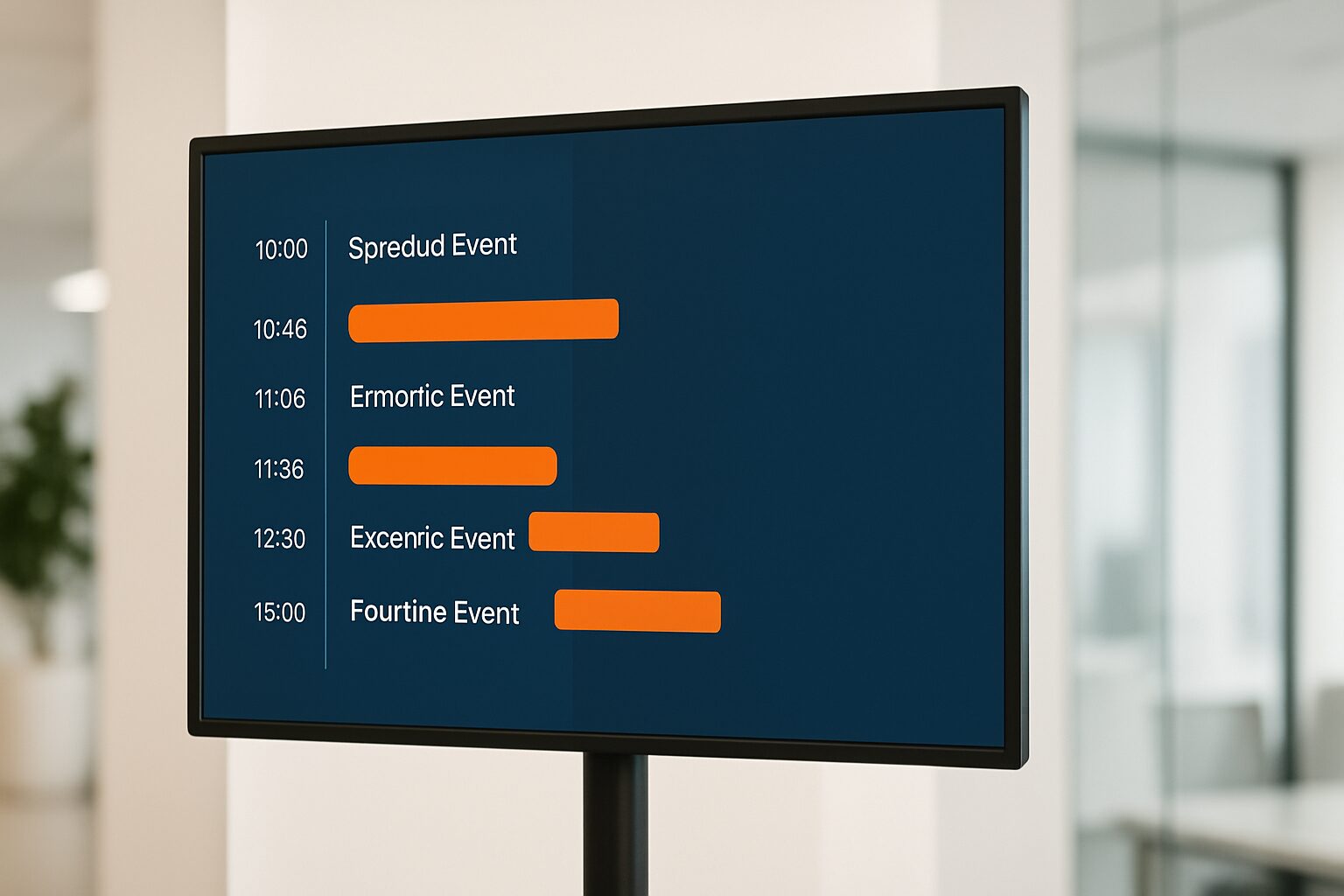
Planning digital signage content means deciding what appears on your screen, when it plays and in which part of the screen it appears. The three building blocks for this are the playlist (the ordered playlist), parts of the day (time windows per hour or part of the day) and zones (defined areas on one screen). Combining these three lets you direct the right message to each target audience at the right time — without manual intervention.
What is a playlist and how do you build one?
A playlist is an ordered sequence of content items played one after another, each for a set duration. You decide the order, the display duration per slide and the total run window. A typical retail playlist consists of three to six slides of ten to fifteen seconds each — giving a loop of about one minute.
Start by building a playlist around the purpose of the location. A screen by the till calls for short, action-oriented messages. A screen in a waiting area can handle longer, informative content. Passers-by in a corridor are better served by one clear announcement than by three text blocks at once; in a lobby or lounge, where visitors stay longer, you can include more information.
Keep the playlist clear: successful digital signage relies on content loops of five to ten minutes and weekly updates. More slides is not better — relevance matters more than volume.
Time slots: the right content at the right time
Dayparting is scheduling different content for different time windows, so the message matches the audience present at that time. In this way, you tailor your screens to the needs of your target group throughout the day — in the morning, afternoon and evening — aligned with visitor flows, promotions or time-sensitive messages.
A concrete example from hospitality makes this tangible. A restaurant schedules breakfast menus and coffee promotions from 06:00–10:30, lunch menus and daily specials from 10:30–14:00, snacks and a happy-hour teaser from 14:00–17:00, and the dinner menu with wine and beer suggestions from 17:00–21:00. This switches automatically — without anyone having to sit behind a screen.
The same principle works in an office environment. An office building shows news in the morning, canteen menus around midday and traffic information in the evening. The CMS software handles the changes based on the clock.
According to QSR Magazine, daypart-based content can increase relevance and engagement in restaurants and hospitality venues by up to 35% — a figure that shows how much impact timing has on the effectiveness of your message.
Priorities in overlapping schedules
If multiple schedules are active at the same time, priority determines what plays. The hierarchy runs from highest to lowest priority: emergency messages, time-sensitive promotions, scheduled campaigns, time-of-day content and, finally, the standard playlist as a fallback. Set this order in your CMS before going live — this prevents a campaign from overriding an urgent message.
Zones: multiple messages on one screen
Zones in digital signage are separate areas on your screen that play independently of one another. This allows you to show static content in one zone, news in another and adverts in a third.
Zones are powerful, but always ask whether they are necessary. Seven simple layouts that rotate through the day work better than one layout with seven zones. Keep the screen simple at all times and vary the layouts so that each version fits the main message.
A practical rule of thumb: use no more than three zones — only if you have continuously relevant content for each zone. One zone is fixed, the other two rotate. A ticker in the lower zone works well if you set it to an automatic RSS feed; auto-updating content then needs no further attention, but manually maintained tickers require as much upkeep as your large content zones.
Zoning is most effective on screens of 40 inches and larger, so that the separate zones remain readable at a distance. On a 21,5-inch screen, readability quickly suffers with multiple zones.
How playlists, time slots and zones work together
The three elements together form a hierarchy: zones determine the layout of your screen, playlists fill each zone with content, and dayparts automatically switch those playlists based on time. Playlists organise content in loops, dayparts define time windows, and conditional rules trigger switches based on data such as weather, stock or visitor numbers.
A practical layout for a retail screen of 43 inches looks like this:
| Daypart | Time slot | Playlist content | Zones |
|---|---|---|---|
| Morning | 08:00–12:00 | New collection + daily deal | Full screen |
| Afternoon | 12:00–17:00 | Bestsellers + offer of the week | Large + ticker |
| Evening | 17:00–20:00 | Closing times + social media | Full screen |
| Closed | 20:00–08:00 | Screen off or standby logo | — |
You set this schedule once and then it runs automatically. If you want to add campaigns, give them a higher priority so they temporarily override the daypart playlist.
What does this mean for your hardware?
Good content planning starts with hardware that can handle the software. All PixioDisplays run on an integrated Android computer (Android 13 or 14) — you do not need a separate media player or laptop. You upload content via USB, a website URL or the PixioApp. Compared with a separate media-player set-up, that saves you current price on request per screen in extra hardware.
If you want to use zones and dayparts, choose a screen large enough to keep several zones readable. The PixioDisplay Luxe (49″ touchscreen) is a logical choice for that: buy for current price on request or lease for current price on request per month (price list Q2 2026). For outdoor applications — where you also want to schedule content early in the morning and late in the evening — the PixioDisplay Outdoor with 3.500 cd/m² sufficient brightness for any time of day.
If in doubt about which screen suits your content planning, you can visit showroom in Montfoort for a live demonstration of zoning and scheduling.
Conclusion
Start with a clear playlist per location, add dayparts once your audience changes throughout the day, and use zones only if you have structural content for each zone. That is the order that works. 80% of digital signage installations fail to meet their goals — usually because there is no content strategy and screens are not updated regularly. Planning is therefore not an afterthought, but the core of effective narrowcasting.
For a broader exploration of the software choices that make all this possible, read on in our article Narrowcasting software: how do you choose the right system for your displays?.
Frequently asked questions
How long should a digital signage playlist be?
A loop of five to ten minutes is the most effective length. Shorter loops repeat too quickly for regular visitors; longer loops become outdated before they have fully played through. Update your playlist at least weekly to keep the content fresh.
How many zones can I use on one screen?
Use a maximum of three zones, and only if you have continuously relevant content for each zone. On screens smaller than 40 inches we do not recommend zones — the text then becomes too small to read from a distance. Start with one zone and add zones as your content strategy requires.
What is the difference between a day part and a campaign schedule?
A daypart is a recurring time window that changes automatically every day, such as a breakfast menu from 07:00–10:30. A campaign is a one-off or temporary schedule with a fixed start and end date, such as a promotion from 1 to 15 March. Campaigns get higher priority and temporarily override the daypart playlist.
Can I set dayparts on an Android screen without a separate CMS?
Basic scheduling — such as a different image in the morning versus the evening — is possible via the PixioApp. For full day-part scheduling with multiple time windows, zones and priority rules, you need a CMS. Which system suits this is explained in our article on choosing narrowcasting software.
How do I prevent a black screen if my schedule has a gap?
Always set a standard fallback playlist. This is the content that plays when no other schedule is active. Good CMS software plays this playlist automatically as soon as all scheduled content has ended or has not yet started.