
Knowledge and advice
Digital signage in museums: interactive exhibitions and visitor information
Digital signage in museums: from interactive touchscreen kiosks to multilingual wayfinding. Read which hardware suits your collection environment and visitor goals.
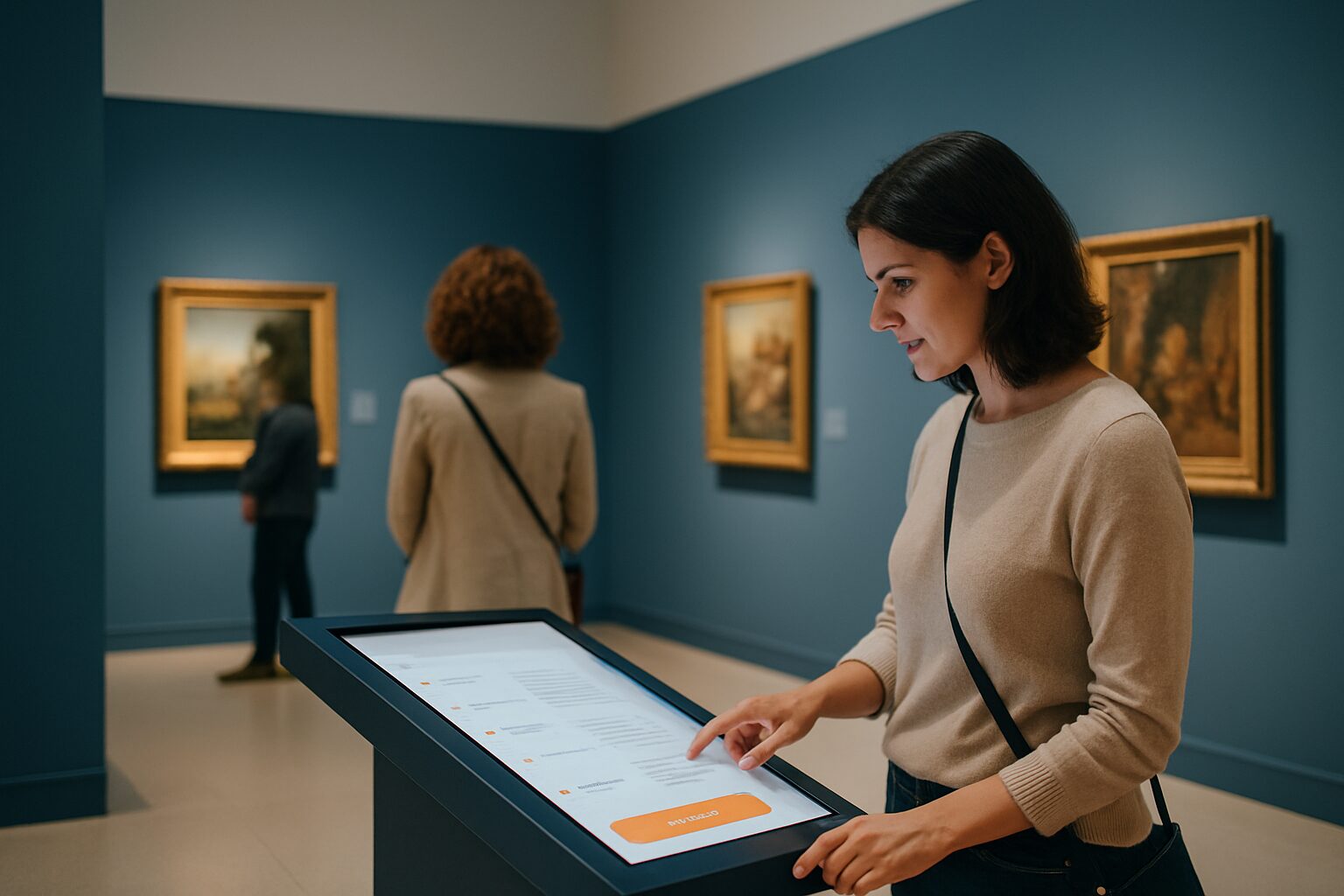
Digital signage in museums: interactive exhibitions and visitor information
Digital signage in museums includes all digital screens and touchscreen kiosks that display visitor information, support wayfinding or provide interactive depth to an exhibition. The hardware ranges from a 21,5" information column at the entrance to a 49" touchscreen next to a display case. Typical of the museum context: screens must work reliably during opening hours, must not pose a climate risk to the collection, and must be accessible to a broad public — from school classes to international tourists.
Why museums use digital signage
Dutch museums attracted in 2024 nearly 32 million visits, of which 28 per cent are foreign tourists. That makes multilingual support anything but a side issue: a touchscreen can offer Dutch, English, German and French on one screen, without extra staff.
According to the Museum Association Museum Figures 2024 In 2024, pupils from primary and secondary education made almost 1,6 million visits to museums — an average of 67 visits per 100 pupils. Interactive screens work particularly well for school groups as an accessible way to go deeper: children tap images themselves, zoom in on details and answer quiz questions.
Digital signage also solves a staffing issue. A digital information pillar at the entrance answers standard questions about opening hours, directions and accessibility — continuously, without a queue.
Four applications in museum practice
1. Interactive deepening at an object
A touchscreen next to a display case lets visitors zoom in on details, play an audio clip or read background information in multiple languages. The collection remains untouched behind glass; all interaction takes place digitally.
2. Digital wayfinding
A floor plan on a touchscreen kiosk at the entrance helps visitors plan their own route. They tap on a hall or theme and immediately see how to get there. This reduces the pressure on reception staff and shortens orientation time.
3. Multilingual visitor information
One screen, multiple languages. Visitors choose their preferred language on the start screen; all texts, videos and audio clips switch accordingly. That is more efficient than printed multilingual folders and always up to date.
4. Temporary exhibitions and events
For a travelling exhibition, you want to be able to update content quickly. A digital information pillar can be updated remotely — no print, no delay. For short-term events, renting is a realistic option: the PixioKiosk 43″ can be rented from current price on request per day with a minimum rental period of two weeks (price list Q2 2026), so you do not make a fixed investment for a temporary project.
Hardware choice: what suits a museum environment?
Museums place specific demands on hardware. The three main ones:
| Requirement | Why relevant | Point to note |
|---|---|---|
| Continuous use | Screens run 6–10 hours per day, 7 days per week | Choose commercial displays, not consumer TVs (±300 nits, not designed for continuous use) |
| Brightness | Museum halls range from dark to brightly lit | Indoors, ±400 cd/m² is sufficient; near windows or atriums, more |
| Quiet operation | Collection spaces require calm | Fanless or silent models; no external media player |
The PixioKiosk is available in four sizes: 21,5″ (current price on request), 32″ (current price on request), 43″ (current price on request) and 49″ (current price on request) — price list Q2 2026. Each model has an integrated Android computer (Android 13/14), so you do not need a separate media player or laptop. Content is loaded via USB, a website URL or the PixioApp.
For larger spaces or a prominent entrance hall, the PixioDisplay Luxe 49″ (67×185 cm, current price on request buy or current price on request per month lease) a larger touch surface that is also easy to read for standing visitors.
Start with the 32″ or 43″ kiosk if your main aim is to provide visitor information and wayfinding. Choose the 49″ variant when the interactive content is visually complex — think of zoomable maps or comparative image panels.
Collection protection: what to do and what not to do
A touchscreen in a museum gallery is close to fragile objects. Take into account:
- Heat output: commercial displays are designed for continuous use and have controlled thermal dissipation. Do not place the screen directly next to climate-sensitive objects.
- Vibrations: mount columns on a stable floor or use a floor stand with non-slip base.
- Hygiene: in busy museums, hundreds of visitors a day touch the same screen. Choose a display with tempered glass that can withstand common cleaning agents. Read more about this in the knowledge base article Hygienic touchscreen displays: cleaning and maintenance.
- Accessibility: height and operation must also be workable for wheelchair users and children. The WCAG guidelines for public touchscreens set out concrete standards for this — see also WCAG accessibility for public touchscreens and kiosks.
Practical: managing content without an IT department
Many museums do not have a large IT department. That makes simple content management crucial. The PixioApp lets you adjust content remotely via a browser — no software installation, no technical knowledge required. Change opening hours, add a new exhibition text or enable a language version: it works immediately on all connected screens.
For museums that want to test digital signage first without a large investment, rental is a logical first step. Afterwards, based on experience, you can decide which size and set-up deliver the most value structurally.
Want to know more about the possibilities of a digital information kiosk in a public environment? See the application page digital information column for a full overview of deployment scenarios and technical specifications.
Related knowledge base articles: Digital wayfinding: interactive maps for visitors — WCAG accessibility for public touchscreens and kiosks — Hygienic touchscreen displays: cleaning and maintenance — Touchscreen display installation: technical requirements and infrastructure — 10 design rules for public touchscreens that really work — Touchscreen displays for customer interaction: design and best practices — Interactive displays for events: engagement and data collection — Public displays and privacy law: what is and isn’t allowed
Frequently asked questions
Which screen size is suitable for an information pillar in a museum gallery?
For standard visitor information and wayfinding, a 32″ or 43″ touchscreen totem is sufficient. If you want to show visually rich content — such as zoomable collection images or multilingual in-depth texts — a 49″ screen offers more reading comfort. The PixioKiosk is available in 21,5″, 32″, 43″ and 49″, with prices from €1.395 (price list Q2 2026).
Can a touchscreen kiosk support multiple languages?
Yes. You configure multiple language versions in the content; visitors choose their preferred language on the start screen. Texts, videos and any audio clips then switch accordingly. That is more efficient than printed multilingual folders and easier to keep up to date via the content management tool.
Is digital signage suitable for a temporary exhibition?
Certainly. For a short-term exhibition, renting is a practical option: the PixioKiosk 43″ is already available to rent from €65 per day with a minimum rental period of two weeks (price list Q2 2026). That way you avoid a fixed investment for a temporary project. You can adjust content remotely as soon as the exhibition changes.
Does a touchscreen pose a risk to the collection?
Not if you choose the right hardware and position it correctly. Commercial displays have controlled heat dissipation and are designed for continuous use. Do not place the screen directly next to climate-sensitive objects and use a stable floor stand. Choose toughened glass that withstands cleaning agents used daily in busy spaces.
Do I need an IT department to manage content?
No. The PixioApp works through a browser and requires no software installation or technical knowledge. You adjust opening hours, exhibition texts or language versions via an online dashboard, and the changes are immediately visible on all connected screens.