
Knowledge and advice
Multi-screen management: from 1 to managing 50 displays
Scale from 1 to 50 displays without chaos: learn how to use screen groups, remote monitoring and permission structures for efficient multi-screen management.
Multi-screen management: from 1 to managing 50 displays
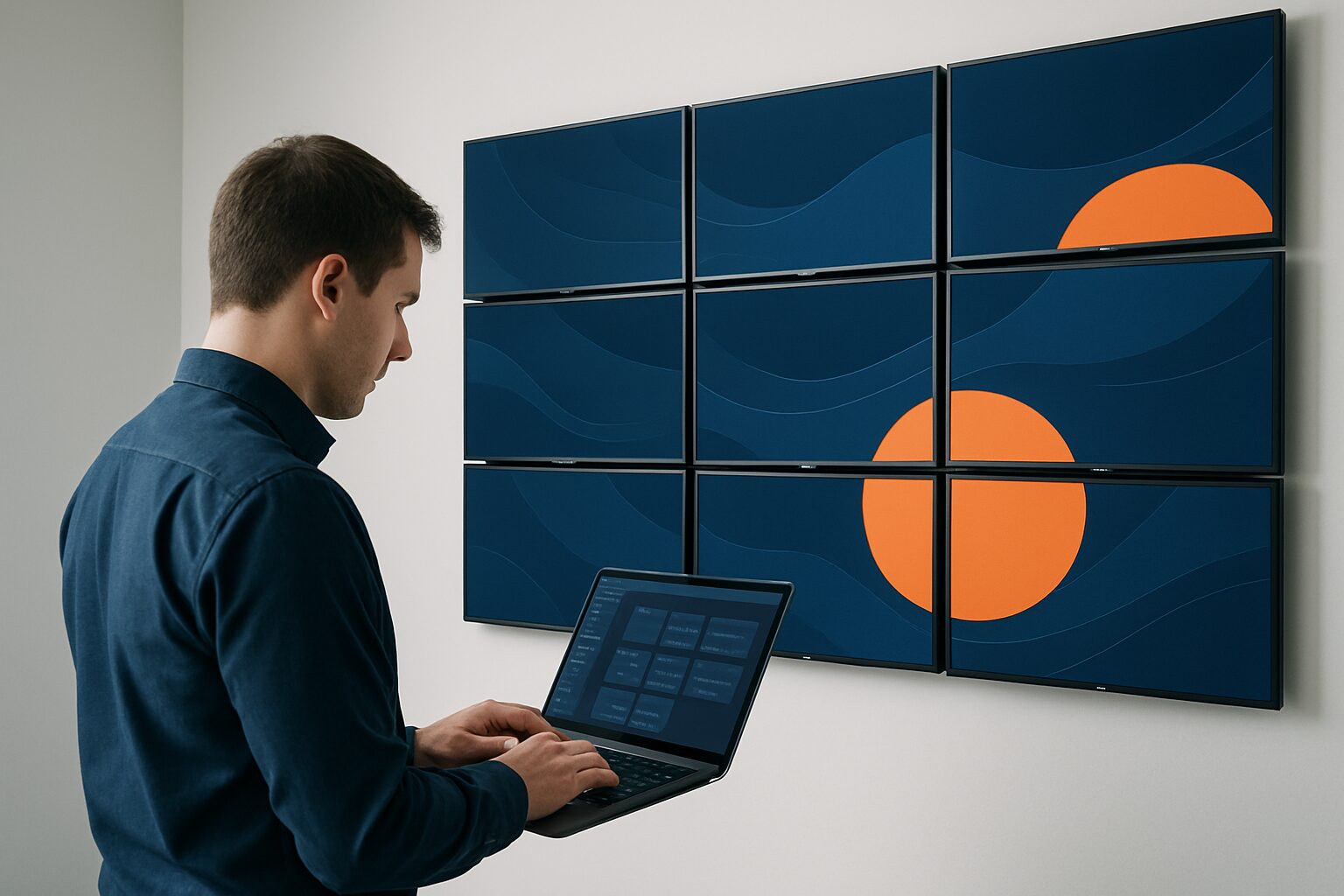
Multi-screen management is the central control, monitoring and updating of multiple digital signage displays via one platform. Once an installation grows to 10 screens or more, separate USB updates and manual settings per screen become unsustainable. The key lies in three pillars: screen groups, remote monitoring and a well thought-out permissions structure. Anyone who puts these pillars in place early avoids having to scale up later.
Why the approach changes above 10 screens
You can manage one screen with a USB stick or a direct app connection. Five screens at one location are still manageable. But with 15, 30 or 50 displays spread across multiple locations, the dynamic changes completely.
A retail chain with 40 branches that updates each screen manually has to carry out forty separate actions per content change. With a cloud CMS, that same update happens at the press of a button. The time difference is not minutes but hours per week.
According to industry experience, around 30 screens is the point where a dedicated management team or a strict task division becomes necessary. Before that, as an installer you can still cope with a good structure and the right software. After that, not without them.
The three pillars of scalable screen management
1. Display groups
Group displays by location, floor, department or content type — not by individual screen. A retail chain groups all checkout screens into one group, all window displays into a second. A campus installation groups by building.
The advantage: you push one content update to a group instead of to twenty separate screens. That saves time and prevents inconsistencies.
2. Remote monitoring
Remote monitoring lets you see from a distance whether all screens are online and functioning correctly. You can adjust settings — such as on/off times, brightness or volume — without being physically present. Faults are detected earlier and can more often be resolved remotely.
Good device management software collects information on memory usage, network status and temperature from each device. Automated alerts immediately signal if a screen goes offline or content is not playing.
3. Rights structure
Give local administrators access to their own screens, but lock brand-sensitive areas for central management. Use a system with role-based access rights: you lock specific areas or templates at top level and give local admins access only to their own content.
This is essential for franchise chains or organisations with multiple branches. Without a rights structure, you risk off-brand content on customer-facing screens — a brand issue and an operational issue at the same time.
Choosing software for large installations
Not every narrowcasting software package is suitable for 50 displays. The functions that are optional on a small scale become mandatory on larger networks:
| Function | Required for 1–5 screens | Required for 10–50 screens |
|---|---|---|
| Screen groups | No | Yes |
| Remote monitoring | No | Yes |
| Role-based permissions | No | Yes |
| Offline playback (local buffer) | Recommended | Mandatory |
| API integrations (RSS, data) | Optional | Recommended |
| Uptime dashboard | Optional | Yes |
Cloud SaaS software is the practical choice for most installers: the customer pays a predictable monthly amount and you manage updates remotely. Market prices for a mid-range SaaS solution are around current price on request per screen per month. At 50 screens, that adds up to current price on request per month — an item your customer should know early in the process.
Would you like to know more about how to select the right software for your installations? Then read the article Narrowcasting software: how do you choose the right system for your displays? in the Pixio knowledge base.
Hardware as the foundation: integrated Android computer
Software does not solve anything if the hardware is the bottleneck. In large installations, the number of separate components per screen directly affects the management workload.
All PixioDisplays have an integrated Android computer (Android 13/14). That means no separate media player (elsewhere current price on request per screen) and no laptop per display. With an installation of 50 screens, that saves up to current price on request in extra hardware — and fifty extra devices that you have to manage remotely.
At Summit, more than 50 PixioDisplays were deployed at one event. Thanks to the integrated computer, the displays were ready for use within minutes — on large installations, that is the biggest practical difference compared with separate TV and laptop setups.
: for installations where displays are also outside or in shop windows, brightness counts as a management factor: a screen that is not readable because of backlighting requires extra intervention. Indoors, ±400 cd/m² is sufficient, a shop window in full sun requires 3.000 nits, a freestanding outdoor display 3.500 cd/m². See the PixioDisplay Outdoor for outdoor installations within a larger network.
Network segmentation and security
With 50 screens spread across multiple sites, network security becomes a serious consideration. Digital signage infrastructure often shares physical networks with payment systems, staff devices and guest Wi-Fi.
Separate the signage network from public traffic via a VLAN or separate SSID. Enable kiosk mode on all media players, change default login credentials and use network access control to keep unauthorised devices out. Getting this right at the first installation prevents costly remedial work later.
A practical rule of thumb: set up security as if the network already had 50 screens, even if you start with 5. Scaling up to a secure solution afterwards greatly increases the cost and effort.
Content management at scale: central control, local relevance
The tension in large installations is always between central brand management and local relevance. Head office wants consistency. Local managers want to respond to their own customers. Both are valid.
A cloud platform solves that tension: the central team pushes brand-wide campaigns directly to all screens, while local managers schedule their own content within approved parameters. Nobody waits for an IT ticket. Nobody posts off-brand images.
For planning content at scale — which playlist when on which screen — read more in the article Scheduling content: how do you plan your signage week? in the Pixio knowledge base.
Conclusion: start with structure, then scale
Anyone wanting to grow from 1 to 50 displays without chaos starts with the structure: screen groups, remote monitoring and permissions structure. Choose software that provides these functions before the installation expands — not afterwards. Hardware with an integrated Android computer structurally reduces the management burden per screen.
This article is part of cluster F: Software & Content Management. The pillar of this cluster — Narrowcasting software: how do you choose the right system for your displays? — gives a complete overview of software choices for installations of any size.
Frequently asked questions
From how many screens do I really need a CMS?
From 5 screens onwards, a CMS is already useful, but it becomes indispensable once you manage 10 or more displays across multiple locations. Without a CMS, every content change means a manual action per screen — with 20 screens, that costs hours per week.
Can I manage screens at different locations from one dashboard?
Yes. Modern cloud-based signage software lets you group screens across multiple locations and control them centrally. You decide who has access to which screens via role-based permissions, so local administrators can only adjust their own content.
How much does narrowcasting software cost for 50 screens per month?
Mid-range SaaS solutions cost on average €15–25 per screen per month. At 50 screens, that comes to €750–€1.250 per month. Enterprise platforms with analytics and API integrations can rise to €60+ per screen per month.
How do I prevent local staff from posting off-brand content?
Use a system with role-based access control. Lock brand-sensitive zones and templates centrally, and give local admins access only to their own content area. That way you keep control without having to approve every change yourself.
What is the advantage of an integrated media player in the screen for large installations?
An integrated Android computer (as in all PixioDisplays) eliminates a separate media player per screen. With 50 screens, that saves up to €15.000 in extra hardware and fifty extra devices in your management dashboard. Fewer components mean fewer points of failure.