
Knowledge and advice
Meeting room display: show Outlook calendar and free/busy
A room display combines a display with scheduling software. Check mailbox, permissions, synchronisation and the desired controls.
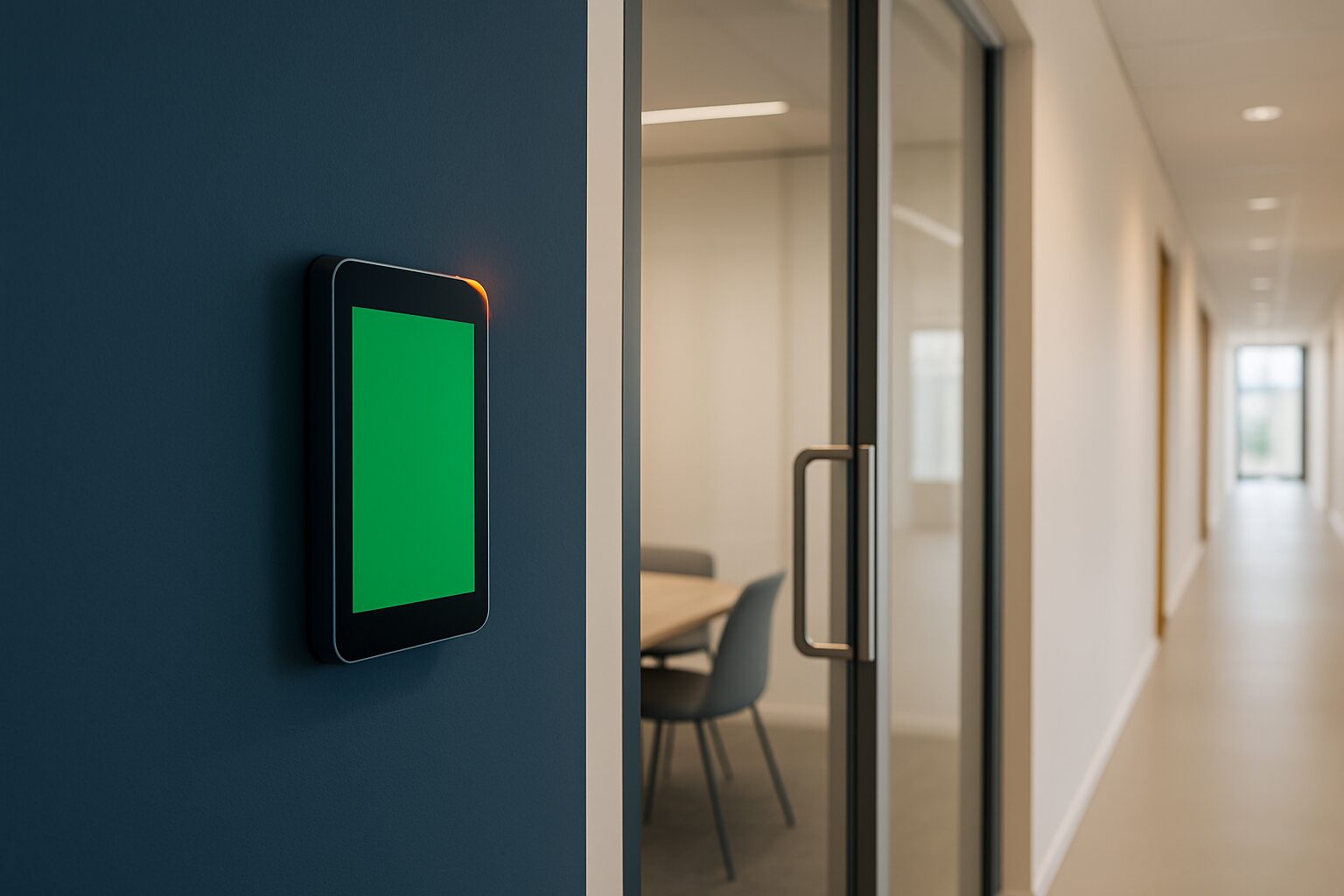
What does a meeting room display show?
A meeting room display can show which meeting room is available and when the next booking starts. This requires three components: a screen, a room calendar and software that displays the calendar data. Booking on site, extending or checking in are additional functions that not every system has. A central overview for multiple rooms requires a different screen layout from a small panel next to one door.
The room schedule in Microsoft 365
Microsoft describes resource mailboxes for this purpose, including room mailboxes for physical meeting rooms. An administrator sets up the room and defines the booking rules. Staff can then use the room in an invitation. Check, among other things, handling of conflicts, recurring appointments and which details may be visible. Creating a room calendar is not yet a working screen connection: the chosen display software must be able to communicate with the relevant Microsoft environment.
Check the current integration route
Exchange Web Services is not a future-proof standard route for new Exchange Online implementations. Microsoft began phased decommissioning in October 2026 and has announced further termination. Ask the supplier to explain which supported API and authentication are used. Microsoft Graph, for example, offers a getSchedule function for room availability information. That does not prove that every existing display app supports this function. Test the integration in the real tenant and with the chosen device.
Show only or also reserve?
Different permissions may be needed for a free/occupied overview than for creating or changing appointments. Do not give an application more access than needed by default. Determine whether subject, organiser and participants may appear on a publicly visible screen. Preferably show only the information the visitor needs. Ask how changed or deleted appointments are handled and how clearly the screen indicates that data may not be current.
Choosing a suitable display
Determine the screen size, mounting next to the door or in the hall, and whether touch operation is needed. On an all-in-one Android model, a computer is built in, so no separate laptop is required. Compatibility with the calendar app must, however, be confirmed separately. The Pixio App for remote content management is a separate service; an Outlook booking link is not automatically included. Check network, power, auto-start and access to the software with the IT administrator.
A practical acceptance test
Create a test booking, change the time and delete the appointment. Check what appears on the screen and how quickly it happens. Test a double booking attempt according to the set rules and see what remains visible after a restart or network failure. If booking on the screen is needed, also test permissions and rejections. Record the accepted operation in the quotation. For the hardware choice, start with the display catalogue and discuss the software separately.
Sources and further information
Frequently asked questions
What is needed besides the screen for Outlook status?
A suitable room calendar, supported calendar software and the right access in the Microsoft environment.
Is EWS a future-proof new Exchange Online connection?
Microsoft is phasing out EWS in Exchange Online. For a new setup, have the supported API and authentication demonstrated.