
Knowledge and advice
Linking POS and digital signage: how automatic menu updates work
Connect your till system to digital menu boards and eliminate manual updates. Read how API, webhook and middleware work — and which screen you need.
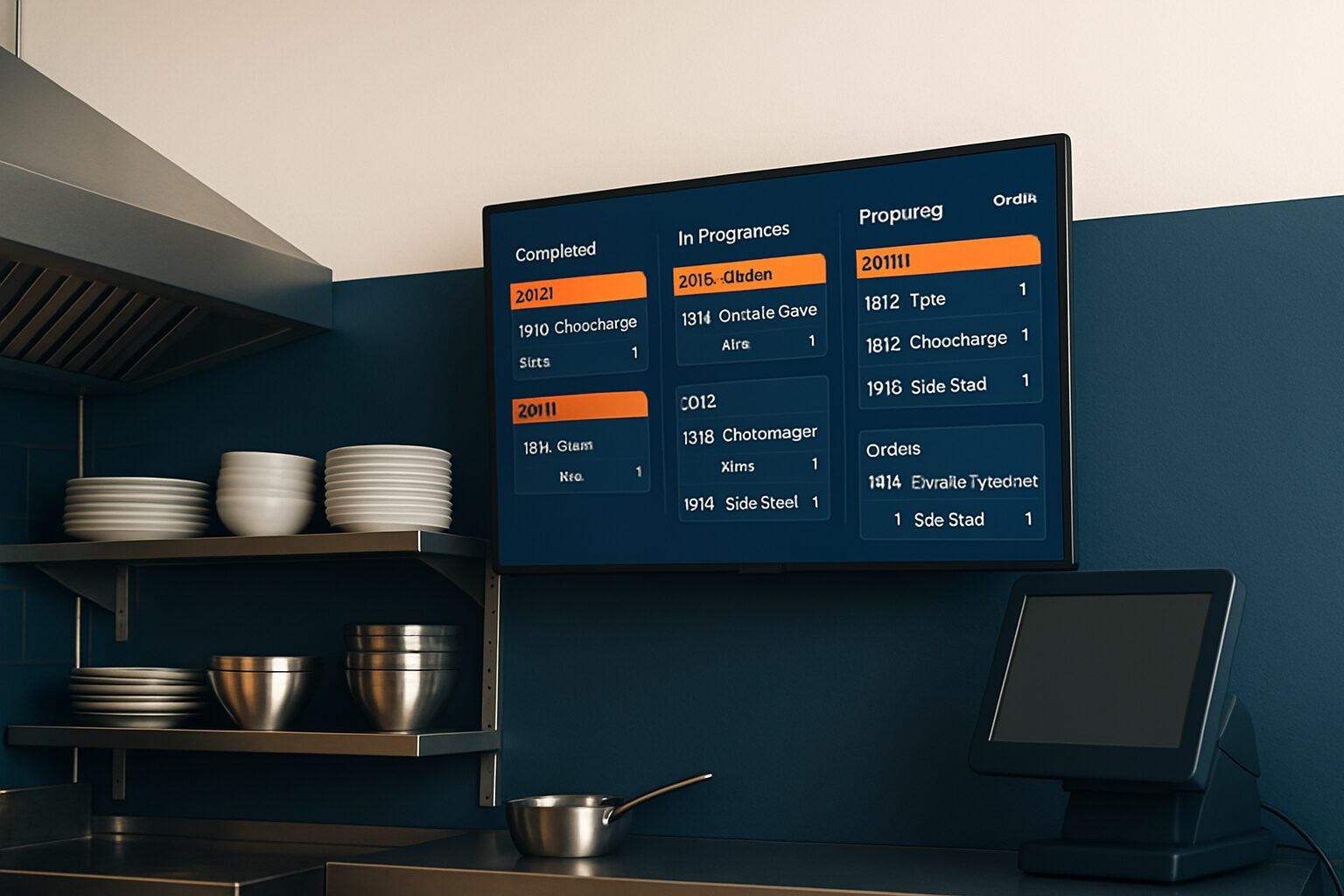
A POS link (Point of Sale integration) connects your till system directly to your digital menu boards. If you change a price or switch a dish off at the till, the screen updates automatically — without anyone logging into a separate CMS. This eliminates the risk of price differences between till and display, saves management time and makes dayparting (breakfast, lunch, dinner) fully automatic.
Why manual tracking is a risk
A paper or static digital menu quickly falls behind. Dishes sell out, seasonal prices change, the daily special changes. Anyone updating that manually on multiple screens misses updates — or makes mistakes.
Digital menu boards linked to a POS update in real time as soon as you change prices, stock availability or other menu information. That sounds obvious, but in practice many hospitality businesses still have not set this up. 40% of Dutch hospitality businesses never adjust the menu based on sales data, according to the national Horeca 2.0 study. A live POS link lowers that barrier considerably: the data flows automatically.
The three technical connection variants
As an installer, you choose the integration method based on the customer’s POS system and the signage software on the screen. There are three common approaches:
Direct API integration connects the signage CMS directly to the POS API. Middleware (such as Zapier, Make or custom work) bridges systems that do not have a direct connection. Webhooks let the till send an event signal that directly triggers a screen update. Database sync periodically synchronises the data between both systems.
Which method you choose depends on three factors:
- Speed: if a sold-out dish needs to disappear within seconds, choose a webhook or direct API. Periodic sync (every 5–15 minutes) is sufficient for daily price changes.
- Till system: unTill supports more than one hundred and twenty-five integrations, including external screen solutions. Lightspeed and Lightspeed Restaurant offer a REST API. Older or closed systems require middleware or a CSV export.
- Management burden: a direct API requires more configuration time initially, but then delivers zero manual work.
Start with direct API integration if the POS system supports it. If the checkout does not fall into that category, a middleware layer is the most maintenance-friendly choice.
What the integration can update automatically
By synchronising prices and item availability in real time, you eliminate manual updates and ensure digital displays always reflect the current till data.
Specifically, this concerns:
| Data point | Example | Update frequency |
|---|---|---|
| Price | Beer from current price on request to current price on request | Direct (webhook) |
| Availability | "Sold out" badge on dish of the day | Direct (webhook) |
| Daypart | Breakfast menu switches at 11:00 to lunch | Scheduled trigger |
| Promotion | Happy hour -20% on drinks 17:00–19:00 | Schedule |
| Allergen information | EU-mandatory 14 allergens per item | On menu update |
Restaurants can use POS integration to build dynamic digital menus that automatically update prices, track stock and show sold-out warnings.
Which screen is suitable for a POS connection?
Not every screen is equally suitable. A consumer TV (±300 nits, no Android management layer) does not provide a stable basis for a live data integration. Commercial displays with a built-in Android computer are the right choice: they run 24/7, accept content via URL or app feed, and do not need a separate media player.
All PixioDisplays have an integrated Android computer (Android 13/14) — so you do not need a separate media player (current price elsewhere on request per screen). You load content via USB, a website URL or the PixioApp. For a catering business that wants a fixed menu board setup, the PixioDisplay Luxe (49″ touchscreen) a logical choice: buy current price on request or lease current price on request per month (price list Q2 2026). If you also want to enable self-service ordering, then the PixioKiosk (21,5″ to 49″, lease current price on request p.m.) an order kiosk with the screen function in one device.
For the full hospitality application, see the application page restaurant and hospitality.
Practical example: price change across multiple screens
Suppose a restaurant has three screens — one at the entrance, one above the bar and one at the till. The owner increases the price of a steak in Lightspeed from current price on request to current price on request. Without integration, they have to log in in three places and adjust it manually. With a direct API integration or webhook, the change in Lightspeed automatically triggers an update on all three screens — within seconds, without intervention.
The same principle works for sold-out items: sold-out items are automatically removed from the display. Guests never see a dish that is unavailable. That prevents disappointment and reduces pressure on staff.
Points of attention during installation
A POS connection only works well if you set up a number of things properly during installation:
- Network: ensure a stable, wired connection at the screen location. Wifi works, but an Ethernet cable is more reliable for live data.
- Fallback: what does the screen show if the POS connection drops? Set a static fallback slide with the basic assortment.
- Data mapping: POS item names and CMS fields must match exactly. Small name differences break the synchronisation.
- Test environment: verify the connection in a staging environment before going live.
- Allergens: check whether the POS data includes the 14 EU-mandated allergens per item. If not, add this in the CMS before the integration goes live.
Good preparation takes a few extra hours during installation, but prevents faults and complaints afterwards.
Would you like to know more about the full implementation of a digital menu board, from hardware selection to content management? Then read the step-by-step guide to implementing a digital menu board.
Are you unsure between separate digital signage and central narrowcasting across multiple branches? Work through the digital signage vs narrowcasting decision tree — written for retail chains, but the four decision questions apply just as well to hospitality formats.
Frequently asked questions
Which cash register systems are easiest to connect to digital menu boards?
Cash register systems with an open REST API — such as Lightspeed Restaurant, unTill and Square — are the easiest to connect. unTill supports more than 125 integrations. Closed or older systems require a middleware layer (such as Make or custom development) to send the data to the signage software.
How quickly does a price change appear on the screen after an adjustment in the till?
With a webhook or direct API connection, the update is visible within seconds to a maximum of one minute. With a periodic database sync, it takes 5 to 15 minutes, depending on the set interval. For sold-out items, a webhook connection is recommended, so guests never see a dish that is unavailable.
Does the screen need a separate media player for a POS connection?
Not with commercial displays with an integrated Android computer, such as PixioDisplays. They run the signage software directly on the screen itself. A separate media player (€80–€300 per screen) is then unnecessary, which makes installation simpler and cheaper.
What happens on the screen if the connection to the till is lost?
When installing, always set a static fallback slide. This shows the basic range without live data. That way the screen remains informative even if the POS connection is temporarily interrupted. Restoring the connection automatically triggers a new synchronisation.
Do I need to take allergen requirements into account with a POS integration?
Yes. European legislation requires hospitality businesses to list the 14 EU allergens per dish. During installation, check whether the till system supplies this data per item. If not, add the allergen information manually in the CMS before the integration goes live.