
Knowledge and advice
Synchronising display content with stock management: integration guide
Connect your digital displays to a POS or ERP system for automatic stock updates. Step-by-step integration guide for retail installers.
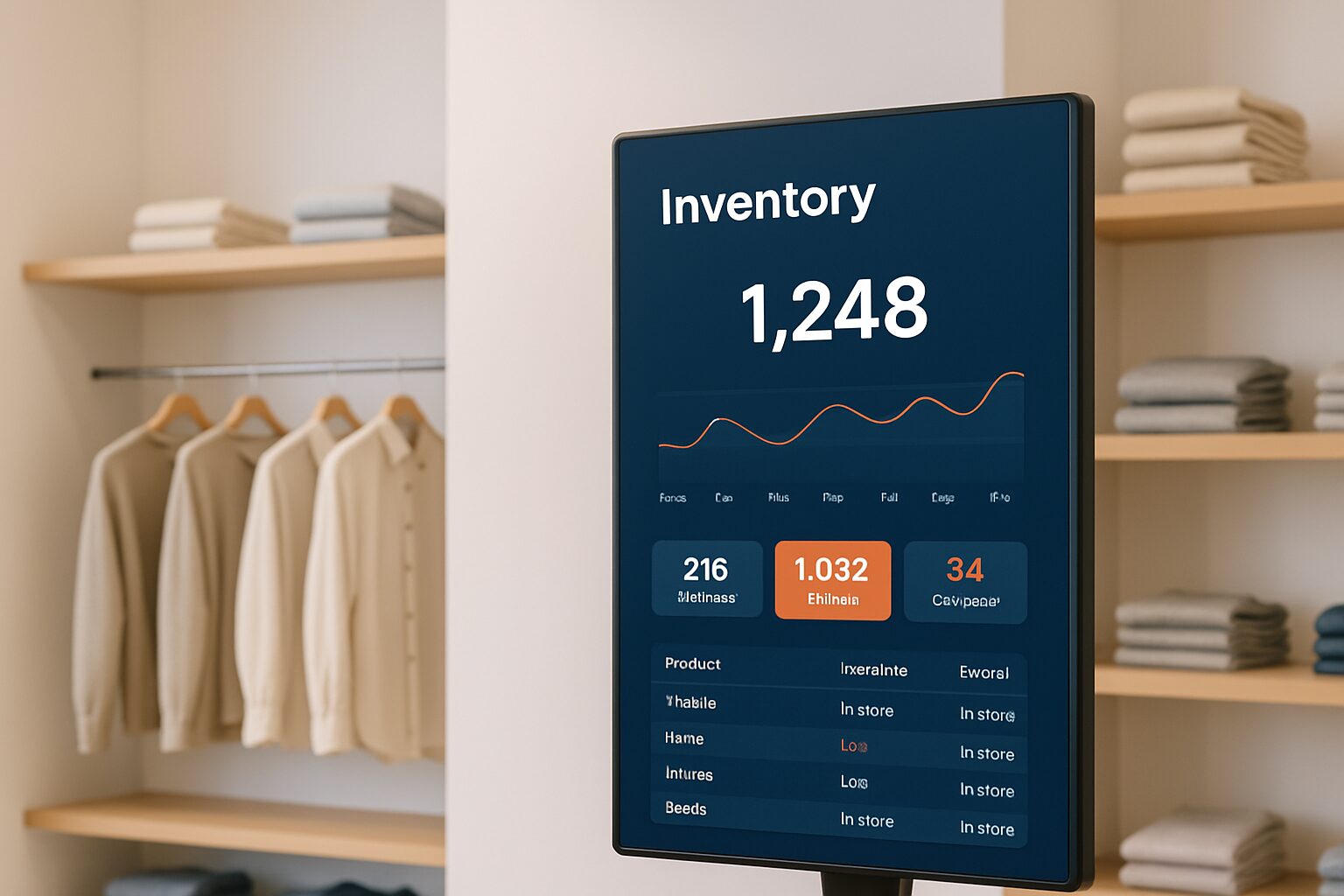
Synchronising display content with stock management means that every stock change in your till system or ERP is automatically visible on the screen — without manual intervention. The connection runs via an API or middleware that passes prices, stock quantities and promotions to the signage CMS. As soon as a product sells out, the offer disappears from the screen. As soon as the price drops, the screen adjusts. This is the technical core of data-driven retail signage.
Why manual updates do not work
Without integration, screens and the cash register system are two separate worlds. <Price changes in the POS only reach the screen when someone enters them manually — with delay and the risk of errors as a result. Customers then see a price or product that is no longer correct, which directly damages trust. As the Pixio knowledge base puts it: a screen with outdated content is worse than no screen.
An integrated system solves this structurally. <With every stock change, the source system publishes an event that is processed by middleware and pushed to all sales channels within seconds — including your screens.> That applies to a single shop, but also to chains with dozens of locations.
The three integration architectures
There are three common ways to connect your signage CMS to stock management. Choose based on the customer's POS system and the available budget for customisation.
| Method | How it works | Suitable for | Disadvantage |
|---|---|---|---|
| Direct API connection | CMS directly calls the POS REST API | Systems with open API (e.g. Lightspeed, Shopify POS) | Requires API access and development time |
| Middleware / iPaaS | Zapier, Make.com or StoreLinkr translates data between systems | Smaller retailers without an IT department | Additional monthly costs for the middleware |
| Database sync | Signage player periodically reads from shared database | On-premise POS without cloud API | Polling delay; not truly real-time |
Start with direct API connection if the customer's POS offers an open REST API. That gives the lowest latency and fewest dependencies. Choose middleware when the POS has no public API or when the retailer does not want to allocate development budget.
Step by step: setting up a POS integration
A structured approach prevents most problems. Go through these steps in order.
- Map the POS system. Ask the customer which cash register system they use and whether a REST API is available. Systems such as Lightspeed, Shopify POS and MplusKASSA offer native connections or API integrations.
- Check the API documentation. Which endpoints are available for stock information, prices and product status? Note the authentication method (API key, OAuth).
- Set up entity mapping. Every product in the till system must be linked via a unique SKU to the same product in the signage CMS, including variants such as size and colour. This is the most underestimated step.
- Configure the trigger logic in the CMS. Define threshold values: at what stock level does "Only 3 left in stock" appear? When does an offer disappear automatically?
- Test with live data. Reduce the stock of a test product manually in the POS and check how quickly the screen responds. Aim for a delay of less than 30 seconds.
- Monitor after go-live. Set up a caching layer that keeps the screen stable during a temporary API outage. Without a cache, the screen shows a blank slide with every connection interruption.
Which hardware platform supports API integration?
Not every screen is equally suitable as an endpoint for data-driven content. Commercial displays with an integrated Android computer process API calls directly on the device — without a separate media player.
All PixioDisplays run on Android 13 or 14 and have a built-in Android computer. That saves current price on request per screen in hardware you would otherwise need to buy separately. You control content via USB, a website URL or the PixioApp. For retail customers who want a touchscreen kiosk with stock information and self-service, the PixioKiosk a logical choice: the 21,5″ model costs current price on request and the 32″ model current price on request (price list Q2 2026). Both models are suitable for continuous use and support display via URL — the simplest entry point for a data-driven connection.
For shopfront applications where the screens are also outside or in a sunlit display window, brightness is the critical spec. The PixioDisplay Window Full Sun achieves 3.000 nits and is available from current price on request (43″, single-sided, price list Q2 2026). Dunkin' Donuts uses this model for digital window posters.
Concrete example: fashion store with Lightspeed
A fashion store with three branches uses Lightspeed as its cash register system. The installer links the signage CMS via the Lightspeed REST API. At each branch, two 43" screens hang by the entrance and one touchscreen kiosk is placed by the fitting rooms.
The trigger logic works as follows:
- Stock ≥ 10 units → product visible in regular promotion slide
- Stock 1–9 units → automatic label "Last items" on the screen
- Stock 0 → product disappears from the playlist
The mapping runs at SKU level, including size variants. After going live, the system processes an average of 40 stock changes per day fully automatically. Staff no longer need to update the screens manually.
A similar setup is also described in the knowledge base article about real-time stock management on digital displays.
Common integration mistakes
An ERP or POS signage integration is not a plug-and-play solution. Good preparation prevents delay and disappointment. These are the most common mistakes:
- Do not set up a caching layer. In the event of a temporary API outage, the screen shows an empty or frozen slide. A caching layer stores the last known data and keeps the screen stable.
- Skip SKU mapping. Products without a unique SKU link are not recognised by the CMS and remain static.
- Setting the polling interval too high. An interval of 15 minutes is too slow for most retail customers. Aim for push notifications via webhooks for immediate updates.
- No test phase with live data. Test environments with dummy data miss edge cases such as negative stock levels or duplicate SKUs.
- Choosing a signage CMS without an open API. When purchasing signage software, always choose systems with an open API — that gives you the freedom to connect now and in future with any system the retailer uses.
Conclusion
A working integration between display content and stock management depends on three things: an open API on the POS side, correct SKU mapping and a caching layer for stability. Start with the direct REST API method if the till system allows it. Choose middleware only if no public API is available.
For the broader context of POS-linked screens in retail — including placement advice and system selection — read the pillar article POS displays: types, functions and integration with POS systems.
Frequently asked questions
Which till system works best with digital displays?
Till systems with an open REST API — such as Lightspeed, Shopify POS and MplusKASSA — are the easiest to connect to a signage CMS. Systems without a public API require middleware such as Zapier or Make.com, which brings additional monthly costs. Always request the API documentation first before starting an integration project.
How quickly does the screen adapt after a stock change in the till system?
With a direct API connection with push notifications via webhooks, latency is usually less than 30 seconds. With a polling method — where the CMS periodically consults the API — latency can rise to 5 to 15 minutes, depending on the configured interval. For price changes and sold-out products, a webhook approach is strongly recommended.
What is SKU mapping and why is it so important?
SKU mapping means that each product in the POS system is linked via a unique product code to the same product in the signage CMS. Without correct mapping, the CMS does not recognise a stock change and the content remains static. Including variants such as size and colour, this is the most underrated step in an integration project.
Can a PixioDisplay process a direct API integration?
All PixioDisplays run on Android 13 or 14 with an integrated Android computer. You can display content via a website URL that retrieves dynamic data, or via a signage CMS app that handles the API connection. A separate media player is not needed, which makes installation simpler.
What should I do if the API connection temporarily drops out?
Always set up a caching layer that keeps the last known data. That way, if the connection drops, the screen shows the most recent content instead of a blank slide. Also configure a monitoring alert so that, as the installer, you are notified immediately of a prolonged outage.