
Knowledge and advice
Multi-screen management: from 1 to 50 screens without chaos
How do you manage 10, 20 or 50 digital signage screens without chaos? Learn how to organise screen groups, permissions and rollout smartly. Including a practical approach.
Multi-screen management: from 1 to 50 screens without chaos
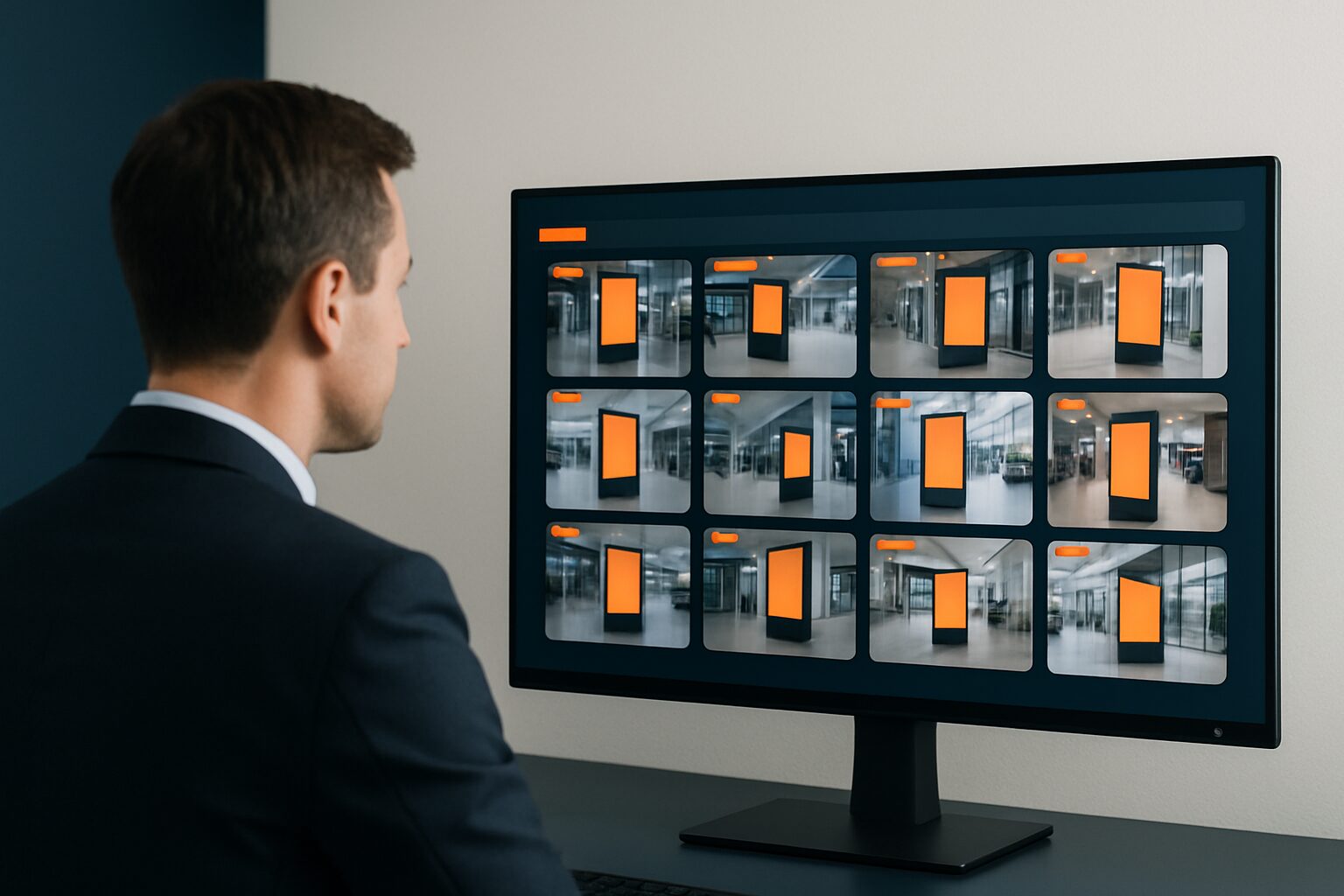
Multi-screen management is the central management of multiple digital signage screens via one software platform, where you define screen groups, assign user permissions and automatically roll out content to the right screens at the right time. The difference with managing separate screens is fundamental: you work with structure rather than manual updates per device. From five screens onwards, a well-thought-out management strategy pays off; at twenty or more, it is indispensable.
Why things go wrong without structure
Keeping track of one screen is simple. Ten screens at three locations is a different story. Without a central approach, every content change becomes a manual repeat task.
The problem is rarely the screens themselves. When you manage digital signage across multiple locations without a CMS, every manual update becomes a repeated task: a menu change, a price update, a schedule change — and suddenly you are spending time on maintenance rather than communication. A common mistake is also filling screens with notices, promotions and news without structure — the result is a screen that nobody reads any more.
The solution is a centralised platform that lets you create, schedule and distribute dynamic content across multiple screens from one dashboard. Worldwide, more than 52% of companies using digital displays rely on such dedicated software platforms rather than manual content management (marketreportsworld.com).
The four pillars of scalable screen management
A management strategy that scales from 1 to 50 screens is based on four elements:
1. Display groups
Group screens by location, function or target audience — not by device type. Examples:
- Location group: all screens in Amsterdam branch vs. Rotterdam
- Functional group: entrance hall screens vs waiting room screens vs checkout area
- Target group group: customer-facing screens vs internal employee communication
An update you send to a group reaches all screens in that group at the same time. You do not have to adjust each screen individually.
2. Rights management (roles and permissions)
Not everyone may change everything. Set at least three levels:
| Role | What is this user allowed to do? |
|---|---|
| Administrator | Everything: adding screens, creating groups, managing users |
| Content editor | Uploading and scheduling content for assigned groups |
| Viewer | View dashboard only, no changes |
Rights management prevents an employee in the Utrecht branch from accidentally overwriting the playlists of Amsterdam. For organisations with multiple locations or in regulated sectors, this is not optional — it is the basis of reliable screen communication.
3. Content rollout and scheduling
Schedule content by part of day, day or period — not just on screen. A hospitality chain shows the breakfast menu in the morning, the lunch offer in the afternoon and the dinner menu in the evening, all automatically without manual intervention. Connect your CMS to existing data sources (price lists, calendars, RSS) so screens stay up to date without anyone having to update them manually.
We cover content planning by time of day and zone in more detail in the article Planning digital signage content: playlists, parts of the day and zones.
4. Monitoring and status management
A screen that is offline communicates nothing. Good management software shows the real-time status of each screen: online/offline, last synchronisation, active playlist. Set up automatic alerts in the event of a fault. That way you solve problems before a customer or visitor sees a black screen.
How to roll out: from pilot to full network
Start small, but immediately build the structure that also works with 50 screens. This is the recommended step-by-step plan:
- Define your screen groups before you connect the first screen — not afterwards.
- Set up rights management based on who manages the content, not on who installs the hardware.
- Start with a pilot group of 3–5 screens in one location. Validate the workflow: upload → schedule → publish → check.
- Document your naming convention: consistent names for groups, playlists and files prevent confusion for twenty employees using the same system.
- Only scale up once to more locations once the pilot workflow is stable. Copy the structure, adapt the content.
This may sound obvious, but practice shows that organisations that roll out screens without a заранее thought-out group structure have to reorganise again with every expansion.
Hardware and software: the combination determines the management burden
The choice of hardware has direct consequences for your management workload. Screens with an integrated media player require fewer management actions than setups where a separate media player is connected to each screen.
PixioDisplays have a built-in Android computer (Android 13/14), so you do not need a separate media player (elsewhere current price on request per screen) or laptop. You control content via USB, a website URL or the PixioApp. When deploying more than 50 PixioDisplays at one event — such as at Summit (reference) — this proved to be the biggest practical difference compared with separate TV-plus-laptop setups: the displays are ready to use within minutes and do not require separate configuration per media player.
For cloud-based CMS software, subscription costs usually range between current price on request and current price on request per screen per month for standard solutions; enterprise platforms can exceed current price on request per screen per month (research.com). With 50 screens, that quickly adds up — reason enough to take total management costs into account already when choosing the hardware.
Would you like to know which CMS model suits your organisation? Then read Cloud CMS vs on-premise: what suits your business? for a comparison of both architectures.
When do you choose which approach?
- 1–5 screens, one location: simple cloud CMS is sufficient; no complex group structure needed.
- 5–20 screens, multiple locations: set up screen groups and two user roles before deployment.
- 20–50+ screens: choose software with granular rights management, automatic status monitoring and API integrations for dynamic data. Consider a dedicated administrator or team.
Start with the structure that fits your end goal, not your starting point. A network of 50 screens that you later reduce to 10 is simpler than a network of 10 that you scale up afterwards to 50 without the right foundation.
For a full overview of software, licensing models and selection criteria, read the pillar article Narrowcasting software: how do you choose the right system for your displays?.
Frequently asked questions
From how many screens do you need a CMS?
From five screens onwards, a CMS with central screen groups and scheduling becomes worthwhile. For one or two screens at one location, a simple app or USB approach is sufficient. As soon as you have multiple locations or multiple content managers, a CMS with rights management is essential to prevent errors and duplicate work.
What are screen groups and why are they important?
Screen groups are logical clusters of screens that receive the same content or schedule — for example all screens in a branch, or all waiting-room screens. By sending an update to a group instead of to each screen individually, you save time and avoid inconsistencies between locations.
How do you set up permission management for a team of several people?
Set up at least three roles: administrator (full access), content editor (uploading and scheduling for assigned groups) and viewer (read-only). Link roles to screen groups, not to individual screens. That way, an employee in Rotterdam can only change the Rotterdam screens, without the risk of unintended changes elsewhere.
What does digital signage management software cost per screen?
Cloud-based CMS subscriptions typically cost €10–€50 per screen per month for standard solutions. Enterprise platforms with extensive reporting and API integrations can exceed €100 per screen per month. With hardware that has an integrated media player — such as PixioDisplays — the costs for a separate media player are eliminated (elsewhere €80–€300 per screen).
Can I expand an existing screen network later without reconfiguring everything?
Yes, provided you work from the outset with a scalable group structure and a consistent naming convention. Add new screens to an existing group and they will automatically inherit the associated playlists and settings. If you have not set up that structure in advance, you will need to reorganise manually with every expansion — which takes disproportionately much time.