
Knowledge and advice
Connect a meeting room display to Outlook: step by step
Connect your meeting room screen to Outlook in 4 steps: create a room mailbox, set auto-accept, connect the display and test. Practical Dutch guide.
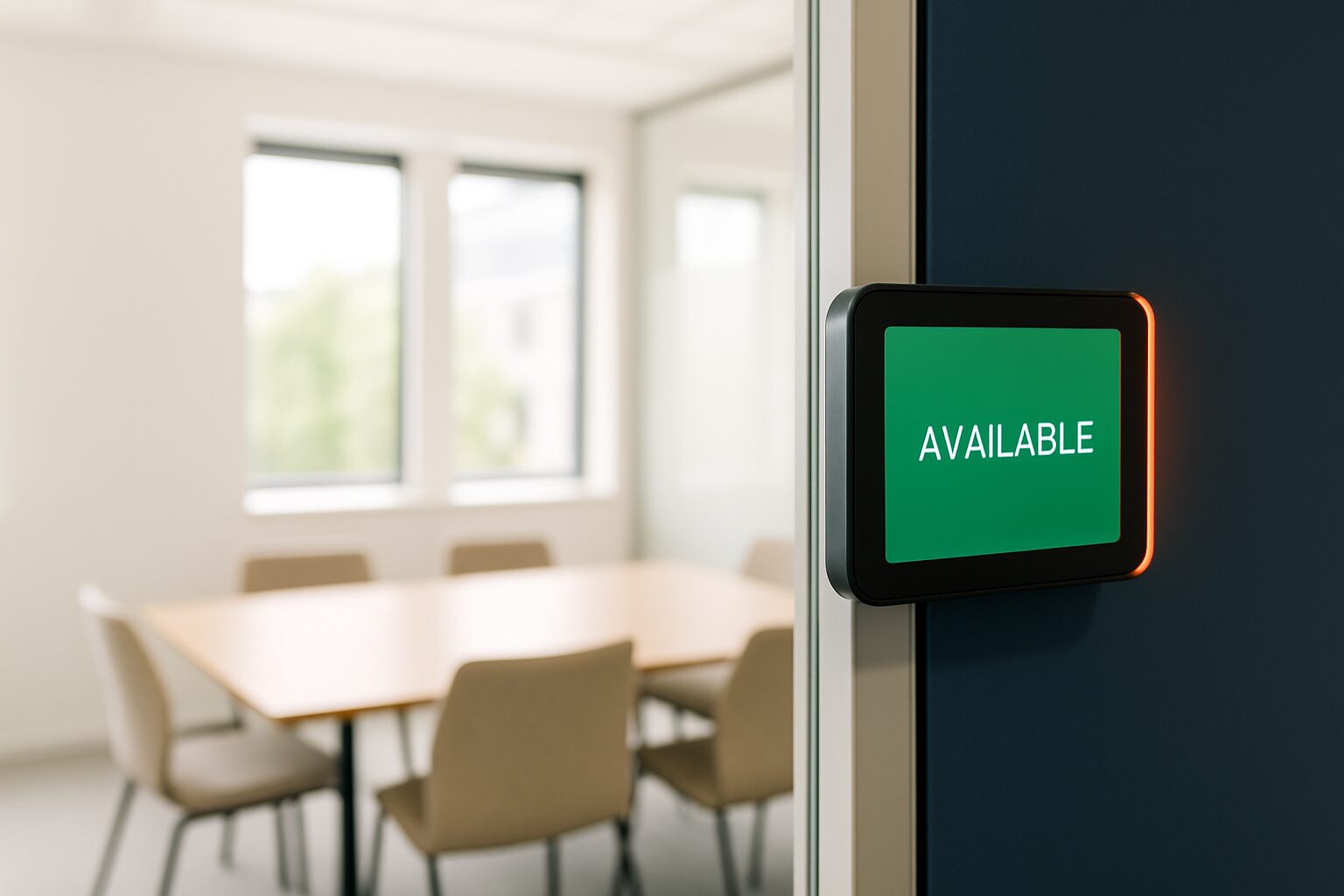
A meeting room display shows in real time whether a meeting room is free or occupied by reading directly from an Exchange room mailbox in Microsoft 365. Every booking a colleague creates via Outlook or Microsoft Teams appears automatically on the screen by the door — without manual intervention. The link works via the EWS protocol (Exchange Web Services) or the newer Microsoft Graph API, depending on the display platform you choose.
What you need before you start
Check these three points before taking the first step:
- Microsoft 365 subscription with Exchange Online — room mailboxes are included in most Business and Enterprise plans, without extra licence costs per room.
- Global Admin or Exchange Admin rights — you need admin rights to create resources and set up calendar processing.
- A display with Android or a dedicated room panel — a commercial screen is more robust than a consumer tablet; consumer tablets lack the right casing and brightness for 24/7 wall mounting.
Haven't chosen hardware yet? Then read first Meeting room screens and room booking displays: what do you need? for an overview of sizes and mounting options.
Step 1 — Create room mailbox in Microsoft 365
A room mailbox is a special type of resource mailbox with its own name and email address. When someone invites the room to a meeting, the mailbox automatically accepts or declines based on availability — preventing double bookings.
- Go to admin.microsoft.com and log in with an admin account.
- Navigate via the left-hand menu to Resources → Rooms & equipment.
- Click on Add resource, choose the type Room and enter the name, email address and capacity.
- Save — the space now appears in the list.
Choose a clear name, such as Meeting room A-3th floor. Colleagues will see that name in the Outlook Room Finder, so consistent naming saves confusion later.
Please note: New room mailboxes can take up to 24–48 hours to fully synchronise in Microsoft 365 and appear in Room Finder. Do not schedule your installation on the day they are created.
Step 2 — Set up auto-accept and calendar processing
By default, a room mailbox does not always process booking requests automatically. You must enable this explicitly, otherwise your display will continue to show empty or outdated information.
Go to the Exchange Admin Center (admin.exchange.microsoft.com) → Recipients → Resources. Select the room and open Booking options. Set Auto-accept meeting requests on.
Do you want more control? Then use PowerShell:
Set-CalendarProcessing -Identity "vergaderzaal-a@jouwbedrijf.nl" \ -AutomateProcessing AutoAccept \ -DeleteComments $false \ -DeleteSubject $false \ -AddOrganizerToSubject $true
The options -DeleteComments $false and -DeleteSubject $false ensure the meeting title and organiser are visible on the display — by default, Exchange removes this information. Without this setting, your screen shows only the organiser's email address instead of the meeting name.
Also set the visibility of calendar details:
Set-MailboxFolderPermission -Identity "vergaderzaal-a@jouwbedrijf.nl:\calendar" \ -User Default -AccessRights LimitedDetails
This gives all users read access to the subject and location, without them seeing the full meeting content.
Step 3 — Connect display to the room mailbox
How you connect the display depends on the platform you use. The two most common methods:
| Method | When to use | Required |
|---|---|---|
| Microsoft Graph API | Microsoft 365 (cloud) | App registration in Microsoft Entra ID |
| EWS (Exchange Web Services) | On-premises Exchange or hybrid | EWS endpoint reachable, valid certificate |
For most Dutch offices with Microsoft 365, Graph API is the preferred route. The steps on the display platform are broadly:
- Open the settings of your room booking software (e.g. Joan, Humly or GoBright).
- Choose Microsoft 365 / Exchange Online as calendar environment.
- Authorise the app via your Microsoft 365 tenant — a Global Admin must grant permission once.
- Select the correct room mailbox from the list.
- Save and restart the display.
After connecting, the screen shows the current and upcoming bookings. Cancel a meeting in Outlook? Then the display immediately releases the room.
Step 4 — Testing and resolving common mistakes
Create a test booking in Outlook: add the room as the location and send the invitation. Check within 30 seconds whether the display shows the reservation.
Is it not working? Check these points in order:
- Space not visible in Room Finder — add the mailbox to a room list. Rooms that are not linked to any room list will not appear in the Room Finder of some Outlook clients. Then wait up to 24 hours for synchronisation.
- Display does not show meeting title — check whether
DeleteSubjectat$falseis active (see step 2). - Display shows 'occupied' but the room is empty — check whether
AutomateProcessingatAutoAcceptis active and whether a delegate is set that reviews requests manually. - Authorisation error with Graph API — a Global Admin must grant admin consent once in Microsoft Entra ID for the display app.
- Hybrid Exchange — on-premises room mailboxes are read via EWS; cloud-hosted rooms via Graph. Consider migrating the mailboxes to the cloud for a uniform setup.
A practical check: open Outlook Web App (OWA) and search for the room there. If OWA finds the room but desktop Outlook does not, it is a local cache problem — force a Send/Receive or sign in again.
What you see on the display after a successful connection
A well-configured meeting room display shows at least:
- Current status — green (free) or red (occupied), visible from around ten metres away.
- Meeting name and organiser — thanks to the PowerShell settings from step 2.
- Timeline — upcoming reservations for the rest of the day.
More advanced systems add a check-in function: if no one checks in within five to ten minutes after the start time, the system automatically releases the room. That prevents a meeting room from remaining blocked all morning for a meeting that does not go ahead.
For offices that also receive visitors, it makes sense to combine the display with a digital reception solution. Read more in Digital reception and welcome screen: first impression to visitor registration.
Want to know which display size suits your meeting room? The PixioKiosk is available in sizes from 21,5″ to 49″ — from current price on request buy or current price on request per month lease (price list Q2 2026) — and runs on Android 13/14 with an integrated computer, so you do not need a separate media player or laptop.
Frequently asked questions
Do I need a paid licence for a room mailbox in Microsoft 365?
No. Room mailboxes are included in most Microsoft 365 Business and Enterprise subscriptions without extra licence costs per room. You do need Exchange Online, which is included in almost all business plans.
How long does it take before a new room mailbox is visible in Outlook?
A new room mailbox can take 24–48 hours to fully synchronise in Microsoft 365. Do not schedule your installation for the day it is created. You can restart Outlook or sign in again to refresh the local cache, but you cannot speed up server-side synchronisation.
Does the integration also work with Google Calendar instead of Outlook?
Yes. Most room booking platforms support both Microsoft Exchange/Microsoft 365 and Google Calendar via the Google Calendar API. During configuration, you choose which calendar environment you use; operation on the display is identical.
Why does my display show the meeting name not, but only an email address?
By default, Exchange removes the meeting subject from the room mailbox calendar. Solve this with the PowerShell command Set-CalendarProcessing using the options -DeleteSubject $false and -AddOrganizerToSubject $true. New bookings will then immediately show the meeting name; existing bookings are not updated retrospectively.
Can I use a regular Android tablet as a meeting room display?
Technically, an Android tablet can function as a display, but dedicated room panels and commercial touchscreen kiosks are more robust and have a longer lifespan. Consumer tablets are not built for 24/7 wall mounting and often lack the right casing and brightness for continuous operation.