
Knowledge and advice
Touchscreen displays for customer interaction: design and best practices
Learn how to design touchscreen displays for maximum customer interaction. Practical UX rules, examples and best practices for retail and public spaces.
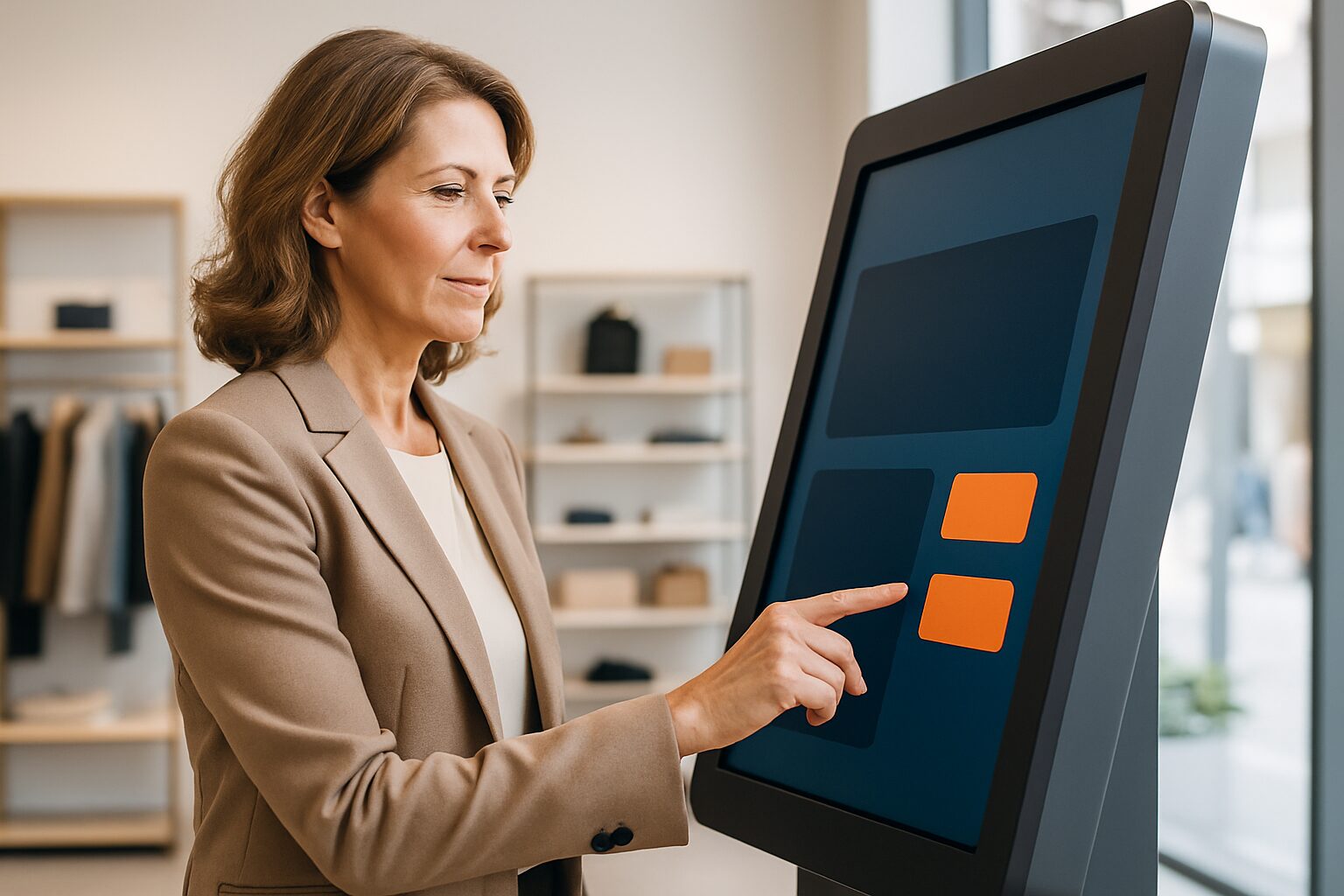
Touchscreen displays for customer interaction: design and best practices
A touchscreen display for customer interaction is a publicly accessible touch screen on which visitors can independently look up information, explore products or carry out an action — without staff intervention. Well-designed touchscreens increase average dwell time, lower the threshold to purchase and collect valuable usage data. Poorly designed screens are ignored or cause frustration. The difference lies in UX choices you make before installation.
In short
- Touch targets must be at least 10 × 10 mm; smaller buttons lead to errors and drop-offs.
- Public touchscreens have an average interaction time of 45–90 seconds — design for that time span.
- Use a maximum of three navigation levels; deeper than that leads to loss of context.
- Accessibility (WCAG 2.1 AA) is not an option but a requirement for public screens.
- Pixio Display supplies touchscreens with integrated CMS support for retail and public spaces in the Netherlands and Belgium.
What makes a touchscreen suitable for public use?
A consumer tablet and a public touchscreen look similar, but are fundamentally different. A public screen is operated by hundreds of people per day, with varying digital skills, in environments with high ambient light and noise. The hardware must withstand intensive use: an industrial touch panel typically has an MTBF (Mean Time Between Failures) of 50.000 hours or more, while consumer equipment often falls below 20.000 hours.
Screen size also plays a role. For standing kiosks in retail, a screen diagonal of 32 to 55 inch is standard. Smaller screens increase the risk of mis-taps; larger screens require more walking distance and are less suitable for narrow aisles.
The five UX principles for public touchscreens
UX for public screens differs from web or app design. Users are standing, moving and have not read a manual.
1. Affordance — make clear what is clickable. Buttons should look like buttons: raised, rounded, with sufficient contrast. Flat 'ghost buttons' work poorly on public screens.
2. Contact surface. The minimum touch area is 10 × 10 mm (recommendation by the Nielsen Norman Group). For standing kiosks used with gloves — think trade fairs in winter — increase this to 14 × 14 mm.
3. Feedback within 100 ms. Users expect immediate visual or haptic confirmation after a touch. A delay of more than 100 ms is experienced as 'freezing' (source: Human Interface Guidelines, Apple).
4. Fault-tolerant navigation. Every screen status has a visible 'Back' button and a 'Start again' option. Otherwise, users who get stuck will leave the screen completely.
5. Time-out and reset. Set an inactivity timeout of 60–120 seconds. After the timeout, the screen returns to the home screen so that the next user gets a clean session.
Design rules for interface and visual hierarchy
Visual hierarchy determines where eyes — and fingers — go. Use a maximum of three font sizes per screen: a large heading (min. 36 pt), readable body text (min. 24 pt) and a small supporting line (min. 18 pt). Anything smaller is unreadable at a viewing distance of 60–80 cm.
Colour contrast follows WCAG 2.1 AA: at least 4,5:1 for normal text, 3:1 for large text. This is not only an accessibility requirement, but also practical: in a lit shop environment, low contrast is invisible. Our related article on accessibility (WCAG) for public displays explores this in more depth.
Use a maximum of three navigation levels. Home screen → category → detail page is the maximum depth for a self-service kiosk. Deeper navigation leads to disorientation and abandoned sessions.
Three concrete examples from Dutch practice
1. Self-service kiosk at a fashion chain in Amsterdam. A medium-sized fashion chain installed 43-inch standing touchscreens in five branches. Customers could browse the full collection via the kiosk, including sizes and colours not available in store. Result after three months: 18% more online orders from the shop and an average session duration of 72 seconds (internal chain report, 2023). Critical success factor: the interface used large product images and no more than two levels of navigation.
2. Interactive information kiosk at the Huishoudbeurs in Amsterdam RAI. Trade fair organisers use touchscreens as floor plans and programme guides. At the Huishoudbeurs 2024, one pillar processed an average of 340 sessions per day. The interface was deliberately minimalist: three main categories, large icon text and a clear 'Reset' button. Visitors with limited digital skills could operate the screen without instruction.
3. Municipal information kiosk in Rotterdam. The municipality of Rotterdam tested touchscreens in 2022 in three city offices as a supplement to the counter. The kiosks answered frequently asked questions about permits and waste separation. Evaluation showed that 62% of visitors used the kiosk before going to the counter, reducing the average waiting time by 4 minutes (source: Municipality of Rotterdam, annual service report 2022).
Comparison: capacitive vs infrared touch panel
The choice of touchscreen technology directly affects UX.
| Feature | Capacitive | Infrared (IR) |
|---|---|---|
| Accuracy | Very high | High |
| Works with gloves | No (unless special glass) | Yes |
| Maximum screen size | Up to approx. 65 inch | Up to 100 inches and larger |
| Resistant to dirt/moisture | Good (tempered glass) | More sensitive to dust on the frame |
| Cost price | Lower for medium-sized formats | Higher with large formats |
| Suitable for | Retail, hospitality, office | Trade fairs, museums, large kiosks |
For most retail applications up to 55 inches, capacitive is the standard choice because of its accuracy and lower cost. For outdoor set-ups or large formats, choose IR or PCAP (projected capacitive) with specialist glass.
Hygiene and maintenance as a UX factor
A dirty or damaged screen directly affects willingness to use it. Research by the University of Arizona (2019) showed that public touchscreens contain on average 400 times more bacteria than a toilet seat. This figure circulates widely in the sector and influences how visitors judge a screen — even if it looks clean.
Practical measures: place a hand sanitiser dispenser next to the kiosk, use antimicrobial coated glass and clean the screen at least twice a day with an approved product. Our article hygienic touchscreen displays: cleaning and maintenance provides a concrete cleaning protocol.
A damaged screen — scratches, dead pixels, loose frame — reduces user trust. Schedule preventive maintenance and monitor screen status via remote device management.
Accessibility: legally required and commercially smart
From 28 June 2025, the European Accessibility Act (EAA) applies to new products and services, including interactive kiosks offered to consumers. This means public touchscreens in retail must meet accessibility requirements: sufficient contrast, operation at wheelchair height (maximum 120 cm for the upper controls), and support for alternative input.
Practical: install kiosks at a height where the screen centre is at 100–110 cm. Provide an audio mode for visually impaired users. Make sure all functions can also be operated without touch if you use a hybrid set-up. More details are in our article on accessibility (WCAG) for public displays.
Companies that take accessibility seriously also reach a larger audience: 1 in every 6 people in the Netherlands has a disability (CBS, 2022).
Collecting data and privacy
Touchscreens generate usage data: popular categories, average session duration, most clicked products. This data is valuable for assortment decisions and UX improvements. Anonymous interaction data — without personal data — falls outside the GDPR notification requirement, but as soon as you use facial recognition or personalised content, strict rules apply.
Stick to this basic rule: do not store personal data without explicit consent. Inform visitors via a clear notice on the screen if you collect data. Our article public displays and privacy legislation: what is and is not allowed discusses the GDPR framework specifically for digital signage.
Conclusion
A touchscreen display for customer interaction only performs if hardware, UX design, accessibility and maintenance are aligned. The core: large touch areas, immediate feedback, maximum three navigation levels and an automatic reset. Concrete examples from Amsterdam, Rotterdam and the trade fair sector show that well-designed kiosks reduce pressure on staff and increase conversion. Pixio Display, a supplier of digital signage in the Netherlands and Belgium, delivers touchscreen kiosks and displays with integrated CMS support — suitable for retail, public spaces and events, from branches in Montfoort and Paal-Beringen.
Read more about touchscreens
Frequently asked questions
How large should a button be on a public touchscreen?
The minimum recommended touch zone is 10 × 10 mm, based on guidelines from the Nielsen Norman Group. For environments where users wear gloves, such as trade fairs or outdoor locations, increase this to 14 × 14 mm. Smaller buttons demonstrably lead to more misclicks and higher drop-off rates.
What is the ideal screen height for a standing touchscreen kiosk?
Place the screen centre at a height of 100–110 cm. This is accessible for wheelchair users and comfortable for standing users of average height. The European Accessibility Act states that the top controls may be a maximum of 120 cm high.
Which touch panel technology is best for retail?
For retail applications up to 55 inches, capacitive touch is the standard choice: high accuracy, tempered glass and a lower cost than infrared. For larger formats or outdoor installations, choose infrared or PCAP technology. The choice depends on screen size, environment and budget.
How long may a touchscreen be inactive before it resets?
Set an inactivity timeout of 60 to 120 seconds. After that time, the screen automatically returns to the start screen. This ensures a clean session for the next user and prevents personal session data from remaining visible.
Does a public touchscreen have to comply with WCAG?
Yes, from 28 June 2025 the European Accessibility Act (EAA) makes accessibility mandatory for interactive kiosks offered to consumers. WCAG 2.1 AA is the practical standard: at least a 4,5:1 colour contrast for text and controls at wheelchair height. This also applies to private retailers.
How often should you clean a public touchscreen?
Clean the screen at least twice a day with an approved agent, for example an isopropyl alcohol solution of up to 70%. Use antimicrobial coated glass as an additional measure. Place a hand sanitiser dispenser next to the kiosk to increase user confidence.
May you store usage data from a touchscreen kiosk?
Anonymous interaction data — such as popular categories and session duration without personal data — falls outside the GDPR notification requirement. As soon as you use facial recognition or personalised content, strict GDPR rules apply and explicit consent is required. Always inform visitors via a visible message on the screen.
How many navigation levels may a touchscreen interface have?
Use no more than three levels: home screen, category and detail page. Going deeper leads to disorientation for public users unfamiliar with the system. Each page has a visible 'Back' button and a 'Start again' option.
What is a realistic interaction time for a public touchscreen?
The average interaction time on public touchscreens is between 45 and 90 seconds. Design your interface for this time span: the core action should be reachable within three clicks. Longer flows only work if the user has a clear goal, such as placing an order.
What is the difference between a touchscreen kiosk and an interactive digital signage display?
A touchscreen kiosk is primarily designed for self-service: the user controls the session entirely. An interactive digital signage display combines passive content (advertising, information) with touch functionality as an extra layer. For retail, kiosks are suitable for product exploration; interactive displays work better for impulsive engagement.