
Knowledge and advice
Testing touchscreen interactivity: usability and performance
Concrete test protocols for touchscreen usability and performance: responsiveness requirements, touch latency, fault diagnosis and acceptance criteria for installers.
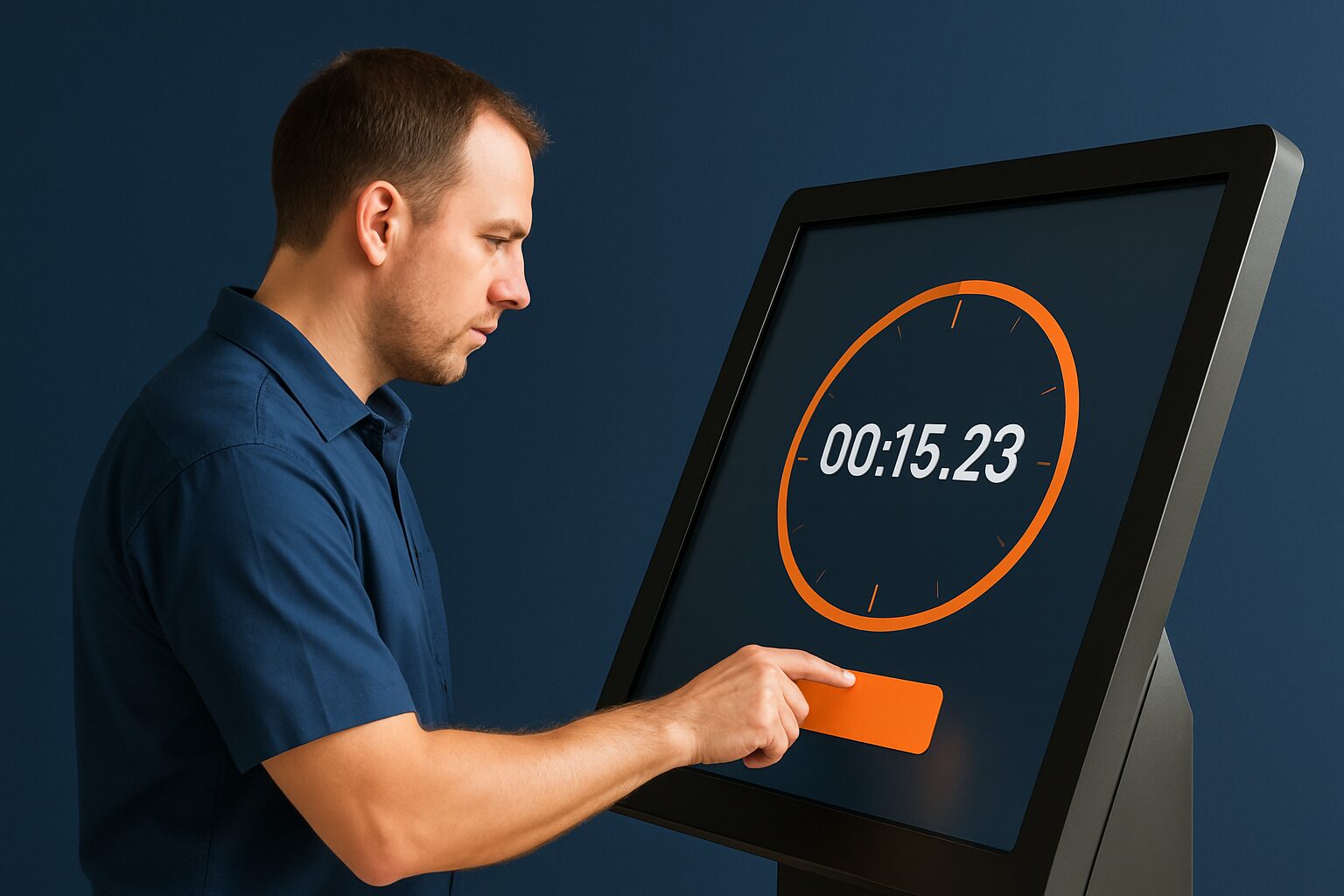
A public touchscreen only succeeds if it meets three measurable criteria: the hardware registers touches within 10 ms, the software gives visual feedback within 100 ms, and an unknown user completes a standard task in less than 60 seconds. These are not rules of thumb — they are based on ISO 9241-11, the international standard for usability of interactive systems, and published latency research. Anyone who installs a touchscreen kiosk without measuring these threshold values delivers a display that works technically but frustrates visitors in practice.
Two measurements that are often confused: pixel response vs. touch latency
Datasheets often mention a pixel response time in milliseconds. That figure says nothing about how quickly the screen processes a touch. Pixel response measures how quickly a pixel changes colour. Touch latency is the delay between physical contact and the first system response — two completely separate measurements.
Modern projected capacitive (PCAP) touchscreens achieve a hardware latency of 3 to 10 milliseconds. After that, the operating system adds latency, and then the application layer. Poorly optimised software can cause 50–200 ms extra latency — even on fast hardware. Therefore always measure end-to-end latency: from finger to visible response on the screen.
The PixioKiosk (43″, current price on request excl. VAT, price list Q2 2026) runs on an integrated Android 13/14 computer. That eliminates the external media player as a source of latency. When commissioning, test whether the Android layer is not running unnecessary background processes that slow down touch event processing.
The test protocol in three phases
A structured test protocol consists of three consecutive phases. Always carry them out in this order — hardware problems mask software problems if you do it the other way round.
Phase 1 — Hardware verification
- Calibrate the touch panel via the Android settings or the OSD menu for the first start-up.
- Tap systematically on at least 9 points spread across the screen (corners, edges, centre). Record whether all points are recognised correctly.
- Test multi-touch: use two fingers at the same time and check whether both contact points are registered independently.
- Check the touch threshold: too high a sensitivity causes ghost clicks; too low a sensitivity misses intended taps.
Phase 2 — Latency measurement
Film the screen with a smartphone at 240 fps (each frame ≈ 4 ms). Tap the screen visibly and count the number of frames between finger contact and the first visual response. Acceptable: maximum 25 frames (≈ 100 ms). More than 75 frames (≈ 300 ms) is unacceptable for a public kiosk.
Phase 3 — Usability test with real users
Usability tests involve real users in real tasks. Have at least 5 people unfamiliar with the interface perform a standard task — for example, look up a route or reach a product page. Measure task completion time and the number of errors. See whether they succeed without help. Document every moment when someone stops or starts again.
Acceptance criteria: when is a display ready for handover?
Use the table below as the minimum acceptance threshold when delivering to a customer.
| Parameter | Minimum | Recommended |
|---|---|---|
| Hardware touch latency | < 10 ms | < 5 ms |
| End-to-end latency (finger → feedback) | < 300 ms | < 100 ms |
| Task completion rate (5 test users) | ≥ 80% | ≥ 95% |
| Average task time (simple navigation task) | < 60 sec | < 30 sec |
| Touch target size (buttons/icons) | ≥ 9 mm | ≥ 12 mm |
| Multi-touch recognition | 2 points | 5 points |
Kiosk software must provide visual feedback within 100 milliseconds of touch and complete standard interactions within 1 second. If you do not reach the 100 ms threshold, first look for background processes on Android before replacing the hardware.
Common problems and their cause
Not every touch fault is in the panel. Diagnose systematically:
- Phantom clicks (phantom touches): Often caused by static electricity, a damaged screen protector or a loose USB connection between the touch controller and motherboard. Remove the screen protector temporarily as the first step.
- Dead zones at the edges: Typically a calibration issue. Restart the calibration via the Android settings. If the problem persists, the touch panel may be physically damaged.
- High latency only with certain apps: The bottleneck is in the software, not the hardware. Poorly optimised applications add 50–200 ms of delay regardless of the panel speed. Check whether the app uses GPU acceleration.
- Inconsistent response with damp fingers or gloves: PCAP technology requires conductive contact. Consider a glove mode setting if the location requires it (warehouse, outdoor area).
- Slow start of interaction after inactivity: Android can suspend apps in the background. Set the power management settings to 'never sleep' for kiosk use.
Safety standard and documentation upon delivery
Touchscreen displays that are put into use in the Netherlands fall under NEN-EN-IEC 62368-1:2020 — the safety standard for audio/video and ICT equipment. This standard covers electrical, mechanical and thermal hazards. As an installer, you deliver the display with:
- Proof of the manufacturer’s CE marking
- Completed test protocol (phases 1–3 from this article)
- Calibration date and results
- Power management and kiosk lockdown settings
The PixioDisplay Luxe (49", current price on request to buy or current price on request p.m. lease, price list Q2 2026) comes with a standard 1-year warranty; an extension to 4 years is available for current price on request depending on the model. When handing over, also document the warranty period so the customer knows what response time to expect in the event of a hardware defect.
Conclusion: test before handover, not after
Start with hardware verification, then measure end-to-end latency and finish with a usability test with real users. In that order, you solve 90% of the problems before the customer discovers them. A display that meets the 100 ms threshold and where 80% of test users complete the standard task independently is ready for delivery.
For the technical installation requirements — cabling, mounting and power supply — read the article Touchscreen display installation: technical requirements and infrastructure. If you also want the kiosk to be accessible for users with a disability, then WCAG accessibility for public touchscreens and kiosks the additional test criteria.
View the full range on the PixioKiosk product page or request the current price list for a project quotation.
Frequently asked questions
What is an acceptable touch latency for a public kiosk?
End-to-end latency — from finger to visible response — must remain under 100 ms for a smooth experience. Up to 300 ms is still acceptable; above that, users perceive the screen as slow or faulty. Measure this with a 240 fps video: count the frames between touch and first visual feedback.
How do I test whether the problem lies in the hardware or the software?
Start a simple test app that only registers a tap and shows a colour change — no network, no animations. If latency is low then, the problem is in the application layer. If latency is still high then, it is a hardware or OS issue. Film both situations at 240 fps for documentation.
How large must buttons on a public touchscreen be at minimum?
Touch targets must be at least 9 mm large for finger use; 12 mm or more is recommended. Smaller buttons increase the error rate, especially for older users or when used with gloves. Check this during the usability test by tracking the error rate per button.
Do I need to calibrate a touchscreen after installation?
Yes, always. Calibrate the touch panel after installation and after every physical move. On Android devices, do this via the settings or a calibration app. Document the calibration date in the handover file — this is also relevant for warranty claims.
Does a PCAP touchscreen also work with gloves or wet fingers?
Standard PCAP technology requires conductive contact and does not work well with thick gloves or very wet fingers. Some displays have a glove mode that lowers the sensitivity threshold. Check with the manufacturer whether this is adjustable, and test it explicitly if the location requires it — such as an outdoor kiosk or a warehouse.